# Attendance
Recording working time, checking what was recorded, and correcting it when it is wrong.
# Your Attendance
What you can see and do about your own working time.
# Checking your attendance
**Attendance → My Attendances** shows everything recorded for you. It has three views, and they
answer three different questions.
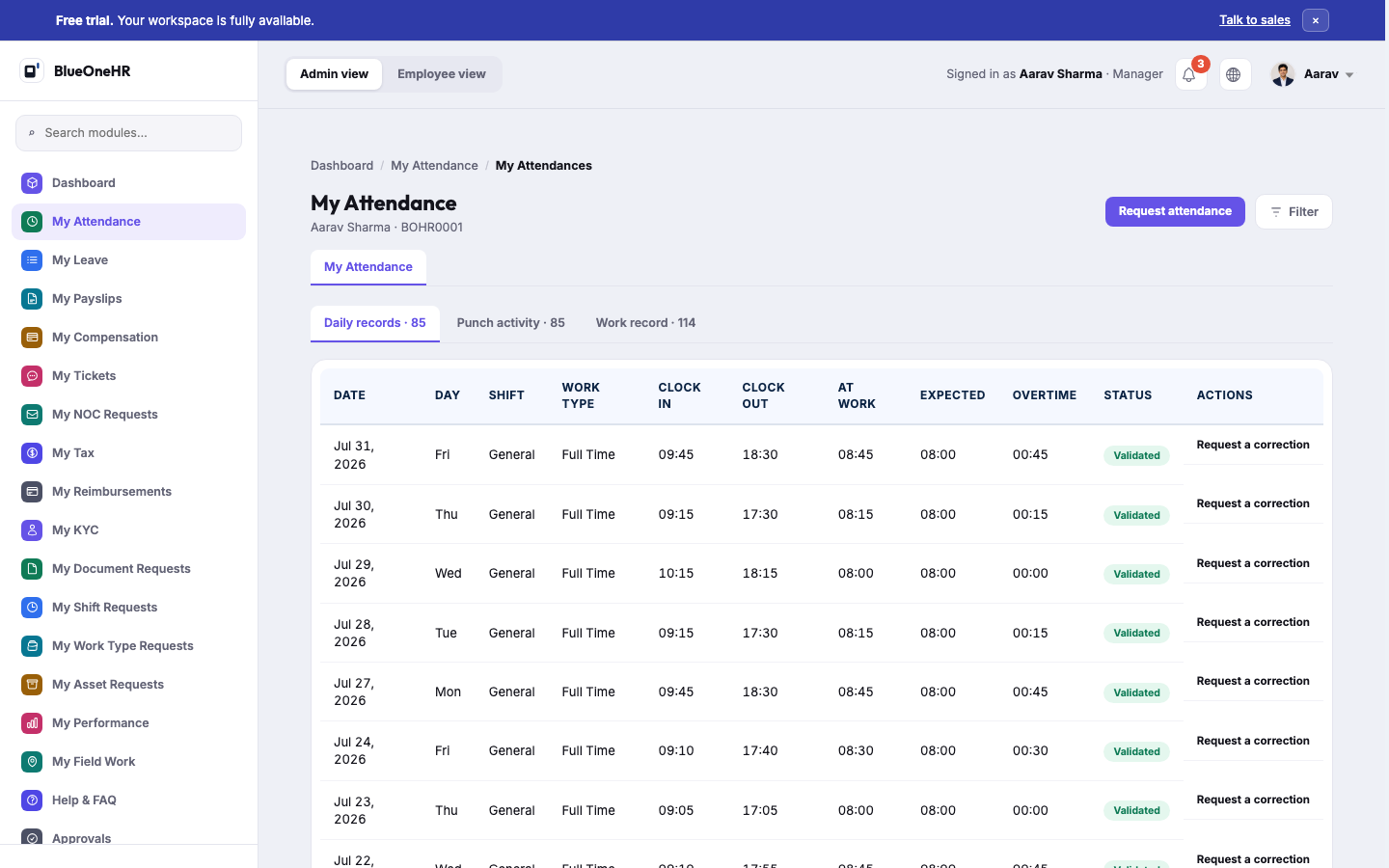
*(Screenshot added 2026-09-14, verified live on demo.blueonehr.com — this page predates the
screenshot pipeline built in the P0.5 pass. Every visible row on this account showed **Validated**,
consistent with the reviewing-attendance guidance's own before-payroll checklist.)*
## Daily records
The default view: one row per working day, and the one to use for almost everything.
| Column | What it tells you |
|---|---|
| Date | The working day. |
| At work | The hours actually recorded for you. |
| Expected | The hours your shift expected. |
| Overtime | Time beyond the expectation. |
| Status | Whether the day has been confirmed. |
The status is either **Validated**, meaning someone has confirmed the day, or **Pending
validation**, meaning nobody has looked at it yet. A day may additionally show **Change requested**,
which means you have asked for a correction and it is waiting to be reviewed.
Each row offers **Request a correction**. Once you have used it, the row shows **Awaiting review**
instead, so you can tell at a glance which days you have already raised.
## Punch activity
The raw log behind the daily records: every clock-in and clock-out, with its **Source**.
Use this when a daily total looks wrong and you want to see why. A missing clock-out shows here as
**Still clocked in**.
Where a punch crossed midnight, the date it actually happened on is shown next to the time, so an
overnight shift does not look like a mistake.
## Work record
How each day was counted for payroll.
A day marked **Draft** here has not been finalised yet. **That is not the same as being marked
absent** — it means the calculation is not closed. Days that have no record at all show as **Not
recorded**.
## Filtering
Each view can be narrowed to a date range, which is the quickest way to check a single month before
payroll closes.
## If a day is wrong
See [Requesting a correction](https://docs.blueonehr.com/books/attendance/page/requesting-a-correction). Employees do not edit attendance records
directly; corrections go through review, which is what keeps the record trustworthy for payroll.
# Attendance on the mobile app
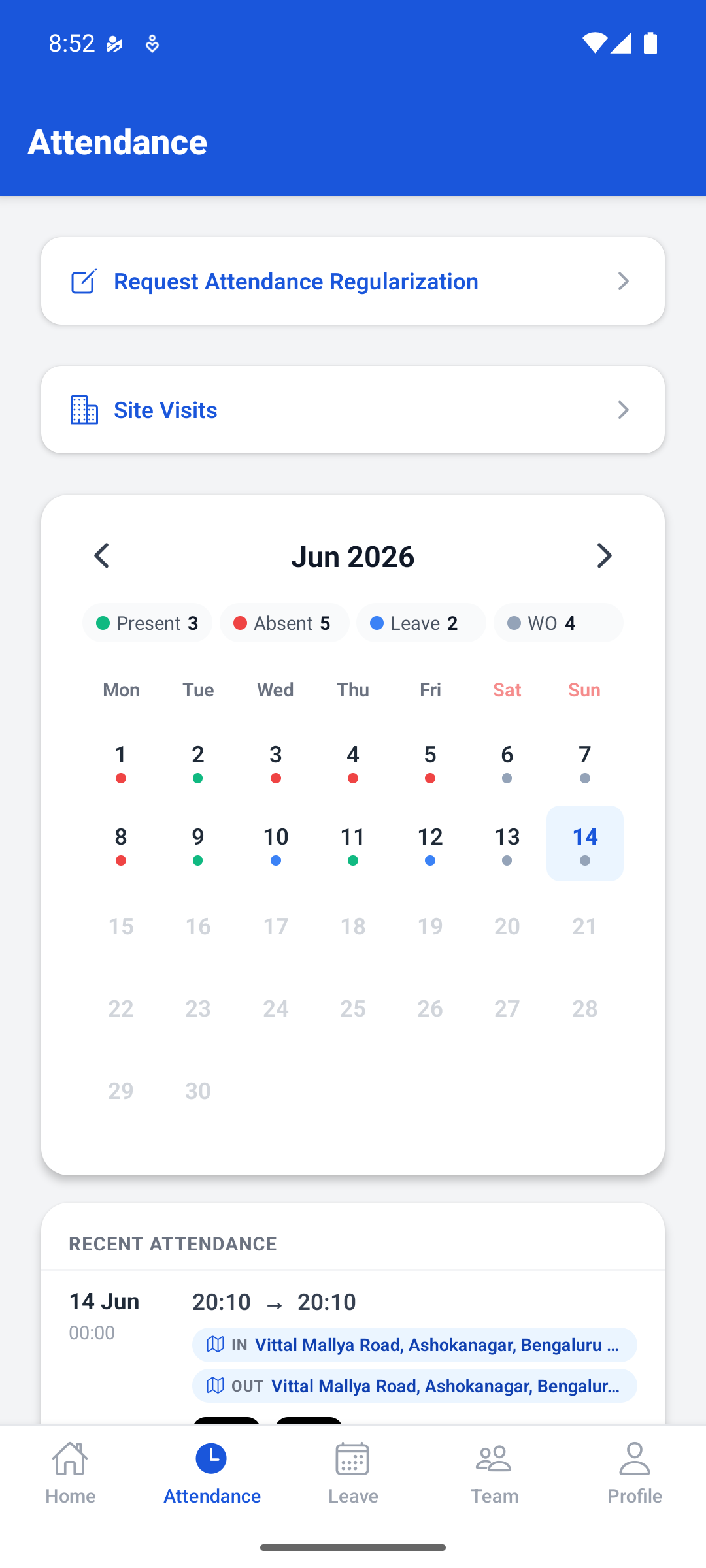
The **Attendance** tab in the mobile app is where most people record their working time, day to day.
## The month at a glance
The calendar summarises the current month, with a count of the days that were **Present**,
**Absent**, on **Leave**, or a weekly off (**WO**). Each day carries a coloured dot so you can see
the shape of the month without reading a table.
Move between months with the arrows either side of the month name.
## Recent attendance
Below the calendar, the most recent days are listed with the times recorded for them.
Where the app captured a location for a punch, the place is shown against **IN** and **OUT**. This
is a record of where the punch was made, not a judgement about it. How locations are checked against fences is in [How geo-fencing works](https://docs.blueonehr.com/books/geo-fence/page/how-geo-fencing-works).
## Requesting a correction
**Request Attendance Regularization** at the top of the tab raises a correction for a day whose
record is wrong. It goes to the same review queue as a correction raised on the web; see
[Requesting a correction](https://docs.blueonehr.com/books/attendance/page/requesting-a-correction).
## Site visits
If your role involves working away from your usual place of work, **Site Visits** records those
trips. It is separate from your ordinary daily attendance.
## If a punch does not appear
Give it a moment and pull the screen to refresh: the app and the web share one record, so anything
recorded on your phone should appear in a browser too.
If it is still missing, raise a correction rather than clocking in a second time. A duplicate punch
is harder for HR to unpick than a missing one.
# Requesting a correction
If a day's attendance is wrong — you forgot to clock out, a device did not register your finger, you
worked somewhere without your phone — you ask for it to be corrected. You do not edit the record
yourself.
## Raising a request
From **Attendance → My Attendances**, find the day and choose **Request a correction**. The date is
carried across for you.
You can also start from **Attendance → Attendance Requests → New Attendance Request**, or from
**Request Attendance Regularization** in the mobile app.
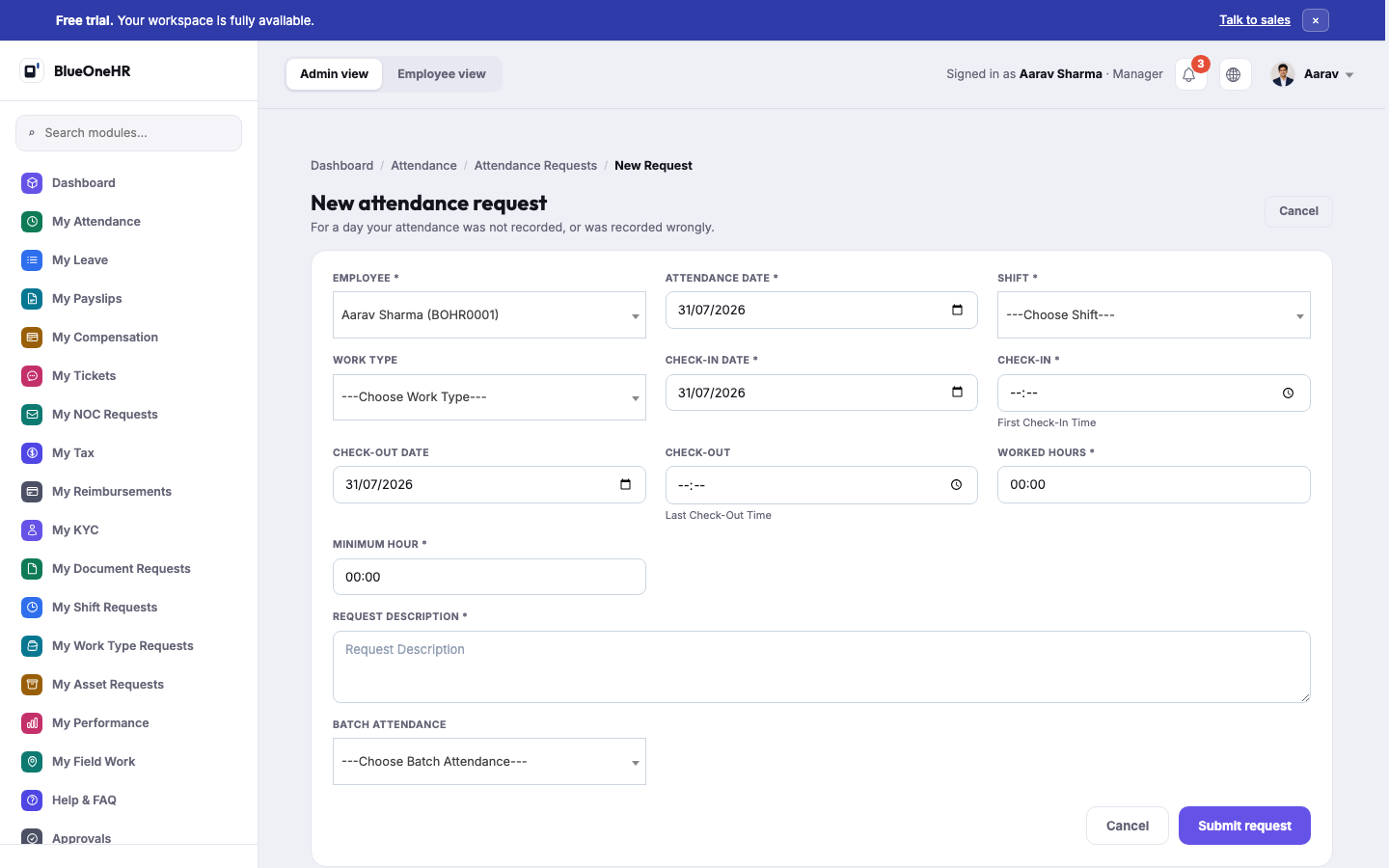
*(Screenshot added 2026-09-14, verified live on demo.blueonehr.com — this page predates the
screenshot pipeline built in the P0.5 pass. Note one field not described above: **Minimum Hour**,
seen pre-filled at 00:00 on the live form; its exact effect was not verified in this pass.)*
## What you are asked for
| Field | What to put |
|---|---|
| Attendance date | The day being corrected. |
| Shift | The shift that applied that day. |
| Work type | How you worked that day. |
| Check-in date and time | When you actually started. |
| Check-out date and time | When you actually finished. |
| Worked hours | The hours the corrected times add up to. |
| Description | **Why** the record needs changing. |
The check-in and check-out dates are asked for separately from the times because a shift can cross
midnight. A night shift finishing at 02:00 has a check-out date of the following day, and saying so
is what stops it being read as a sixteen-hour gap.
## Say why
The description is the part a reviewer actually reads. "Forgot to clock out, left at 18:30 after the
client call" is approved quickly. A blank description comes back as a question, which costs you a
day.
## After you submit
The day shows **Change requested**, and the action on the row becomes **Awaiting review**.
Your manager or HR reviews it. If it is approved, the record is updated and validated as normal. If
more information is needed, you will be asked for it.
## Good practice
- **Raise it early.** Corrections are far easier before payroll closes for the month.
- **One request per day.** Raise each affected day separately, so each can be judged on its own.
- **Do not clock in again to compensate.** A second punch on the wrong day creates a second problem.
# How attendance works
Attendance in BlueOneHR is built from **punches** — the individual moments you clocked in and
clocked out — which are gathered into one **daily record** per working day. Payroll reads the daily
records, not the raw punches.
Understanding that split explains most of what you see on the attendance screens, and most of
what confuses people the first time they look.
```
punches daily record work record
--------------- -------------------------- -----------------------
clock in 09:04 -> date, shift, clock in and -> how the day was counted
clock out 18:12 clock out, hours worked, for payroll
overtime
```
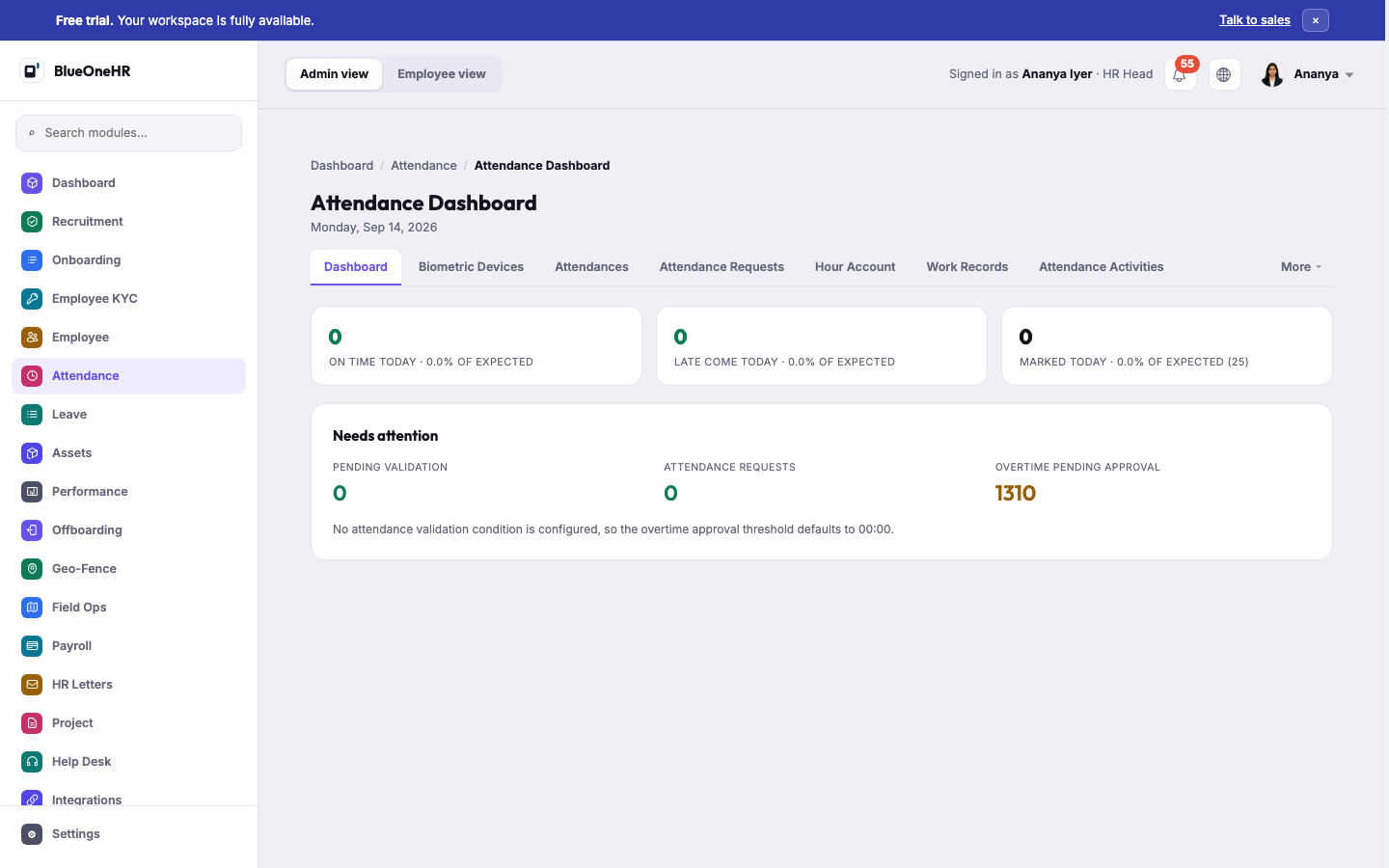
*(Screenshot added 2026-09-14 — this page predates the screenshot pipeline built in the P0.5 pass;
re-verified live on demo.blueonehr.com the same day it was added.)*
## Where a punch can come from
Every record carries a **Source**, which tells you how it was created:
| Source | Meaning |
|---|---|
| **Web** | Recorded in a browser. |
| **Mobile** | Recorded in the BlueOneHR mobile app. |
| **Biometric** | Sent by a biometric device such as a fingerprint or face reader. |
A day can be perfectly normal and still show a source you did not expect, for example if you clocked
in on a device at the door and out from the app.
## The shift you are measured against
Each day is compared against the **shift** assigned to you: the hours you were expected to work. The
attendance screens show your actual hours beside the expected hours, so a short day is visible as a
short day rather than as a bare number.
**Overtime** is time worked beyond that expectation. It is recorded automatically, and in most
organisations it is approved by a manager before it counts.
## Validation
A daily record is not final the moment it is created. Someone in HR, or your manager, **validates**
it. Until then it shows as **Pending validation**.
This matters more than it sounds: a day that has not been validated is not the same as a day you
were absent. It only means nobody has confirmed it yet.
## If something is wrong
You do not edit your own attendance record. You ask for a correction, and someone reviews it. See
[Requesting a correction](https://docs.blueonehr.com/books/attendance/page/requesting-a-correction).
## What to read next
- [Checking your attendance](https://docs.blueonehr.com/books/attendance/page/checking-your-attendance)
- [Attendance on the mobile app](https://docs.blueonehr.com/books/attendance/page/attendance-on-the-mobile-app)
- [Requesting a correction](https://docs.blueonehr.com/books/attendance/page/requesting-a-correction)
- [Attendance settings](https://docs.blueonehr.com/books/attendance/page/attendance-settings) (administrators)
# For Administrators
Reviewing what the organisation has recorded, and where the records come from.
# Reviewing and validating attendance
Attendance records become payroll figures, so somebody has to confirm them. In BlueOneHR that
confirmation is called **validation**, and it is the main thing an HR administrator does in this
module each month.
## Start at the dashboard
**Attendance → Dashboard** opens on what needs attention rather than on statistics:
- **Pending validation** — days recorded but not yet confirmed.
- **Attendance requests** — corrections employees have raised.
- **Overtime pending approval** — extra hours waiting on a decision.
Work these down and the month closes cleanly. Leave them and payroll inherits the backlog.
## The screens
| Screen | Use it for |
|---|---|
| **Attendances** | Every daily record in the organisation. The main review surface. |
| **Attendance Requests** | Corrections employees have raised, with the reason they gave. |
| **Attendance Activities** | The raw punch log. Use it when a total looks wrong. |
| **Hour Account** | Hours accumulated over a period. |
| **Work Records** | How each day was counted for payroll. |
| **Late Come Early Out** | Days that started late or finished early. |
| **Bulk Import Attendance** | Loading records from a spreadsheet. |
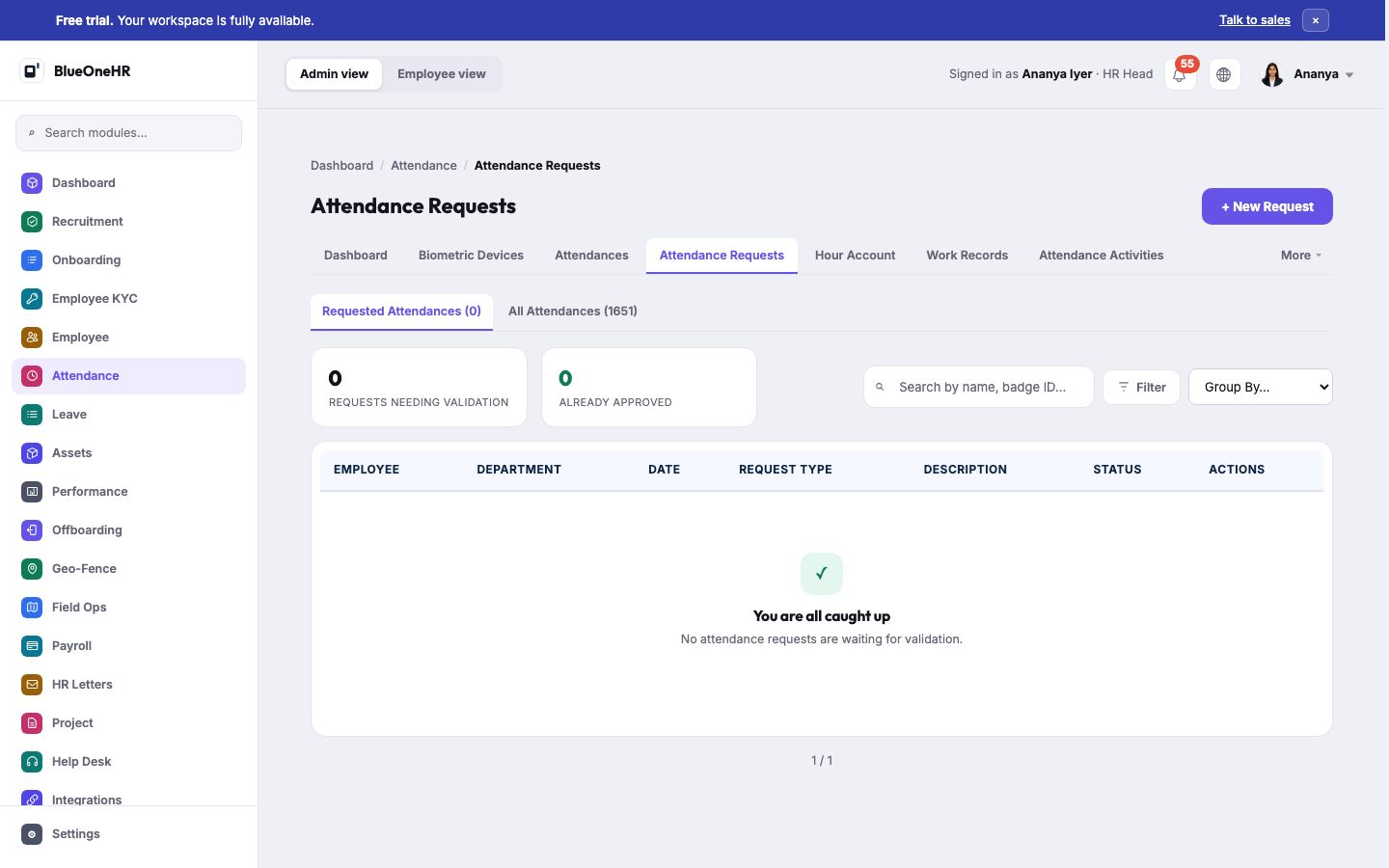
*(Screenshot added 2026-09-14, verified live on demo.blueonehr.com — this page predates the
screenshot pipeline built in the P0.5 pass. On this workspace, "All Attendances" showed 1,651 real
daily records and 0 requests needed validation at the time of capture.)*
## Validating
Confirm a day and it moves from **Pending validation** to **Validated**. Until then it is neither
approved nor rejected: it is simply unreviewed, and it should not be read as an absence.
Work through **Attendances** rather than waiting for employees to chase you. Most people never look
at their own record until a payslip surprises them.
## Handling correction requests
A request carries the employee's proposed times and, importantly, their reason.
Check it against **Attendance Activities**. The raw punches usually settle the question: a missing
clock-out looks very different from a day with no punches at all.
Approving a request updates the daily record, and it can then be validated like any other day.
## Before payroll closes
A short checklist that prevents most payroll queries:
1. Clear **Pending validation** for the period.
2. Clear outstanding **Attendance Requests**, including the ones you intend to reject.
3. Decide the **overtime** awaiting approval.
4. Spot-check **Work Records** for days marked **Draft**, which have not been finalised.
## A word on bulk import
**Bulk Import Attendance** exists for migrations and for sites without a device. It writes real
attendance records, so treat a bad import as you would a bad payroll run: check a small batch first.
# Biometric devices
Where a site has a fingerprint or face reader at the door, BlueOneHR can take attendance straight
from it. Punches then arrive with a **Source** of **Biometric**, and are treated exactly like
punches made on the web or in the app.
Devices are managed at **Attendance → Biometric Devices**.
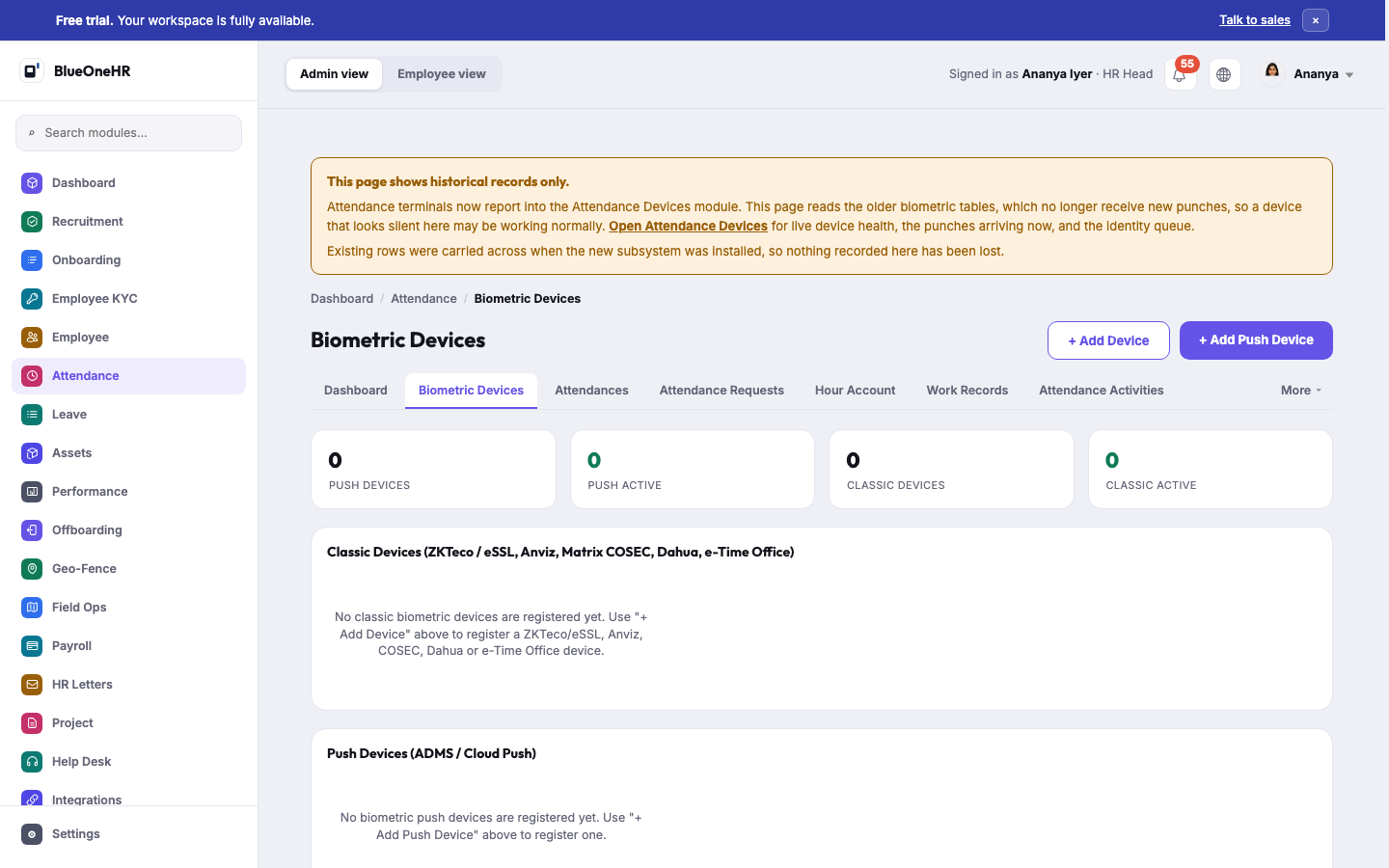
> **This screen is labelled legacy by the product itself. Read this before anything else on the
> page.** Seen on the demo workspace as an HR Head. The page carries
> its own banner, shown above the breadcrumb:
>
> *"This page shows historical records only."*
>
> *"Attendance terminals now report into the Attendance Devices module. This page reads the older
> biometric tables, which no longer receive new punches, so a device that looks silent here may be
> working normally. Open Attendance Devices for live device health, the punches arriving now, and the
> identity queue."*
>
> *"Existing rows were carried across when the new subsystem was installed, so nothing recorded here
> has been lost."*
The banner's **Open Attendance Devices** link goes to the newer **Attendance Devices** module
(`/attendance-devices/`), which needs its own permission, `attendance_devices.view_attendancedevice`.
Without it the module shows a permission-denied screen that names the missing permission. The module
is not listed in the Attendance sub-navigation. **Do not treat the rest of this page as the current
recommended way to manage biometric devices**: it describes the legacy screen, and the newer module
is not yet documented here (see **Not confirmed** below).
## Two families of device
They differ in which side starts the conversation, and that difference decides what your network
has to allow.
**Push devices**, which speak the ADMS protocol. The device connects out to BlueOneHR and sends
punches as they happen. Nothing needs to reach into your network from outside, which is usually the
easier arrangement.
**Classic devices**, which BlueOneHR polls on a schedule. Supported families include ZKTeco and
eSSL, Anviz, Matrix COSEC, Dahua, and e-Time Office. BlueOneHR connects to the device to collect
punches, so it must be able to reach the device on your network.
Both kinds appear on the same Biometric Devices page.
## Matching a device to your people
A reader does not know your employees. It knows **badge IDs** — the number stored against a finger
or a face on the device itself.
So the step that makes a device useful is mapping each badge ID to the right employee. Until that is
done, punches still arrive and are stored, but they belong to nobody and no attendance is created
from them.
Open a device and use its **Employees** view to make the mapping. Existing punches for a badge are
matched to the employee once the mapping exists, so a device installed before the mapping was
finished does not lose the days in between.
## When punches are not appearing
Check in this order. It is roughly the order of likelihood.
1. **Is the badge ID mapped to an employee?** By far the most common cause.
2. **Is the device reaching BlueOneHR, or BlueOneHR reaching the device?** Which direction depends on
the family, above.
3. **Look at the device's logs** in BlueOneHR. Punches that arrived but produced no attendance record
are visible there, which distinguishes a network problem from a mapping problem.
That distinction is worth making before escalating: "the device is offline" and "the device is fine
and nobody mapped the badges" look identical from the attendance screens and need completely
different fixes.
## What a device does not change
A biometric punch is still just a punch. It is gathered into a daily record, compared against the
shift, and validated like any other. See [How attendance works](https://docs.blueonehr.com/books/attendance/page/how-attendance-works).
## Not confirmed
- **The Attendance Devices module.** Its screens were not seen with an account that holds its
permission, so live device health, the punches arriving now and the identity queue are not
documented, and this page describes the legacy Biometric Devices screen only.
# Attendance settings
**Settings → Attendance** holds the rules behind the attendance records: when someone counts as late, how much of a day is approved automatically, who may clock in, and from where. This page says what each tab controls.
Most of these settings change how the next punches are treated. They do not rewrite records that already exist.
## Before you start
- You need **Settings** in the sidebar. Viewing each tab and changing it are separate permissions. In the test workspace used for this page, the HR Head user group holds both for every tab. The Manager user group can view some attendance rules but cannot change any of them.
- The tabs are in the second row under **Settings → ATTENDANCE**: **Track Late Come & Early Out**, **Attendance Break Point**, **Check In/Check Out**, **Grace Time**, **Biometric Attendance**, **IP Restriction** and **Geo & Face Config**. Six show in the row and the seventh sits under **More**.
- **Do not change these on a real workspace to see what happens.** IP restriction and geo-fencing can stop people clocking in.
## Track Late Come & Early Out
A single switch, shown as **Enabled** with a **Disable** button. The screen says: "By enabling this, late arrivals and early departures of employees are tracked on their attendance."
When the switch is off, clocking in and clocking out no longer record a late come or an early out. Records that already exist are not removed.
## Attendance Break Point
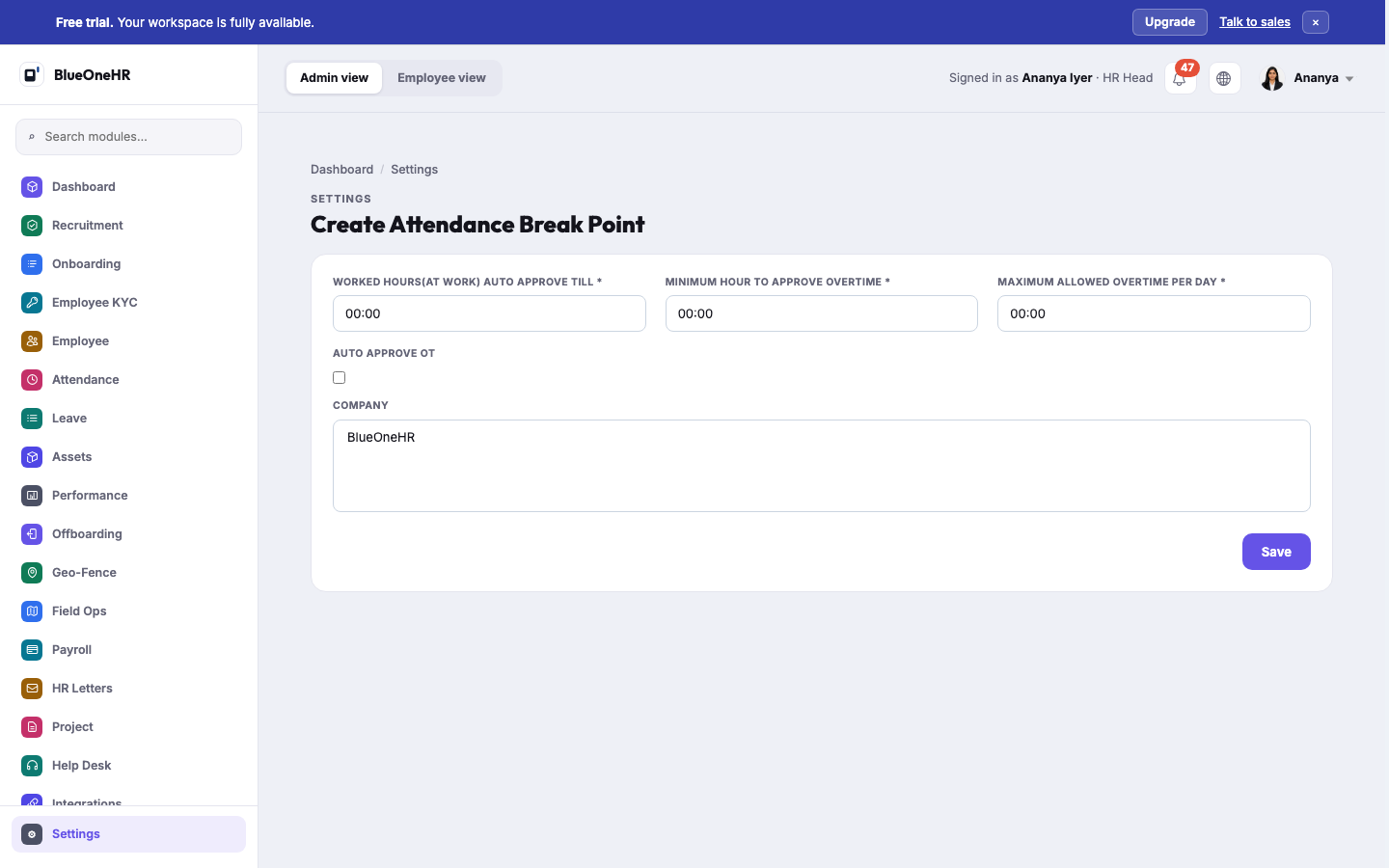
This is the rule for what counts as a normal day and what needs a person to look. The list has the columns **Auto approve till**, **Min. overtime to approve**, **Overtime cutoff**, **Auto approve OT** and **Company**, and **+ Create Break Point** opens the form above. Only one may exist: creating a second is refused with "You cannot add more conditions."
| Form field | What it does |
|---|---|
| **Worked hours (at work) auto approve till** | At clock-out, a day whose worked hours are at or below this is marked validated automatically. A longer day is left for someone to validate. With no break point at all, 09:00 is used. |
| **Minimum hour to approve overtime** | The overtime lists and counts use it as the smallest overtime worth putting forward for approval. With no break point, the threshold is 00:00. |
| **Maximum allowed overtime per day** | Overtime credited for a day is capped at this. Longer overtime is recorded as this value. It is shown in the list as **Overtime cutoff**. |
| **Auto approve OT** | When ticked, a day whose overtime reaches the minimum is approved for overtime without anyone doing it. |
| **Company** | Which companies the rule applies to. |
The Attendance dashboard tells you when none of this is configured. Under **Needs attention**, next to **Pending validation**, **Attendance requests** and **Overtime pending approval**, it prints:
> No attendance validation condition is configured, so the overtime approval threshold defaults to 00:00.
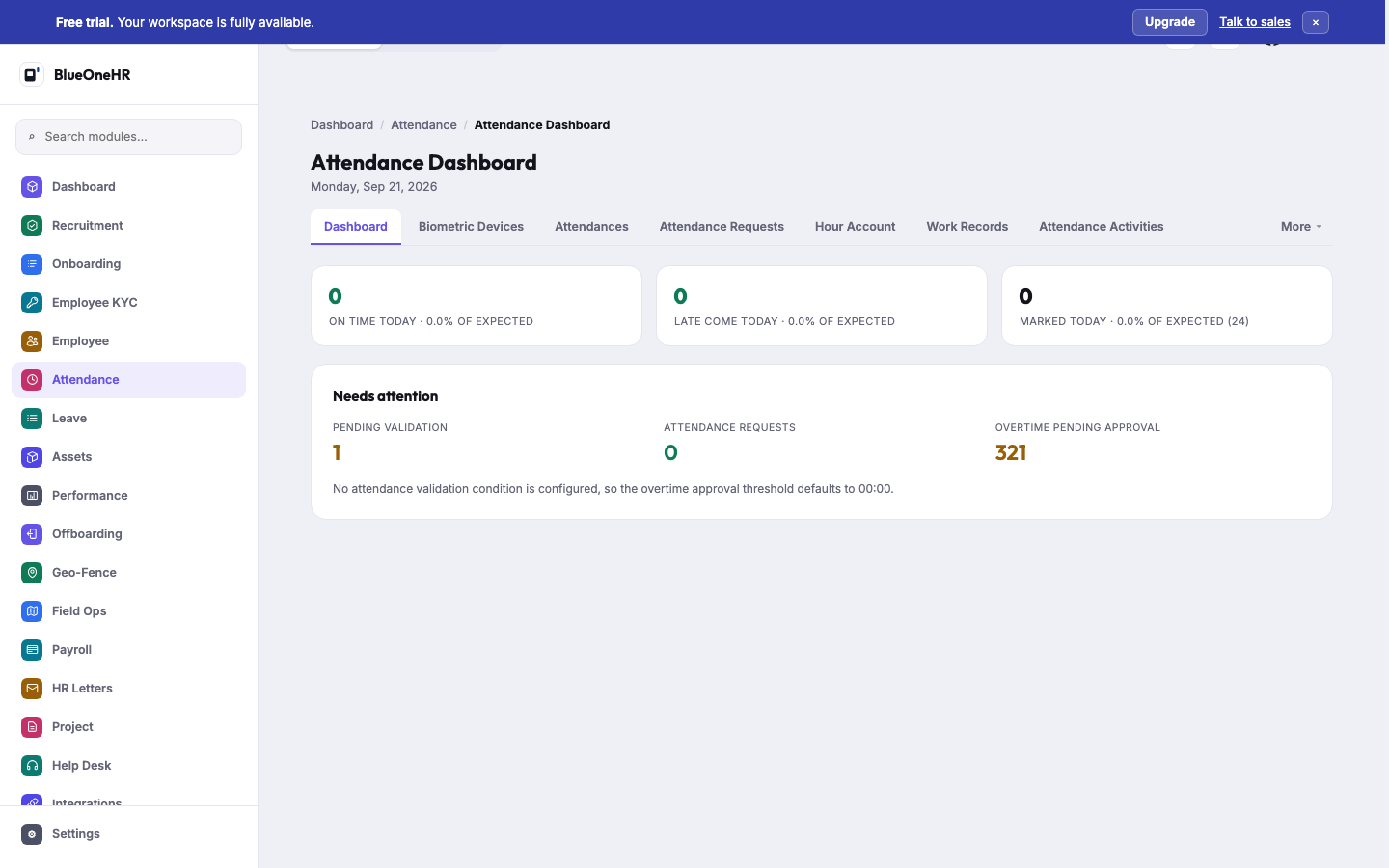
The note disappears once a break point exists.
## Check In/Check Out
A table with one row per company (and one for **All company**), each with an **Enabled** or **Disable** button. It is the switch for clocking in and out on the web. The web clock-in only proceeds when the setting for the company selected for your session is enabled. Punches that arrive from a biometric device do not depend on it.
## Grace Time
Grace time is the allowance before someone is called late or early. There are two lists on the tab: **Default Grace Time** and **Grace Time (per shift)**, with **+ Create Default Grace Time** and **+ Create Grace Time**.
The form has **Allowed time**, **Allowed clock-in**, **Allowed clock-out**, **Company** and, for a per-shift grace time, **Shifts**. The tab lists each grace time with **Active** and clock-in and clock-out switches.
The grace time is subtracted from the clock-in time before it is compared with the shift start, so a person inside the allowance is not recorded as late. A grace time set on a shift takes priority over the default. Until one is created, the lists read "There is no default grace time at this moment." and "There is no grace time at this moment."
## Biometric Attendance
One master switch, shown as **Activated** with a **Deactivate** button. The screen describes it as the master switch for ADMS push biometric devices: turning it off stops every push device from recording attendance, whatever the individual devices are set to. For the devices themselves, see [Biometric devices](https://docs.blueonehr.com/books/attendance/page/biometric-devices).
## IP Restriction
**IP Restriction Status** is **Enabled** or **Disabled**. When it is on, the screen says, "attendance can only be marked from the IP addresses and network prefixes listed below. Everywhere else is refused." Below it, **Add Allowed IP / Network Prefix** takes several addresses or prefixes separated by commas, and **Add IP** saves them into a list.
The check runs when someone clocks in on the web and answers "You cannot mark attendance from this network". Punches from a biometric device skip it, and it is not applied to clocking in from the mobile app, so IP restriction is a rule for web clock-in.
## Geo & Face Config
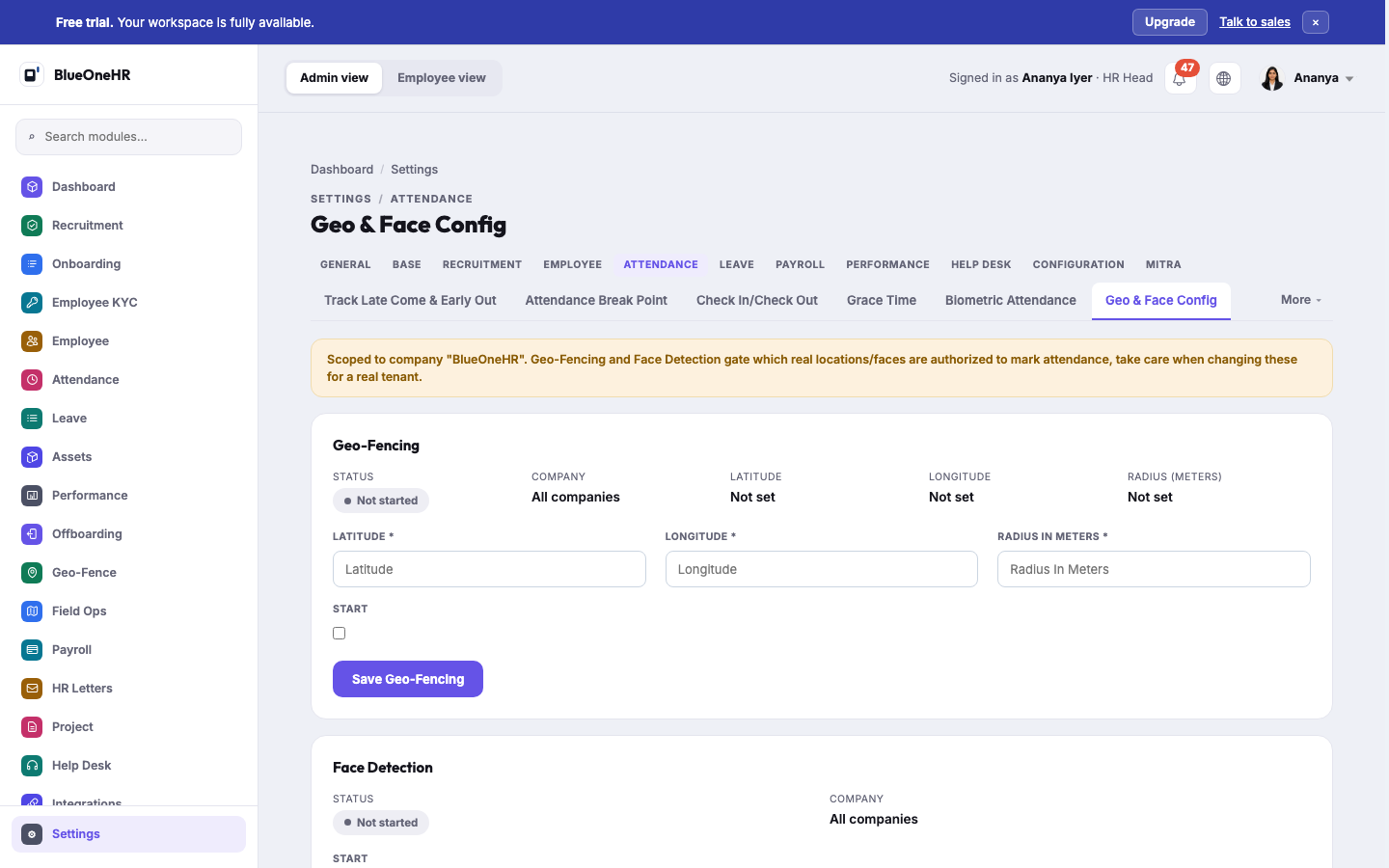
A warning at the top says that Geo-Fencing and Face Detection gate which real locations and faces are authorized to mark attendance.
- **Geo-Fencing** is one circle for the company: **Latitude**, **Longitude**, **Radius in meters** and a **Start** box, saved with **Save Geo-Fencing**. When **Start** is on, the mobile clock-in and clock-out check the phone's position against the circle and answer "Outside the geofence" with an error when it is outside. This is a different thing from the named fences under the **Geo-Fence** module; see [How geo-fencing works](https://docs.blueonehr.com/books/geo-fence/page/how-geo-fencing-works).
- **Face Detection** is a **Start** switch, saved with **Save Face Detection**. The server passes the switch to the mobile app when someone signs in. What the app then does with it was not confirmed.
Both show **Not started** until switched on.
## What you should see
Each tab shows its current state in words (**Enabled**, **Activated**, **Disabled**, **Not started**) and the controls to change it. A change is confirmed with a message at the top of the page, for example "Tracking late come early out enabled successfully" .
## If it does not work
- **The Attendance dashboard says the overtime threshold defaults to 00:00.** That is the note above; create a break point to set one.
- **The break point form will not save a second rule.** Only one is allowed. Edit the existing one.
- **You cannot find Geo & Face Config.** It is under **More** in the tab row.
## Not confirmed
- **Switching on and saving** any of these settings was not tried live, so the effects above were not observed as behaviour.
- **What the mobile app does with Face Detection**, and whether the app enforces anything beyond the server's location check.
- **How a workspace with several companies applies these settings.** Only one company was in use when the pages were checked.
- **Whether the mobile app applies IP restriction** through some route other than web clock-in.
## Related
- [How attendance works](https://docs.blueonehr.com/books/attendance/page/how-attendance-works)
- [Reviewing and validating attendance](https://docs.blueonehr.com/books/attendance/page/reviewing-and-validating-attendance)
- [Biometric devices](https://docs.blueonehr.com/books/attendance/page/biometric-devices)
- [How geo-fencing works](https://docs.blueonehr.com/books/geo-fence/page/how-geo-fencing-works)
- [Attendance on the mobile app](https://docs.blueonehr.com/books/attendance/page/attendance-on-the-mobile-app)