# Company & Settings
Company details, departments and job roles, and the settings every module reads from.
# Company, departments and job roles
Before you add employees, it helps to have your organisation's structure in place: the company
record itself, its departments, and the job positions and job roles people will be assigned to.
These live under **Settings → Base**.
## Company
**Settings → Base → Company** lists the company record — name, headquarters flag, city, country and
date format. Your organisation's primary record is marked **HQ**. Use **Edit** to correct it, or
**Add Company** if your BlueOneHR workspace covers more than one legal entity.
This section is marked **Sensitive** in the product itself: company identity underlies every other
record, so changes here are worth making deliberately rather than as a quick fix.
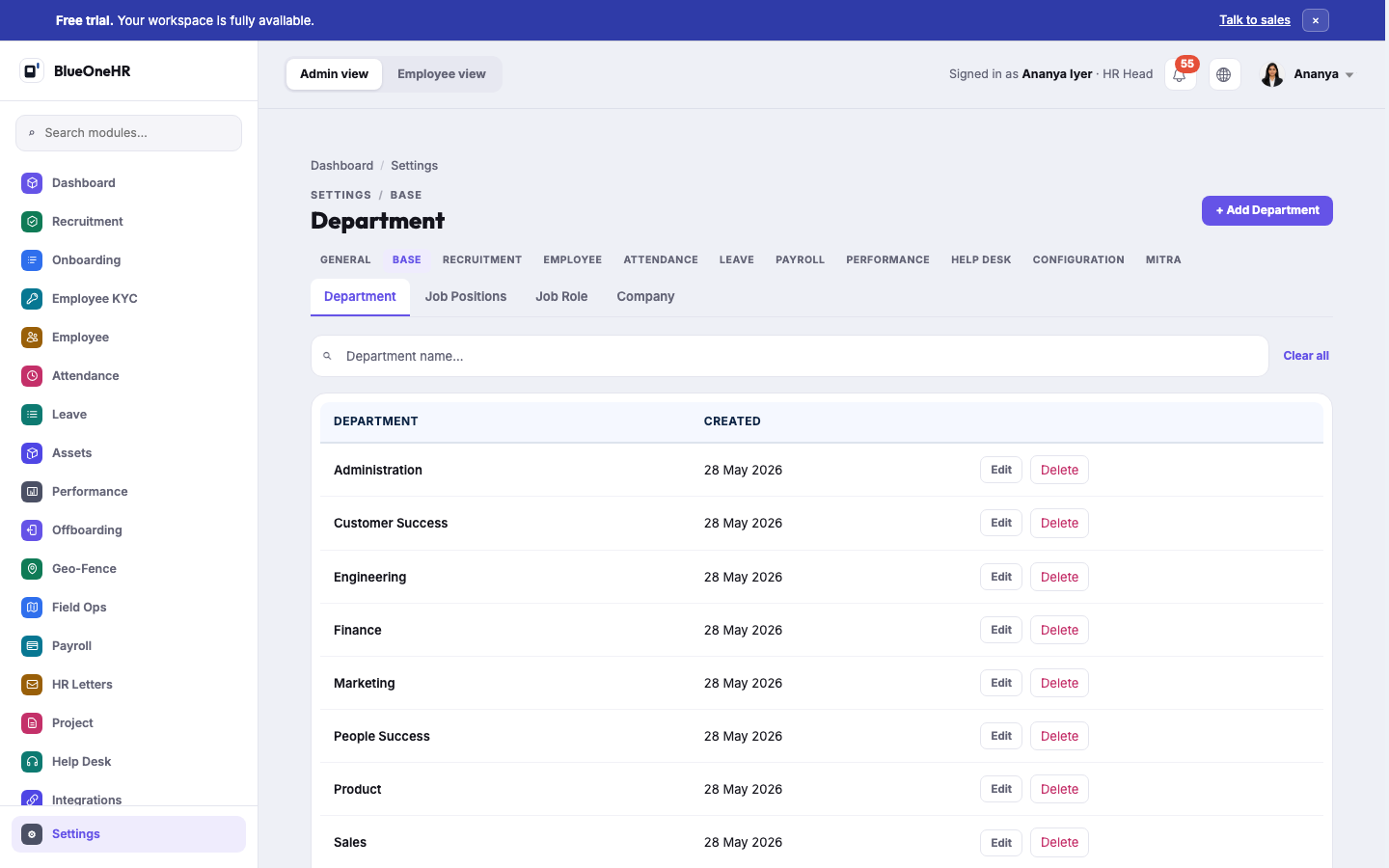
The screenshot above shows the **Department** tab; **Company** is the adjacent tab carrying the row
described above.
## Departments
**Settings → Base → Department** is a flat list of department names — Engineering, Finance,
Marketing, and whatever else your organisation uses. **Add Department** to create one; **Edit** or
**Delete** an existing one. Departments are what the Employees list groups and filters by, and what a
contract records against an employee.
## Job Positions and Job Role
Alongside Department are **Job Positions** and **Job Role** — two related but separate lists.
BlueOneHR keeps them apart deliberately: a job **position** is the seat itself (for example,
"Software Engineer"), while a job **role** groups the responsibilities and permissions that come with
it. Set both up before you need to assign an employee to either.
## What happens next
None of this is required before you can add a single employee — department and job position fields
on the employee form are simply blank until you create the values first. It matters most once you
have more than a handful of people, when filtering, reporting and payroll all lean on this structure
being in place.
## Related
- [Adding an employee](https://docs.blueonehr.com/books/employees/page/adding-an-employee)
- [General settings](https://docs.blueonehr.com/books/company-settings/page/general-settings)
# General settings
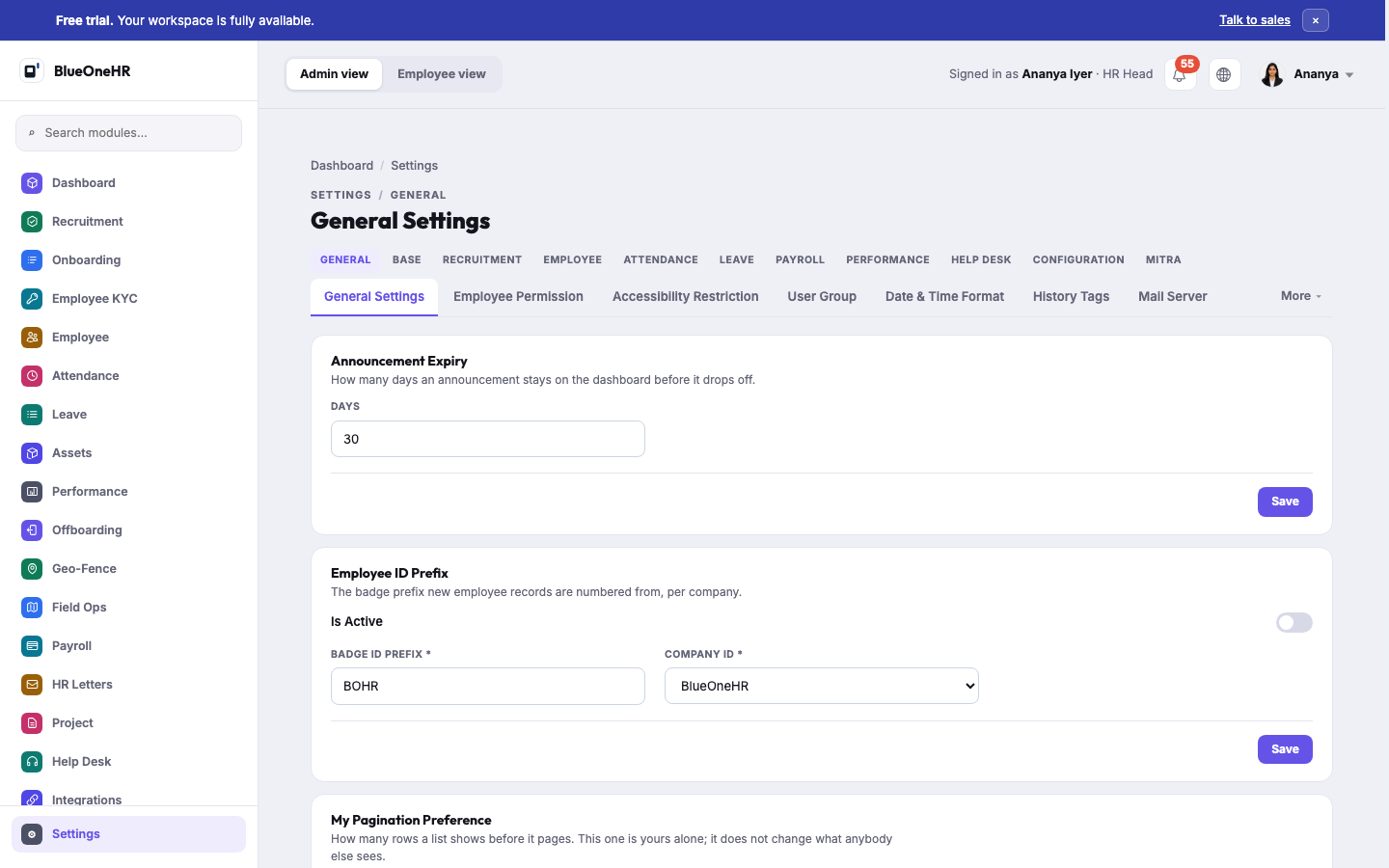
**Settings → General** is the home for organisation-wide behaviour that does not belong to any one
module: how long announcements stay visible, how employee badge IDs are numbered, who can do what,
and how dates and times are displayed.
## What lives here
| Setting | What it controls |
|---|---|
| **Announcement Expiry** | How many days an announcement stays on the dashboard before it drops off. |
| **Employee ID Prefix** | The badge prefix new employee records are numbered from, per company — for example `BOHR` producing `BOHR0022`. Can be turned off if you assign badge IDs a different way. |
| **My Pagination Preference** | How many rows a list shows before it pages, for your own account only — it does not change what anyone else sees. |
| **Employee Permission** | Permissions granted to one specific employee outside of a group — see [Roles and permissions](https://docs.blueonehr.com/books/employees/page/roles-and-permissions). |
| **User Group** | Named bundles of permissions applied to several employees at once — see [Roles and permissions](https://docs.blueonehr.com/books/employees/page/roles-and-permissions). |
| **Accessibility Restriction** | Accessibility-related access controls. |
| **Date & Time Format** | How dates and times are displayed across the product. |
## The other settings tabs
**General** is one of several top-level tabs under Settings, alongside **Base** (company,
departments, job roles — see [Company, departments and job roles](https://docs.blueonehr.com/books/company-settings/page/company-departments-and-job-roles)),
**Recruitment**, **Employee**, **Attendance**, **Leave**, **Payroll**, **Performance**, **Help Desk**,
**Configuration**, and **Mitra**. Each module keeps its own configuration under its own tab rather
than everything being flattened into one long settings page — if you are looking for a leave-type
setting, it lives under the Leave tab, not General.
## Related
- [Company, departments and job roles](https://docs.blueonehr.com/books/company-settings/page/company-departments-and-job-roles)
- [Roles and permissions](https://docs.blueonehr.com/books/employees/page/roles-and-permissions)
# Multiple approvals
**Settings → Configuration → Multiple Approvals** is where a condition is defined that sends a leave request through extra approvers. This page tours the list and the form for a new condition.
## Open it
1. Select **Settings** in the sidebar.
2. Select the **Configuration** tab in the row of tabs under the page title (the row runs from **General** to **Mitra**).
3. **Multiple Approvals** opens as the only sub-tab.
## The conditions list
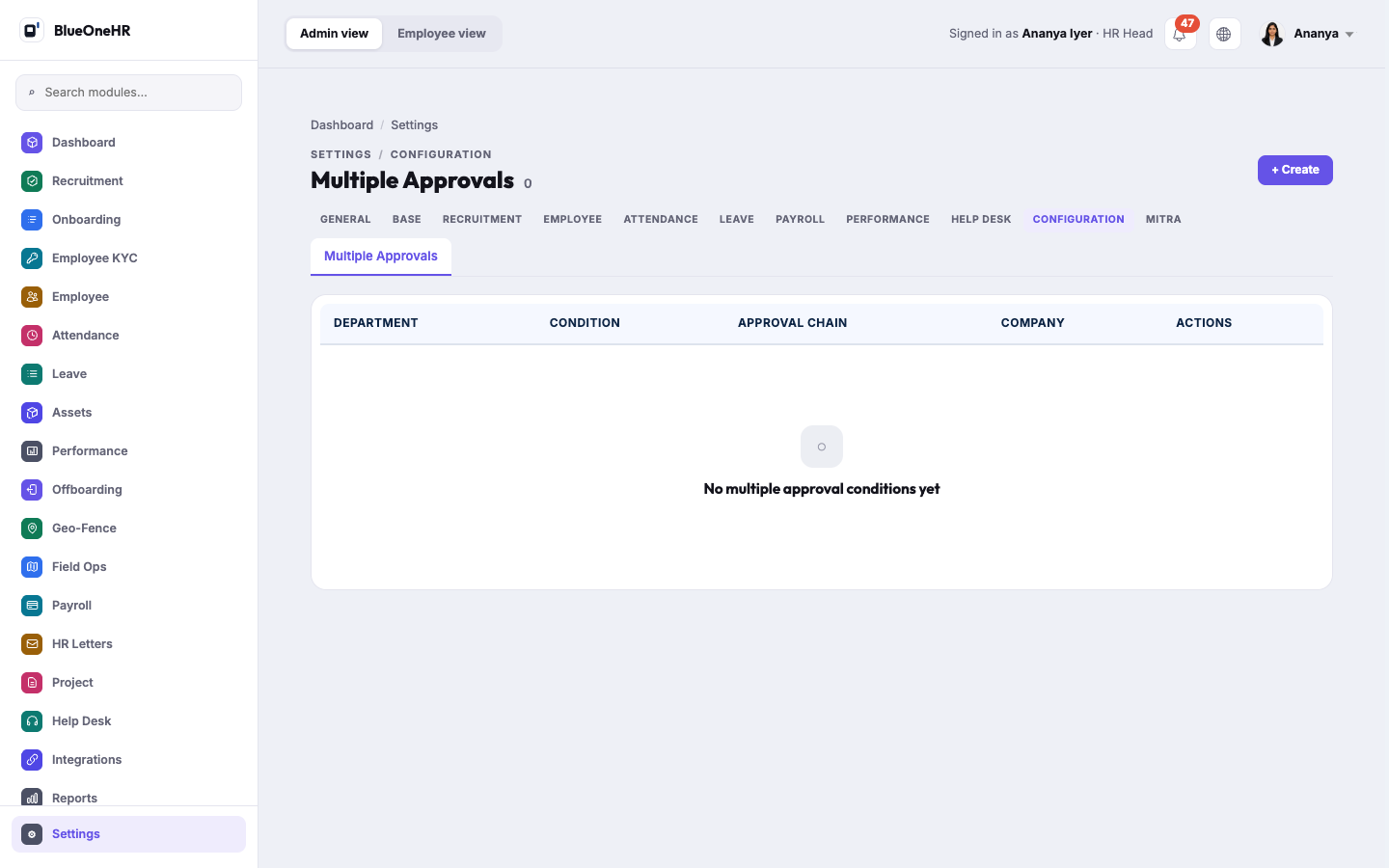
The page shows a count beside the title and a table with the columns **Department**, **Condition**, **Approval Chain**, **Company** and **Actions**. When nothing has been set up, the count reads 0 and the table says **No multiple approval conditions yet**. A **+ Create** button sits at the top right.
## The Create form
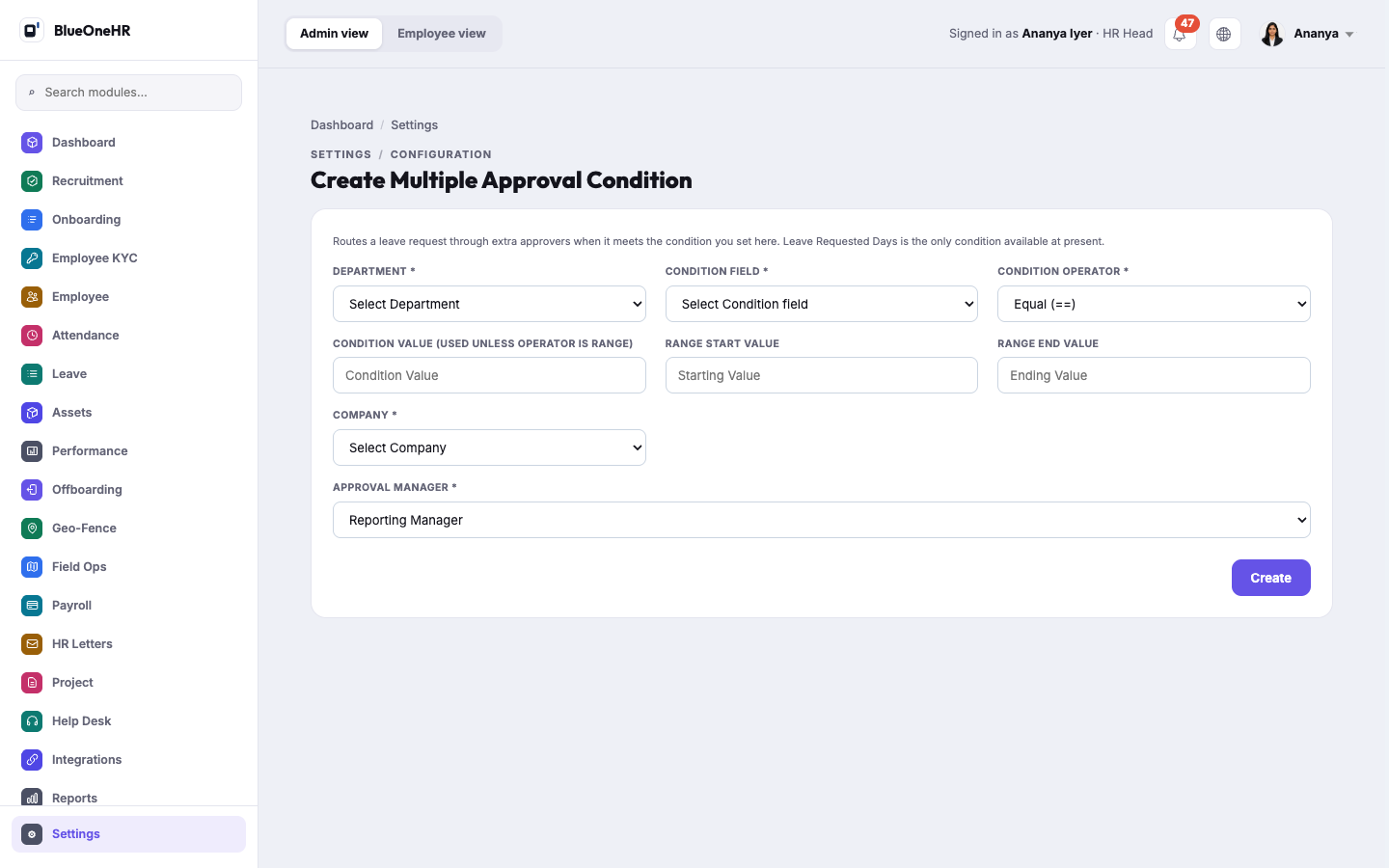
**+ Create** opens **Create Multiple Approval Condition**. The line at the top of the form reads: "Routes a leave request through extra approvers when it meets the condition you set here. Leave Requested Days is the only condition available at present."
| Field | Notes |
|---|---|
| **Department** (required) | Starts on **Select Department**. |
| **Condition Field** (required) | Starts on **Select Condition field**; the only choice is **Leave Requested Days**. |
| **Condition Operator** (required) | Starts on **Equal (==)**. The choices are Equal, Not Equal, Range, Less Than, Greater Than, Less Than or Equal To, Greater Than or Equal To and Contains. |
| **Condition Value** | Used unless the operator is **Range**. |
| **Range Start Value** and **Range End Value** | The two boxes for a range. |
| **Company** (required) | Starts on **Select Company**. |
| **Approval Manager** (required) | A list that starts on **Reporting Manager**, followed by employees. |
The **Create** button at the bottom of the form saves the condition.
## Not confirmed
- No condition was saved while writing this page, so how a saved condition looks in the list, what **Actions** offers, and how a condition changes the way a leave request is approved were not tried. For what an approver sees, see [Approving and rejecting leave](https://docs.blueonehr.com/books/leave/page/approving-and-rejecting-leave).
- Whether more than one approval manager can be chosen when a condition is first created was not confirmed; the form shows a single **Approval Manager** field.
- Access for roles other than HR Head was not checked.
## Related
- [Approving and rejecting leave](https://docs.blueonehr.com/books/leave/page/approving-and-rejecting-leave)
- [General settings](https://docs.blueonehr.com/books/company-settings/page/general-settings)