# Employee Self-Service
What every employee sees about their own record, pay, leave and requests.
# Your own dashboard
Everything under **My…** in the sidebar is scoped to you: your own attendance, your own leave, your
own pay. It looks the same whether you are an individual contributor or a manager. A manager simply
has **Approvals** as well, for the people who report to them.
## Which page you land on
Signing in does not take everyone to the same place. It depends on your role:
| You are | You land on |
|---|---|
| An employee | Your own personal summary, described below. |
| An HR Head or HR Ops user | The company-wide **Control Center**, with the full administrator sidebar (Recruitment, Onboarding, Employee, Attendance, Payroll and so on). Your own personal pages are one click away: see the section **Admin view and Employee view** below. |
| A manager | Depends on what your user group is allowed to view. A manager whose group holds no organisation-wide view permissions is shown the personal summary; a manager whose group does hold them lands on the **Control Center**. |
The rest of this page describes the personal summary and the **My…** sidebar, which is what an
employee or a manager working from their own pages sees.
## Your dashboard
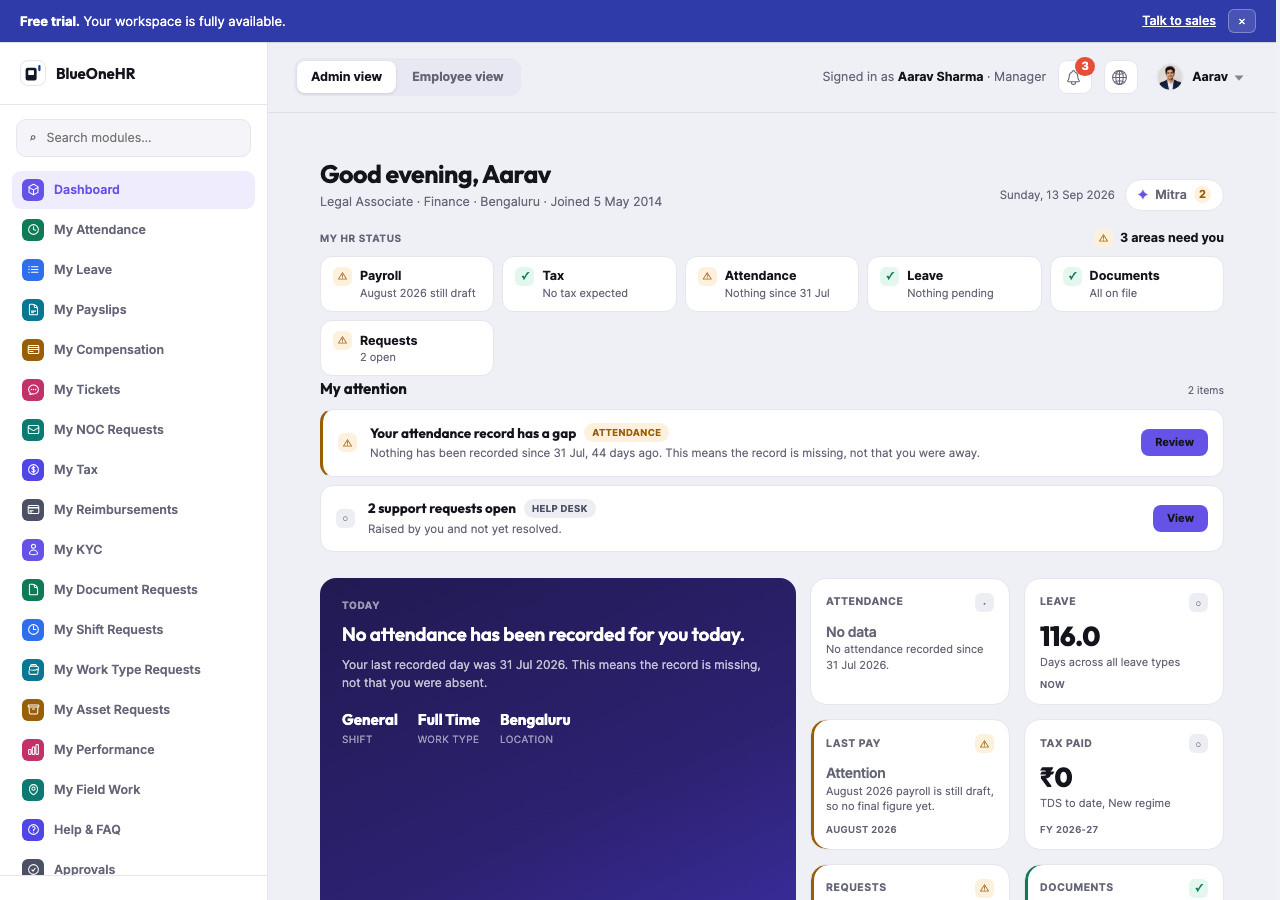
The personal summary shows:
- **My HR Status** — a row of cards: Payroll, Tax, Attendance, Leave, Documents, and (if you have
any open requests) a Requests card. Each carries its own state rather than a single generic
"all good" — for example Payroll can show a run still in draft while Attendance separately shows
nothing recorded.
- **My attention** — specific things that need a look, each explaining *why* it is flagged. A gap in
your attendance record is shown as **"this means the record is missing, not that you were away"**
rather than as a bare warning, which matters: a missing punch and an unapproved absence look
identical in a lesser dashboard and are not the same problem.
- A **Today** panel with your shift, work type and location for the day, plus attendance, leave, last
pay and tax-paid summaries.
## What each screen covers
The sidebar of a manager. Its order is: Dashboard, My Attendance,
My Leave, My Payslips, My Compensation, My Tickets, My NOC Requests, My Tax, My Reimbursements, My KYC,
My Document Requests, My Shift Requests, My Work Type Requests, My Asset Requests, My Performance, My
Field Work, Help & FAQ, Approvals. An employee sees the same list without **Approvals**. The table
groups the five request queues together.
| Screen | What it shows |
|---|---|
| **Dashboard** | The personal summary above. |
| **My Attendance** | Your own clock records and corrections — see [Checking your attendance](https://docs.blueonehr.com/books/attendance/page/checking-your-attendance). |
| **My Leave** | Your leave requests and balance — see [Applying for leave](https://docs.blueonehr.com/books/leave/page/applying-for-leave). |
| **My Payslips** | Every payslip issued to you, with View and PDF actions. |
| **My Compensation** | How your pay is structured, beyond the single net-pay figure on a payslip. |
| **My Tickets** | The Help Desk **Tickets** list: support requests you have raised. See [Help Desk and FAQs](https://docs.blueonehr.com/books/help-desk-faq/page/help-desk-and-faqs). |
| **My Tax** | Opens **My Tax Planner**: a projection for the financial year that compares the old and new tax regimes. The page states that it is a projection only and does not change your actual payroll. |
| **My Reimbursements** | Expense reimbursement requests. |
| **My KYC** | Your own identity and statutory details — PAN, Aadhaar, address, and similar. Sensitive by nature; see [Your KYC details](https://docs.blueonehr.com/books/employee-self-service/page/your-kyc-details). |
| **My NOC Requests**, **My Document Requests**, **My Shift Requests**, **My Work Type Requests**, **My Asset Requests** | Each is a request queue for exactly what its name says, with its own approval flow. |
| **My Performance** | Your performance records, where the Performance module is in use. |
| **My Field Work** | Site visits and field activity, for roles that work away from a fixed location. |
| **Help & FAQ** | A separate item from **My Tickets**: it opens the company's FAQ categories. |
| **Approvals** | Present in a manager's sidebar: everything currently waiting on your decision. |
## Admin view and Employee view
At the top left of every page there is a two-button switch: **Admin view** and **Employee view**. It
is real, and it works for the people it is meant for.
**Who can use it.** The switch is interactive only for a person who has both an administrator-level
role (HR Head, HR Ops or Manager, or a superuser) and their own employee record. For everyone else
both buttons are greyed out and cannot be selected. Hovering over the greyed-out switch shows a tooltip saying that it reflects your current access
level, which means there is nothing to switch between for that account; a plain employee sees this. When the switch is available, its tooltip reads
"Switch between your Admin view and your Employee view."
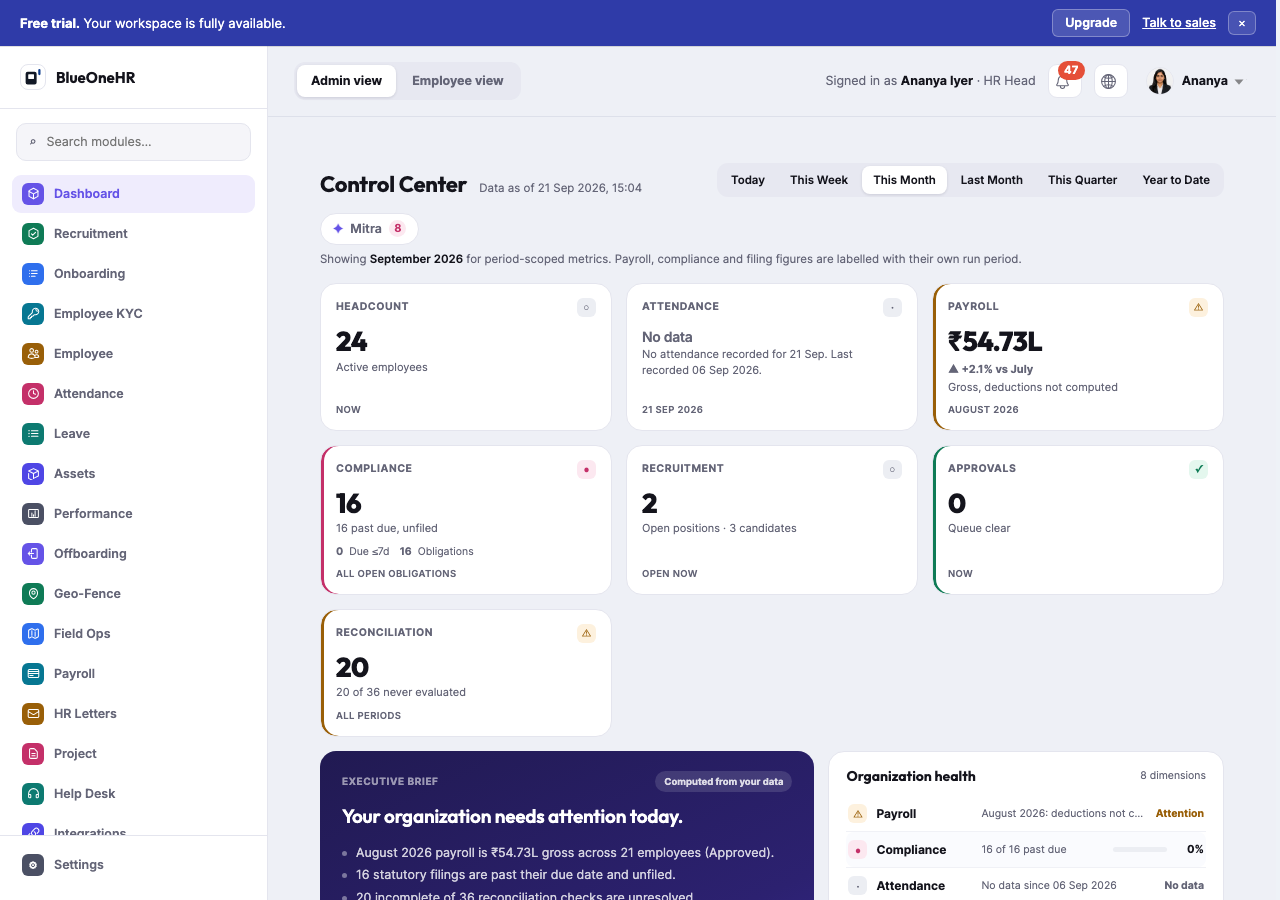
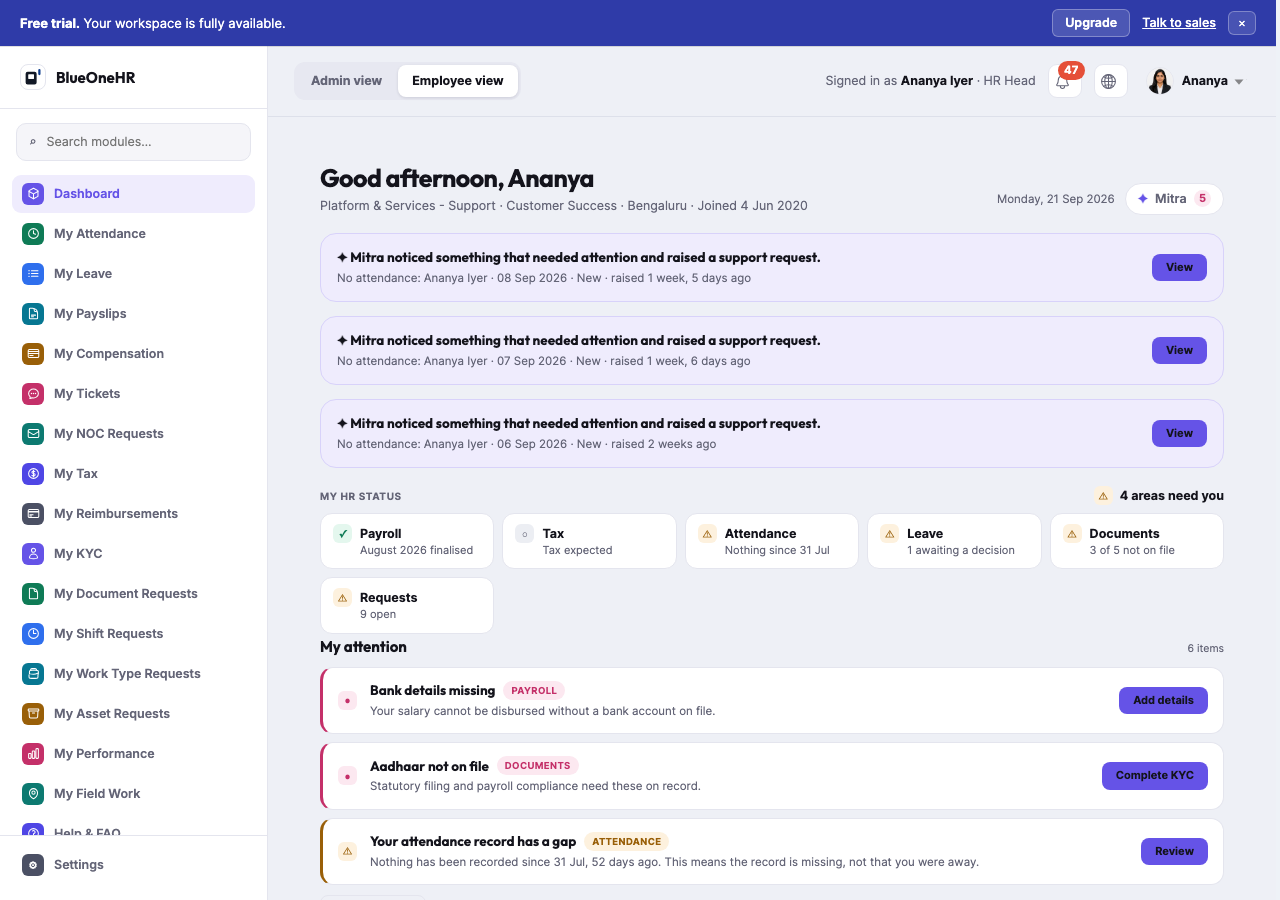
**What it does.** Selecting **Employee view** replaces the dashboard and the sidebar with the personal
ones. Selecting **Admin view** brings the administrator ones back. For an HR Head:
| | Admin view | Employee view |
|---|---|---|
| Dashboard | The company-wide Control Center | Your own personal summary ("Good afternoon, Ananya") |
| Sidebar | Recruitment, Onboarding, Employee KYC, Employee, Attendance, Leave, Assets, Performance, Offboarding, Geo-Fence, Field Ops, Payroll, HR Letters, Project, Help Desk, Integrations, Reports, Settings | Dashboard, then the **My…** items above, then Help & FAQ; Settings stays at the bottom |
**How long it lasts.** The choice is kept for your current sign-in session. It is not a setting on
your account, and it does not change what you are allowed to do: it changes what is shown to you.
## A note on My KYC
## A note on My KYC
This screen displays statutory identity information — PAN and a masked Aadhaar number among it. It
is real personal data for a real employee, even though the specific numbers seen in a demo
environment are synthetic. Treat any screenshot or export from this screen with the same care as a
payslip or a bank detail: never share it outside the reason it was requested for. See
[Your KYC details](https://docs.blueonehr.com/books/employee-self-service/page/your-kyc-details) for what the screen contains and why every screenshot of it
in this documentation is permanently redacted.
## Related
- [How attendance works](https://docs.blueonehr.com/books/attendance/page/how-attendance-works)
- [How leave works](https://docs.blueonehr.com/books/leave/page/how-leave-works)
- [How payroll works](https://docs.blueonehr.com/books/payroll/page/how-payroll-works)
# Your KYC details
**My KYC** is the **My KYC** entry in the sidebar (the page sits under **Employee KYC** in the breadcrumb).
It holds your identity and statutory details. Re-checked against the live screen on 2026-09-26.
> **Every screenshot on this page has its sensitive fields redacted (solid black boxes).** This is a
> deliberate, permanent editorial choice for this screen, not a placeholder waiting to be replaced —
> see "Why this screen is redacted, always" below.
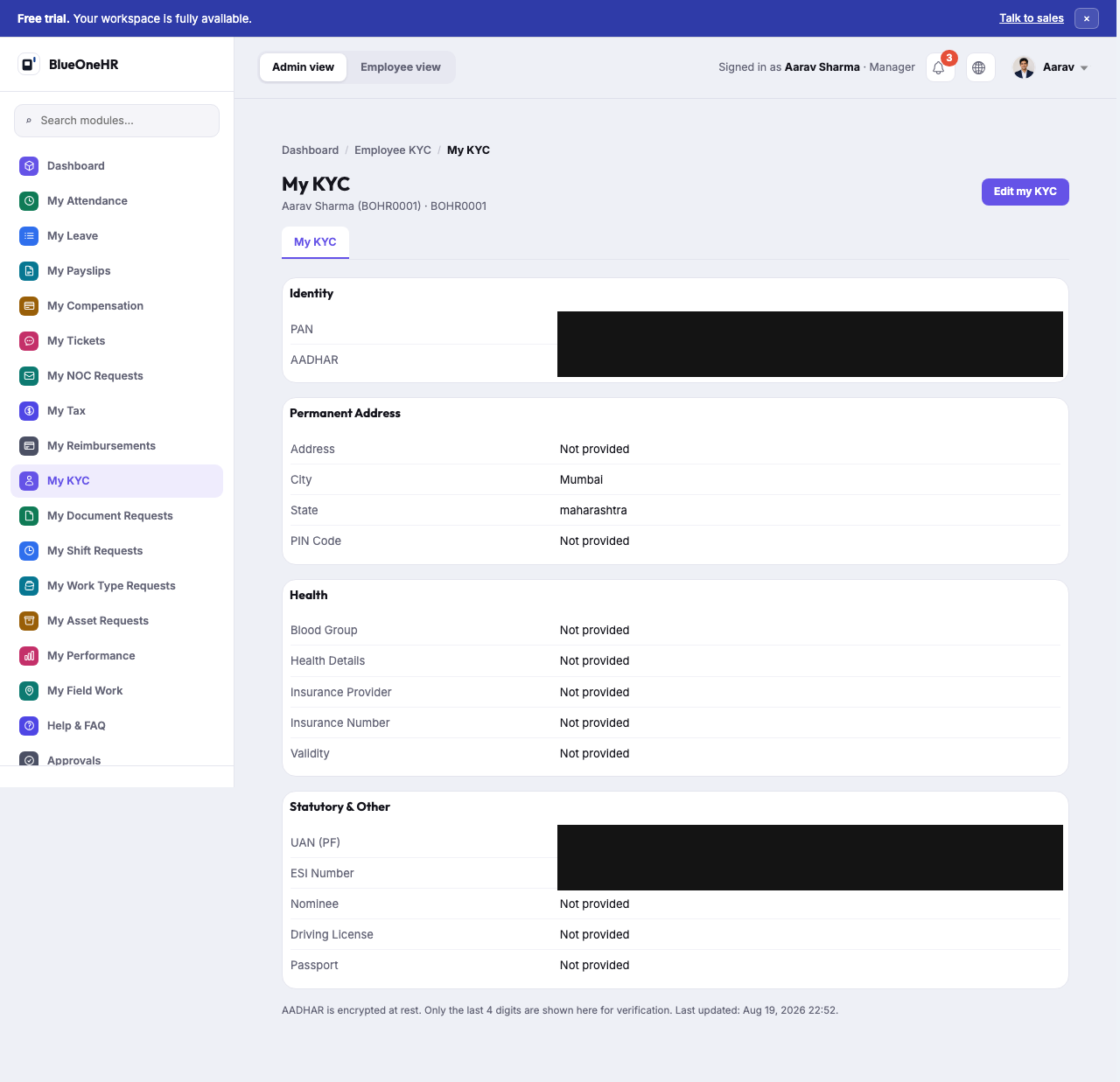
## The sections
| Section | Carries |
|---|---|
| **Identity** | PAN and Aadhaar. |
| **Permanent Address** | Address, City, State, PIN Code. |
| **Health** | Blood Group, Health Details, Insurance Provider, Insurance Number, Validity. |
| **Statutory & Other** | UAN (PF), ESI Number, Nominee, Driving License, Passport. |
**Edit my KYC** (top right) opens a form with a field for each detail. The form has **Cancel** and
**Save KYC** buttons at the bottom; **Cancel** returns you to My KYC without saving. **UAN** and **ESI
Number** appear on the form as read-only text, not as inputs. A footer note on My KYC states: *"AADHAR
is encrypted at rest. Only the last 4 digits are shown here for verification."*
## What was actually filled in, on the test account
On the account used for the check, PAN, City, State, UAN (PF) and ESI Number had values; Aadhaar showed a
dash, and every other field (Address, PIN Code, all of Health, Nominee, Driving License, Passport) showed
**Not provided**. Do not assume every field is populated for every
employee; a sparse KYC record like this one appears to be normal, not broken.
## Why this screen is redacted, always
PAN and Aadhaar are government-issued identity numbers. Even though the values on
the sample account are synthetic, they are in the **real format** those identifiers take, and this
documentation treats any screen holding them the same way it would a real employee's — never
published unredacted, regardless of whether the underlying data happens to be synthetic. This capture
additionally redacts **UAN (PF)** and **ESI Number** for the same reason: both are real-format
statutory identifiers, not ordinary configuration data. Do not add an unredacted version of this
screenshot to the corpus later, even if a future capture uses different sample data.
## Not confirmed
- Whether changes saved with **Save KYC** show up straight away, and any approval step: nothing was saved
while checking.
- What the page shows for a full Aadhaar number (the checked account had none on file).
- Any bank details: the My KYC page and its edit form have no bank field.
## Related
- [Your own dashboard](https://docs.blueonehr.com/books/employee-self-service/page/your-own-dashboard) — where My KYC sits among the rest of the **My…**
sidebar.
# Requests for a document, shift, work type or asset
Four entries in an employee's sidebar are request queues: **My Document Requests**, **My Shift
Requests**, **My Work Type Requests** and **My Asset Requests**. Each lists what you have asked for and
the state of each request. This page describes what each one shows and what its create screen offers to
an employee account. It was checked against the live screens on 2026-09-26 by opening the lists and the
create screens and leaving every form unsaved. Nothing was submitted.
For the other entries in the same sidebar see [Your own dashboard](https://docs.blueonehr.com/books/employee-self-service/page/your-own-dashboard).
## What each queue shows
| Sidebar entry | List | Create button |
|---|---|---|
| **My Document Requests** | **Document Requests**: Employee, Document, Status, Issue Date, Expiry, Actions. Filters: status (Requested, Approved, Rejected) and Group by. | **+ Create** |
| **My Shift Requests** | **Shift Requests**: Employee, Previous Shift, Requested Shift, From, Till, Actions. Below it a second list, **Allocated Shift Requests**: Employee, Reallocate To, Requested Shift, Status. | **+ Create** |
| **My Work Type Requests** | **Work Type Requests**: Employee, Previous Work Type, Requested Work Type, From, Till, Actions. | **+ Create** |
| **My Asset Requests** | **My Assets** (the assets assigned to you, each with a **Request Return** button), then **Asset Requests**: Employee, Category, Requested, Description, Status, Actions, then **Asset Allocations**. | **Request an Asset** |
An empty list says so: for example "No documents yet", "No Shift request has been created." or "No asset
requests yet".
The first three pages share a row of tabs under the title (Employees, Document Requests, Shift
Requests, Work Type Requests, Disciplinary Actions, Policies, Organization Chart), so you can move
between them from any one of them.
## Requesting a shift or a work type
**+ Create** on **My Shift Requests** opens **Create Shift Request**, and **+ Create** on **My Work Type
Requests** opens the matching form. Both have the same shape:
| Field | Notes |
|---|---|
| **Employee** * | Offers your own name. |
| **Requesting Shift** * (or **Requesting Work Type** *) | A list of the shifts (or work types) the workspace has set up. The recorded workspace offered General as a shift, and Full Time and Part Time as work types. |
| **Requested Date** * | A date picker, starting on today's date. |
| **Requested Till** | A date picker. |
| **Description** * | Free text: say why you are asking. |
| **Permanent Request** | A checkbox. |
Fields marked with an asterisk are required. The form ends with **Create Shift Request** (or the work
type equivalent). Who approves the request, and what they are notified, is set up by your
administrator and is not visible on these screens.
## Requesting a document or an asset
These two did not let an employee account start a request when checked:
- **+ Create** on **My Document Requests** opened an **Access denied** page ("You don't have permission
to view this page. If you believe this is a mistake, contact your HR administrator.").
- **Request an Asset** opened the **Request an Asset** form, but its **Requesting User** list, which is a
required field, had no options to choose from, so the form cannot be completed.
If you need either, ask your HR administrator. For a letter such as a no-objection certificate, use
**My NOC Requests** in the same sidebar; it has its own list of your requests with a status filter
(Pending HR Approval, Approved, Rejected, Cancelled by Employee).
## Not confirmed
- What happens after you submit a shift, work type or asset request: nothing was submitted, so the
status a new request shows, who is notified and how a request is withdrawn were not checked.
- Whether a person who holds the right permission can create a document request from the same button.
- What **Request Return** on an assigned asset does; it was not pressed.