# Employees
The employee directory, adding people, and who can see or change what.
# The employee directory
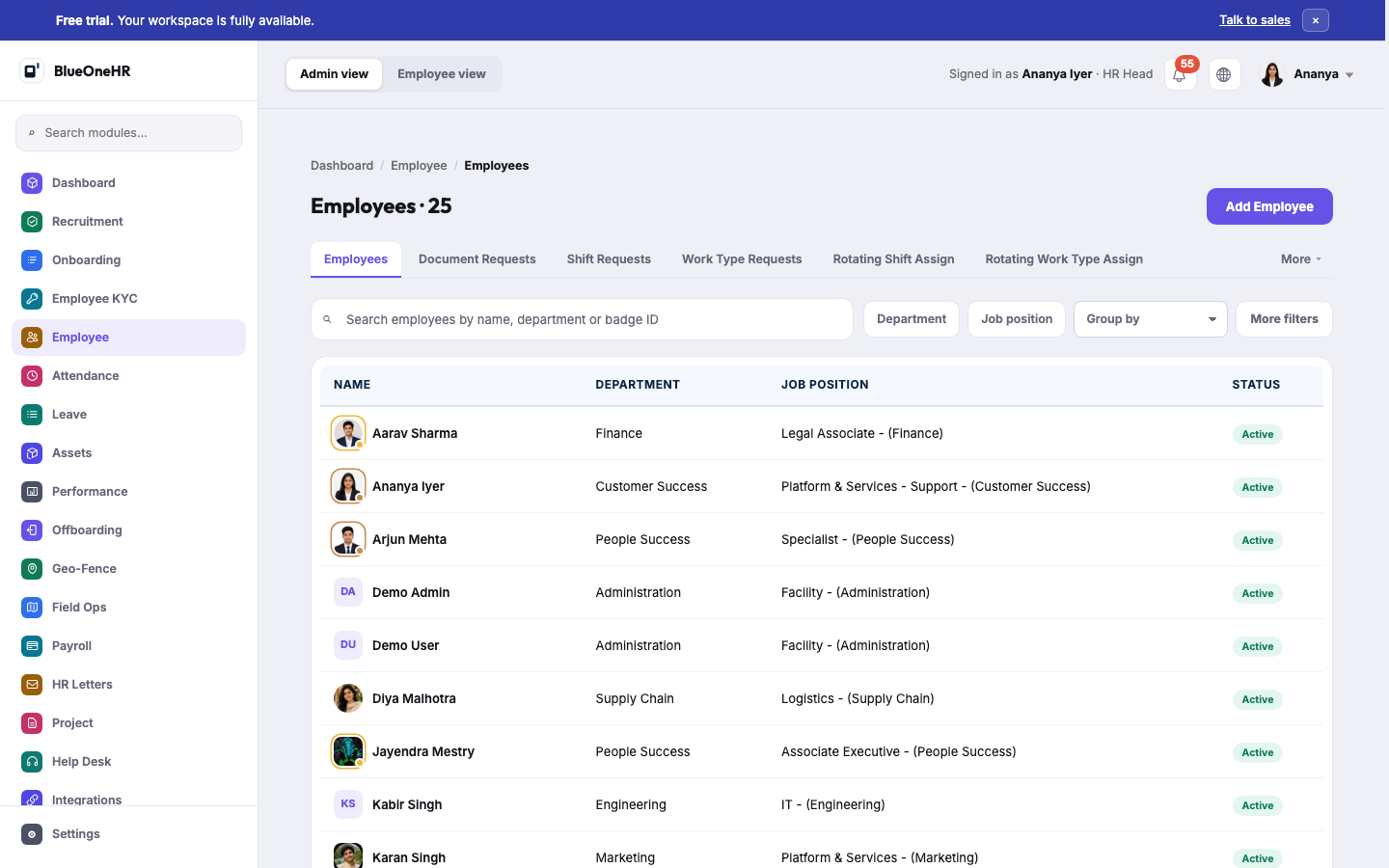
**Employee → Employees** is the single record of everyone in your organisation. Every other module
— attendance, leave, payroll, performance — reads from this record rather than keeping its own copy,
so an employee's department, job position or badge ID only needs to be correct in one place.
## What you see
A searchable list, one row per employee, with their department, job position and status (**Active**,
or otherwise). Above the list:
- **Search** by name, department or badge ID.
- **Department** and **Job position** filters, plus **Group by** and **More filters** for a narrower
view.
- Tabs alongside the main list: **Document Requests**, **Shift Requests**, **Work Type Requests**,
**Rotating Shift Assign**, and further screens under **More**. Each is its own queue of requests
employees have raised, separate from the directory itself.
## Opening a record
Selecting an employee opens their full profile: personal details, employment information, the
documents they have been issued, and their history in the organisation. What you can change there
depends on your role — see [Roles and permissions](https://docs.blueonehr.com/books/employees/page/roles-and-permissions). The tabs and the Edit page are described in [An employee's profile](https://docs.blueonehr.com/books/employees/page/an-employees-profile).
## Who can do what
Viewing and editing the directory is controlled the same way as every other module: through **user
groups** and **employee permissions**, not through a special "HR mode". A person with the right
permission sees the same Employees screen whether they are in HR, a manager, or an administrator; the
difference is which actions are available to them once they are there.
## What to read next
- [Adding an employee](https://docs.blueonehr.com/books/employees/page/adding-an-employee)
- [Roles and permissions](https://docs.blueonehr.com/books/employees/page/roles-and-permissions)
# Adding an employee
Every employee record starts here, whether they will use BlueOneHR themselves or the record exists
purely for HR and payroll purposes.
## Before you begin
You need permission to create employees, which your administrator grants through **user groups**
(see [Roles and permissions](https://docs.blueonehr.com/books/employees/page/roles-and-permissions)). Have on hand: the person's legal
name, a work email, phone number, and date of birth. Department and job position are easiest to set
if they already exist under **Settings**; if not, create them first — see
[Company setup](https://docs.blueonehr.com/books/company-settings/page/company-departments-and-job-roles).
## Steps
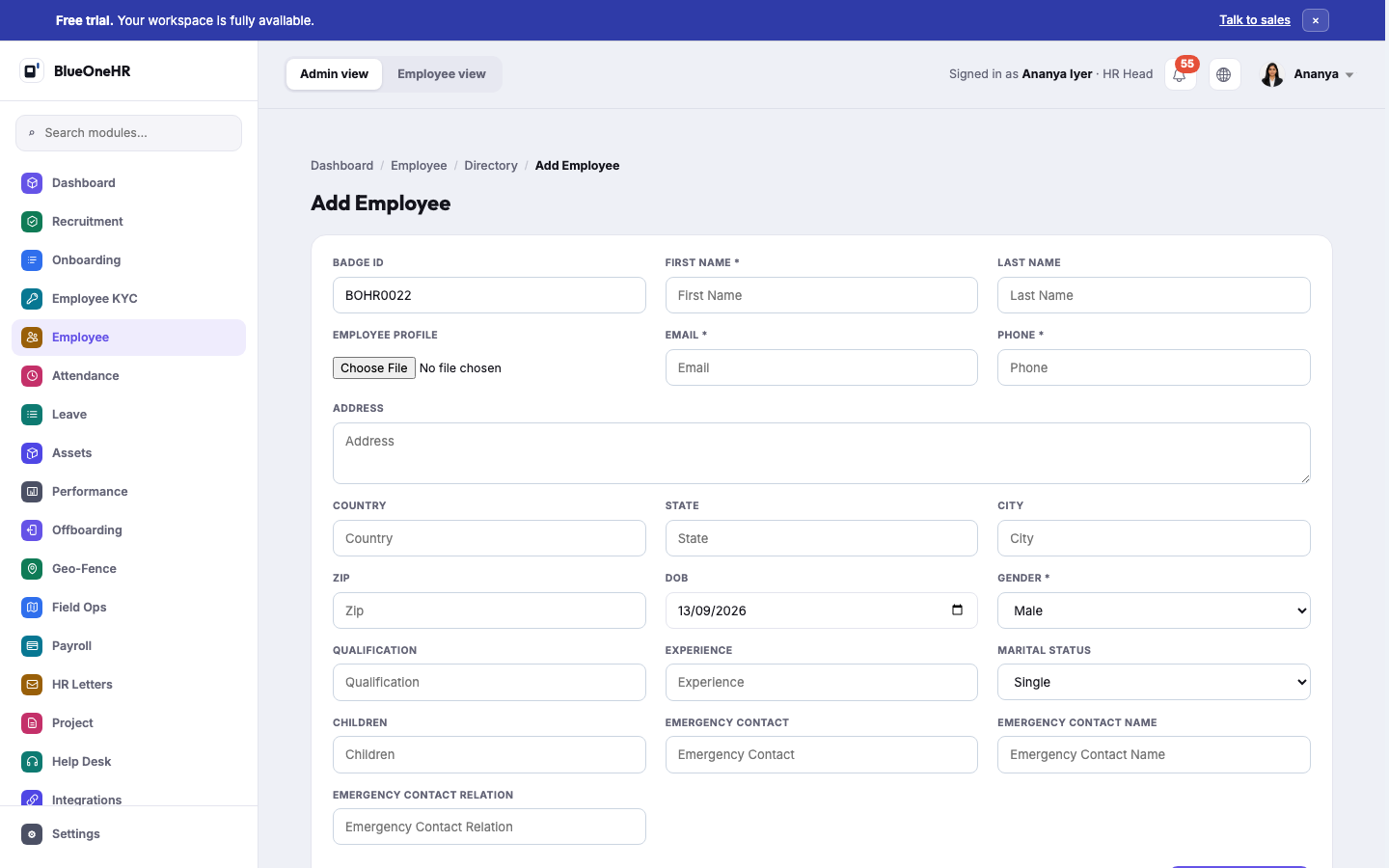
1. Go to **Employee → Employees**.
2. Select **Add Employee**.
3. BlueOneHR proposes the next **Badge ID** automatically, using your organisation's badge prefix
(set once under **Settings → General**). You can change it before saving if you need to.
4. Enter **First Name** and **Last Name**, and optionally a profile photo.
5. Enter **Email** and **Phone** — both required.
6. Fill in address, country, state, city and postal code if you track them.
7. Confirm the **date of birth** and **gender**.
8. Optionally record qualification, experience, marital status, number of children, and an
emergency contact (name, number and relation).
9. Select **Create Employee**.
## What happens next
The employee appears in the directory immediately, with the status **Active**. Creating the record
does **not** by itself:
- assign a department, shift or work type — those are set from the employee's profile once created;
- tell the person how to sign in — HR passes on the address and first-password arrangements (see
[First login and getting access](https://docs.blueonehr.com/books/first-steps/page/first-login-and-getting-access) for what is and is not
confirmed);
- create a payroll contract — payroll only computes for an employee with an **active contract**, set
up separately under **Payroll → Configuration → Contract**.
## Notes
- The Badge ID prefix and whether badge numbering is active are organisation-wide settings, not
something you choose per employee.
- Required fields are marked with an asterisk on the form; everything else can be filled in later
from the employee's profile.
## Troubleshooting
**The email is already in use.** Each employee needs a unique email. Check the directory search
before assuming the person has no existing record — a re-hire or a previously deactivated record can
collide.
## Related
- [The employee directory](https://docs.blueonehr.com/books/employees/page/the-employee-directory)
- [Roles and permissions](https://docs.blueonehr.com/books/employees/page/roles-and-permissions)
# Importing many employees
The **Employees** screen has an **Import** entry for bringing in many employees from a file instead of
adding them one at a time (see [Adding an employee](https://docs.blueonehr.com/books/employees/page/adding-an-employee) for the one-at-a-time form).
This page describes the Import dialog and the template it offers. It does **not** describe a complete
import, because the upload step has not been tried; see **Not confirmed** below.
## Before you begin
Sign in as someone who can manage employees (see [Roles and permissions](https://docs.blueonehr.com/books/employees/page/roles-and-permissions)).
The steps below were looked at as an HR Head.
## Open the Import dialog
1. Go to **Employee → Employees**.
2. Select **Actions**. The menu lists **Import**, **Export**, **Archive**, **Un-Archive**, **Bulk Mail**,
**Bulk Update** and **Delete**.
3. Select **Import**.
A dialog titled **Import Employee** opens. It contains:
- a large area that reads **Upload a File** and **Drag and drop files here**;
- a **Choose file** button, which shows **No file chosen** until you pick one;
- a **Download Template** link;
- an **Upload** button.
## Download the template
Select **Download Template**. A prompt asks **Do you want to download the template?** with **Confirm** and
**Cancel** buttons. Choose **Confirm** to download the file, or **Cancel** to leave the dialog as it was.
The file is a spreadsheet named `work_info_template.xlsx`, with one sheet, a single header row and no example
rows. The header row has 19 columns:
| | | |
|---|---|---|
| Badge ID | First Name | Last Name |
| Email | Phone | Gender |
| Department | Job Position | Job Role |
| Shift | Work Type | Reporting Manager |
| Employee Type | Location | Date Joining |
| Basic Salary | Salary Hour | Contract End Date |
| Company | | |
## Not confirmed
These have not been tried, so this page does not say what happens:
- Choosing a file and selecting **Upload**, and what appears afterwards.
- Which of the 19 columns are required, and what format each value must have (for example dates, gender,
or how a department or reporting manager is matched).
- What happens with a badge ID or email that already exists, or with a row that has an error.
- Whether a file with fewer or more columns than the template is accepted.
- Whether new employees receive a sign-in or other notification.
- The maximum file size or number of rows, and which file types besides `.xlsx` are accepted.
- Whether a partly valid file imports the good rows or none.
## Related
- [The employee directory](https://docs.blueonehr.com/books/employees/page/the-employee-directory)
- [Adding an employee](https://docs.blueonehr.com/books/employees/page/adding-an-employee)
- [Roles and permissions](https://docs.blueonehr.com/books/employees/page/roles-and-permissions)
# Roles and permissions
BlueOneHR does not have a fixed list of roles like "HR Manager" or "Payroll Officer" built in.
Instead, access is built from two things: **user groups**, and **employee permissions** assigned
directly to a person. Both live under **Settings → General**.
## User groups
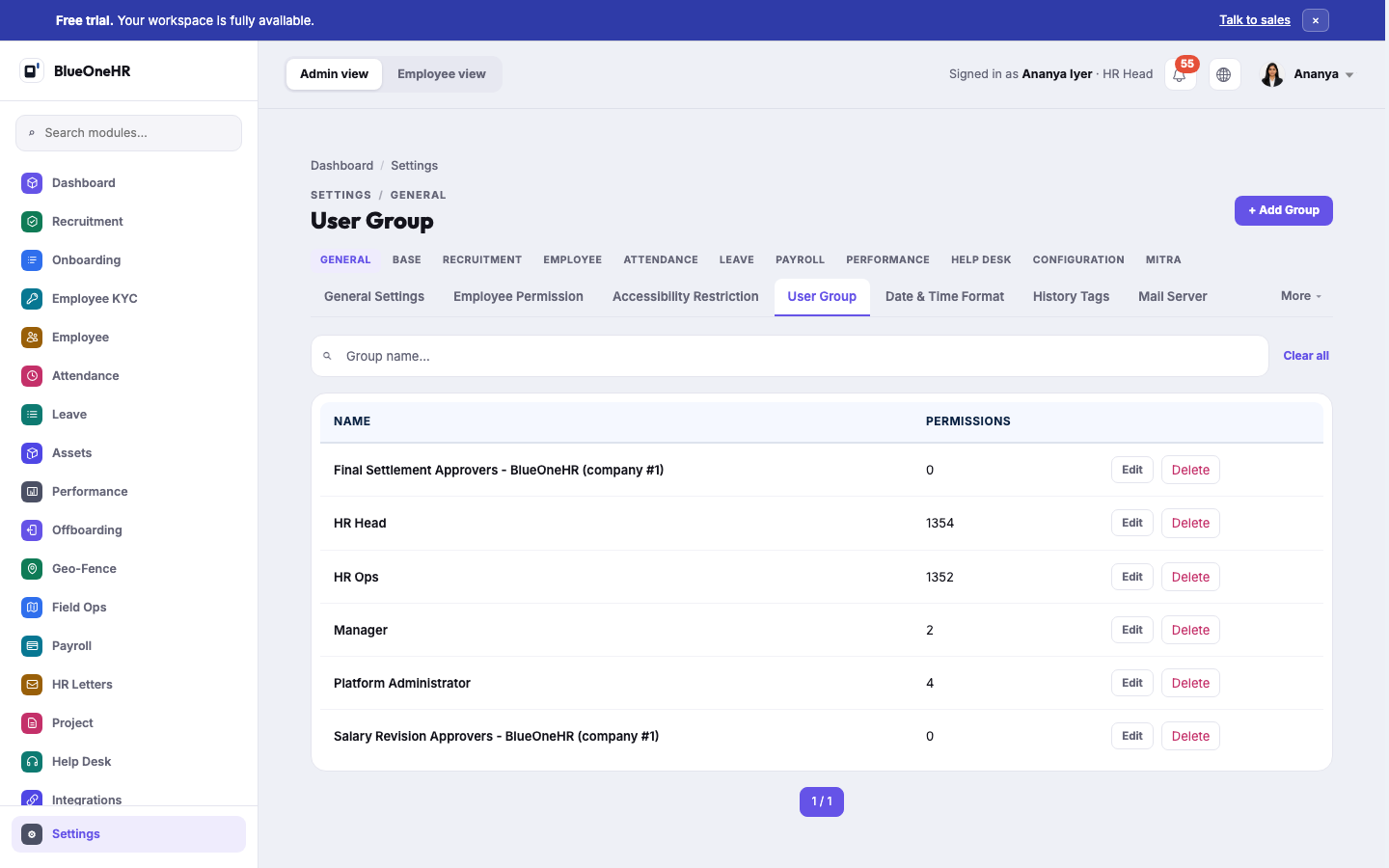
A user group is a named bundle of permissions — for example, everything a payroll administrator
needs, or everything a line manager needs to approve their team's requests. Create the group once
under **Settings → General → User Group**, then add employees to it.
Group membership is the normal way to manage access for more than a handful of people: change what
the group can do, and everyone in it changes with it.
## Direct employee permissions
**Settings → General → Employee Permission** grants or removes an individual permission for one
specific employee, outside of any group. Use this for an exception — one person who needs a single
extra permission — rather than as the everyday way of managing access. A permission granted this way
does not appear anywhere in the group list, so it is easy to forget it is there; prefer a group for
anything more than a temporary exception.
## What a permission actually covers
Permissions are scoped to a module and an action — for instance, the ability to view the payroll
register is separate from the ability to approve a payroll run, and both are separate from being able
to see attendance records. Assign the narrowest set that lets someone do their job: a manager who
should approve leave for their own team does not need the permission that lets them view payroll for
the whole company.
## Screenshot
## Related
- [The employee directory](https://docs.blueonehr.com/books/employees/page/the-employee-directory)
- [General settings](https://docs.blueonehr.com/books/company-settings/page/general-settings)
# An employee's profile
Select a name in **Employee → Employees** and you land on that person's profile: one page that gathers their details, their pay, their time, their leave and the things they hold. This page describes what is on it, who can open it in full, and what **Edit** offers.
## Before you start
Who sees what is decided by the profile page itself:
| You are | You see |
|---|---|
| Anyone with permission to view employees (HR Head, HR Ops and, in the test workspace used for this page, the Manager group) | The full profile, with every tab. |
| The employee themselves | Their own full profile. |
| The employee's reporting manager | The full profile. |
| Any other signed-in employee | Only a **Work information** card: department, job position, job role, who they report to, employee type, work type, shift, location, work e-mail, work phone and "with the company since". The page says: "This is the work information anyone in the company can look up. Personal details, pay and records are visible only to [the person], their reporting manager, and HR." |
That last row was checked by opening a colleague's profile signed in as an Employee. The personal fields are not part of that page at all.
## The profile
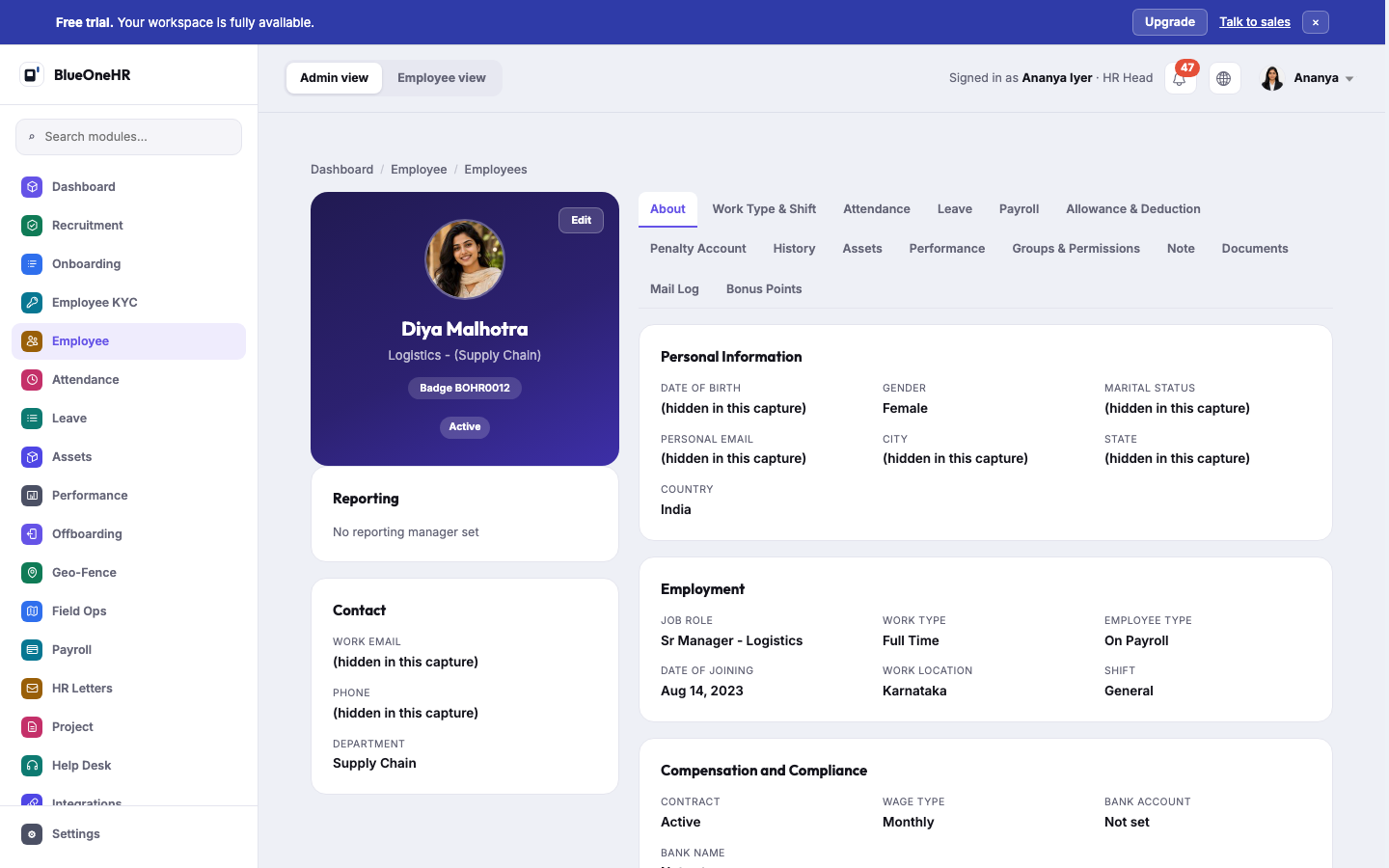
*In this capture the contact and personal details (work e-mail, phone, date of birth, personal e-mail, city, state, marital status) are masked. The screenshots on this page are masked by design; the real page shows those values.*
**The left column** carries the person's name, job position, badge ID and **Active** status, an **Edit** button, a **Reporting** card (their reporting manager, or "No reporting manager set") and a **Contact** card with work e-mail, phone and department.
**The right side** has fifteen tabs. Open one by selecting it; the address gains `?tab=` and the tab name.
| Tab | What it shows |
|---|---|
| **About** | **Personal Information**, **Employment**, **Compensation and Compliance** (contract, wage type, bank account and bank name) and **Team**, the colleagues in the same department. |
| **Work Type & Shift** | Rotating shift and rotating work type assignments, and shift and work type requests. |
| **Attendance** | Recent attendance: date, clock in, clock out, worked hours, status. |
| **Leave** | Leave balance by leave type. |
| **Payroll** | Payslips by period: gross pay, deduction, net pay, status. |
| **Allowance & Deduction** | The allowances and deductions applied to this person. |
| **Penalty Account** | Penalties recorded, or "No penalties recorded". |
| **History** | No change log is shown here in this release. |
| **Assets** | Assets assigned to them, with assigned date and return state. |
| **Performance** | Performance feedback cycles. |
| **Groups & Permissions** | The sign-in account: username, staff access, superuser, groups and individual permissions. |
| **Note** | Notes recorded about the person. |
| **Documents** | Documents on file, with status, issue date and expiry. |
| **Mail Log** | E-mails logged for the person's address. |
| **Bonus Points** | Bonus points. |
One thing to know:
- **Employee KYC is not on this page.** PAN, Aadhaar and similar records live in their own module. This page does not show them.
## Edit
**Edit** opens **Edit** followed by the person's name, with three tabs.
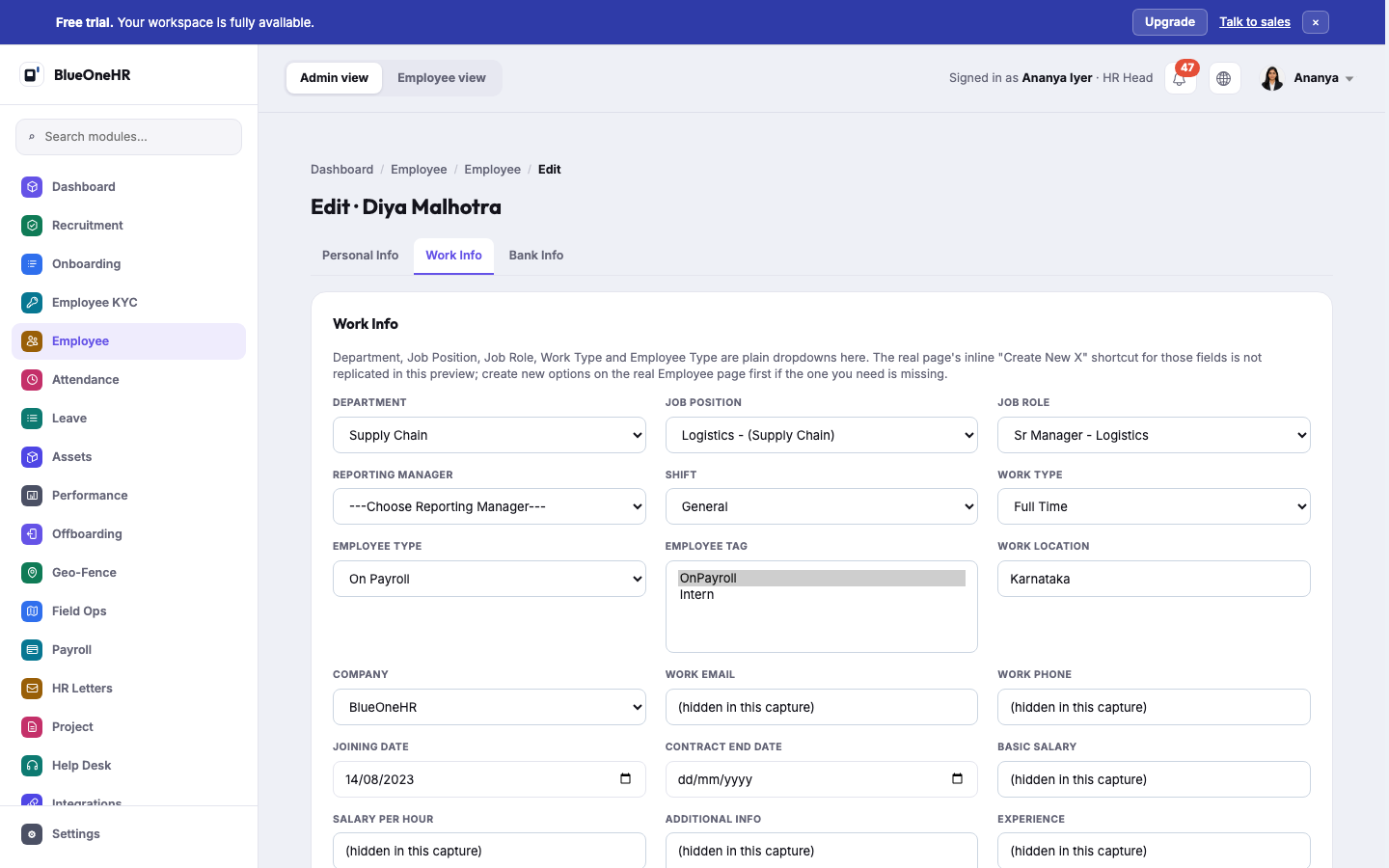
*Work e-mail, work phone, basic salary, salary per hour, additional information and experience are masked in this capture.*
| Tab | Fields |
|---|---|
| **Personal Info** | Badge ID, First name, Last name, Employee profile (photo), E-mail, Phone, Address, Country, State, City, Zip, DOB, Gender, Qualification, Experience, Marital status, Children, Emergency contact, Emergency contact name, Emergency contact relation. E-mail, Phone, First name and Gender are required. |
| **Work Info** | Department, Job position, Job role, Reporting manager, Shift, Work type, Employee type, Employee tag, Work location, Company, Work e-mail, Work phone, Joining date, Contract end date, Basic salary, Salary per hour, Additional info, Experience. |
| **Bank Info** | Bank name, Account number, Branch, Bank code #1, Address, Country, State, City, Bank code #2. Bank name, Account number, Branch, Bank code #1 and Address are required. |
Each tab has its own save button (**Save Personal Info**, **Save Work Info**, **Save Bank Info**), so saving one tab does not save the others.
Who may edit: someone with permission to change employees, or the employee's reporting manager. An employee who selects **Edit** on their own profile is returned to the profile page; the message reads "You do not have permission to edit this employee."
Saving the **Work Info** tab notifies the employee with the message "Your work details has been updated."
## What you should see
Opening a profile as an HR user shows the header card and the **About** tab. A tab that has nothing to show says so in words, such as "No documents on file" or "No notes recorded".
## If it does not work
- **You only see a Work information card.** You are not the person, their reporting manager or someone with permission to view employees. Ask HR.
- **Edit does nothing for you.** See who may edit, above.
- **A department, position, role, work type or employee type you need is not in the Work Info list.** Those fields are dropdowns of existing values. Create the missing one first; see [Company setup](https://docs.blueonehr.com/books/company-settings/page/company-departments-and-job-roles).
## Not confirmed
- **Saving** any Edit tab was not tried live. The three forms were opened, never submitted, so what each save does beyond the notification named above is not confirmed.
- **The profile of a person with more history than the sample data used** (for example a long Documents or Mail Log list) was not seen.
- **Whether a reporting manager who is not in HR can open Edit on a direct report** was not tried.
## Related
- [The employee directory](https://docs.blueonehr.com/books/employees/page/the-employee-directory)
- [Adding an employee](https://docs.blueonehr.com/books/employees/page/adding-an-employee)
- [Roles and permissions](https://docs.blueonehr.com/books/employees/page/roles-and-permissions)
- [Payslips](https://docs.blueonehr.com/books/payroll/page/payslips)
- [How leave works](https://docs.blueonehr.com/books/leave/page/how-leave-works)