# Leave
Applying for time off, and how leave requests get approved.
# How leave works
**Leave** covers requesting time off, allocating how much of each leave type an employee has, and
approving or rejecting requests.
## The pieces
| Screen | What it is for |
|---|---|
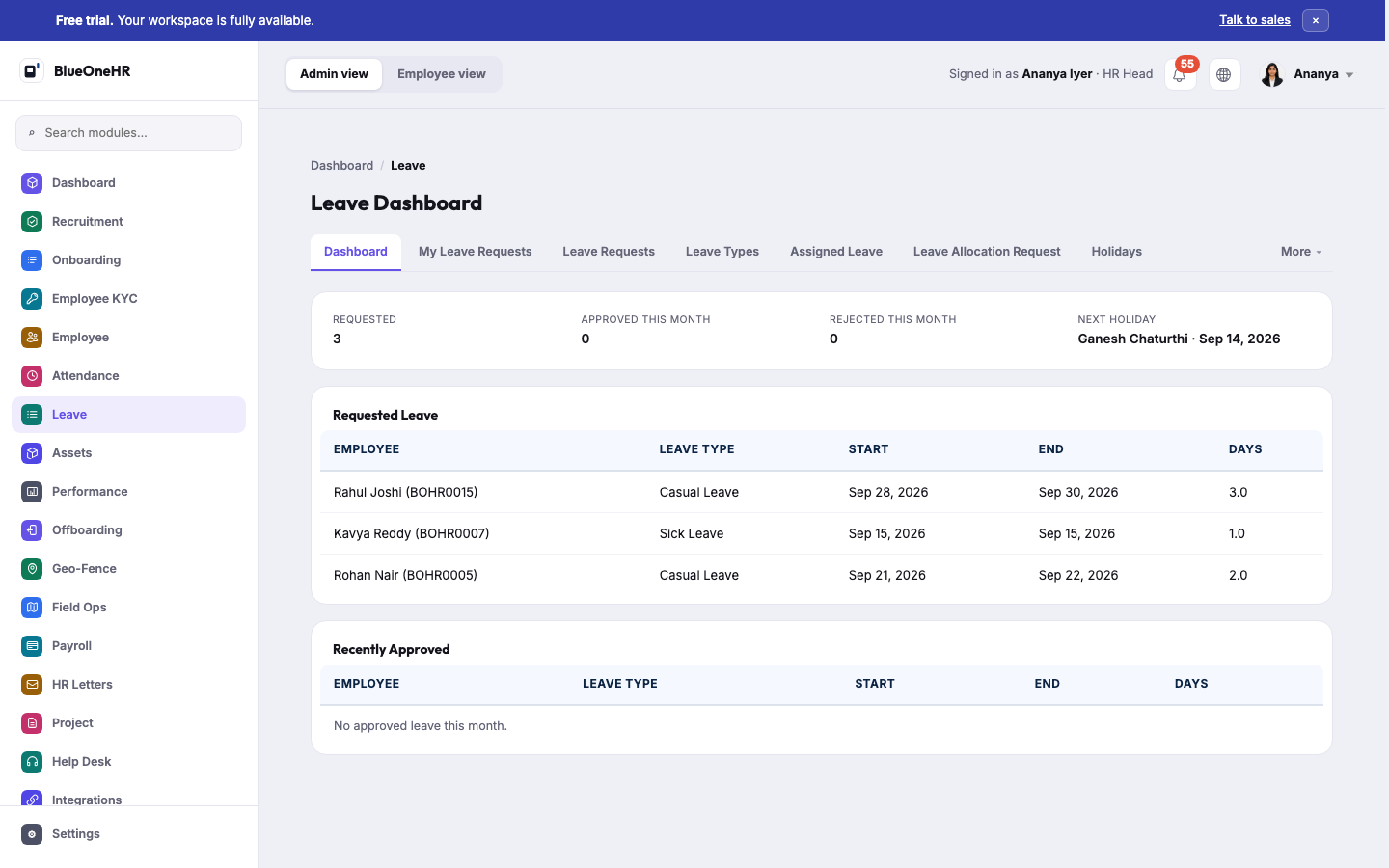
| **Dashboard** | What is waiting on you: requested leave, recently approved leave, and the next holiday. |
| **My Leave Requests** | Your own requests and their status. |
| **Leave Requests** | Every request across the organisation, for whoever approves them. |
| **Leave Types** | The categories of leave your organisation offers — Casual Leave, Sick Leave, and whatever else has been configured. |
| **Assigned Leave** | How much of each leave type an employee currently holds. |
| **Leave Allocation Request** | A request to be given additional leave, separate from an ordinary time-off request. |
## Leave types are configured, not fixed
What counts as "Sick Leave" or "Casual Leave", how many days each carries, and whether it is paid, is
set up under **Leave Types** by an administrator. Do not assume every organisation offers the same
leave types with the same allowances; check what has actually been configured before documenting or
promising a specific number of days to an employee.
## What to read next
- [Applying for leave](https://docs.blueonehr.com/books/leave/page/applying-for-leave)
- [Approving and rejecting leave](https://docs.blueonehr.com/books/leave/page/approving-and-rejecting-leave)
# Applying for leave
## Before you begin
Know which **leave type** you are requesting (Casual, Sick, or whatever your organisation has
configured — see [How leave works](https://docs.blueonehr.com/books/leave/page/how-leave-works)), and your start and end dates.
## Steps
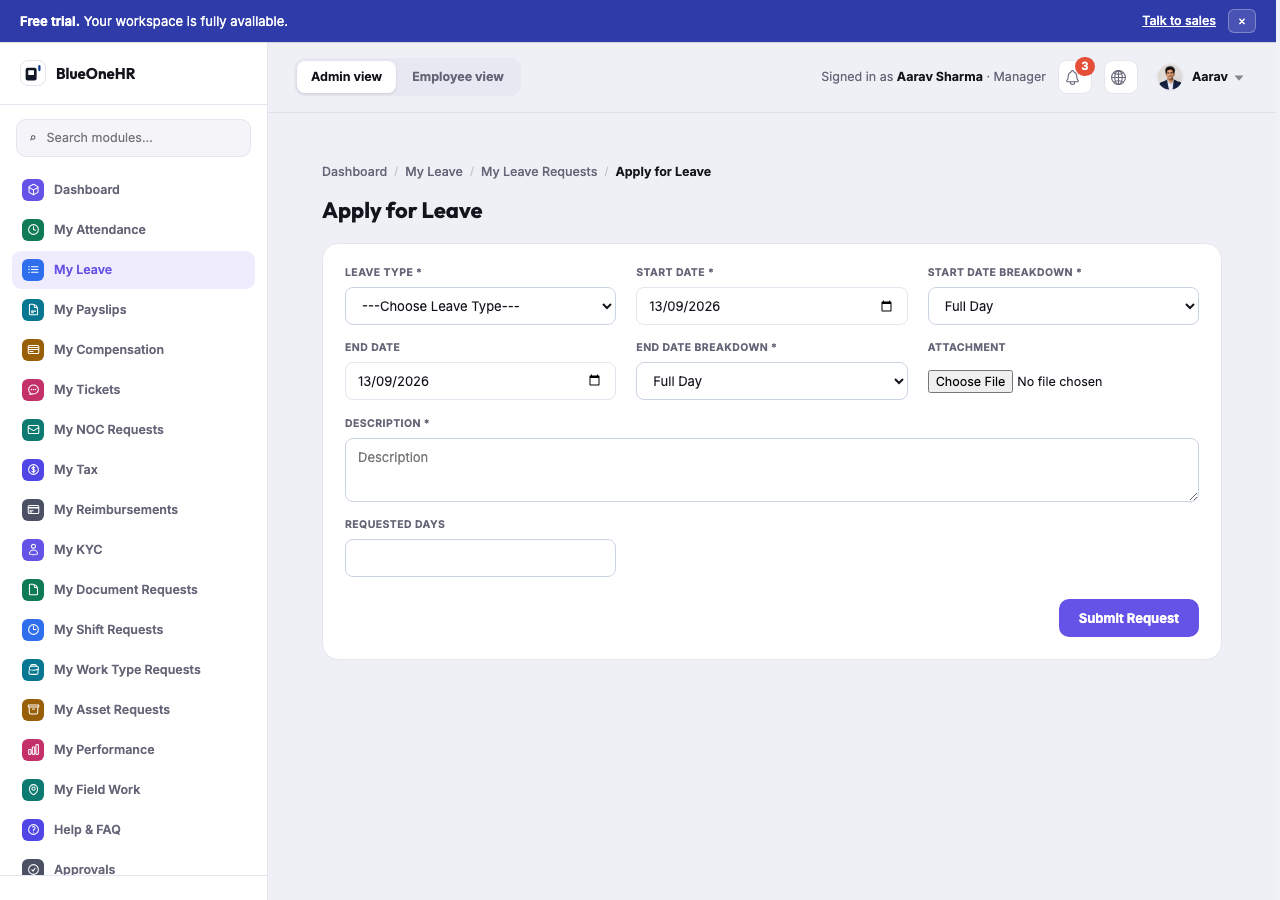
1. Go to **Leave → My Leave Requests**.
2. Select **Apply for Leave**.
3. Choose the **leave type** from the dropdown.
4. Set the **start date**, and how that day should be counted (**Full Day** or a partial-day
breakdown).
5. Set the **end date** and its own breakdown, if the request spans more than one day.
6. Attach a file if your organisation requires supporting evidence for this leave type — a medical
certificate, for example.
7. Write a **description**. This is what your approver actually reads; a blank or vague description
is the most common reason a request comes back with a question instead of an approval.
8. Confirm the **requested days**, which BlueOneHR calculates from your dates and day breakdowns.
9. Select **Submit Request**.
## What happens next
Your request appears under **My Leave Requests** with a status, and on your approver's **Leave
Requests** queue. Once decided, you can see the outcome from the same screen.
## Notes
- A leave type your organisation has not configured will not appear in the dropdown at all; if the
one you need is missing, ask your administrator rather than choosing the closest match.
- You do not edit your own leave record directly. If your dates change after submitting, cancel the
request (where still possible) and submit a new one, rather than asking someone to alter the
approved record by hand.
## Troubleshooting
**Requested days looks wrong.** Check the day breakdown on both the start and end date — a request
marked as a half day on one end changes the total without changing the calendar dates shown.
## Related
- [How leave works](https://docs.blueonehr.com/books/leave/page/how-leave-works)
# Checking leave balances and assigned leave
You can see your own leave balances on **My Leave Requests**, and the balances held by everyone in the organisation on **Assigned Leave**. Both are under **Leave**.
## Before you begin
- Every signed-in user has **My Leave Requests**. **Assigned Leave** is an administrator's screen: whether you see it depends on your role and permissions (see [Roles and permissions](https://docs.blueonehr.com/books/employees/page/roles-and-permissions)).
- Which leave types exist, and how many days each carries, is configured under **Leave Types** (see [Setting up leave types](https://docs.blueonehr.com/books/leave/page/setting-up-leave-types)).
## Check your own balances
1. Select **Leave**, then **My Leave Requests**.
2. Read the **My Available Leave** panel at the top. It shows one figure for each leave type you hold, for example Sick Leave or Casual Leave.
3. Each figure is followed by a plus sign and a carry forward amount, marked **CF**.
The requests you have made are listed underneath the panel, with their status. To make one, see [Applying for leave](https://docs.blueonehr.com/books/leave/page/applying-for-leave).
## Check everyone's balances
1. Select **Leave**, then the **Assigned Leave** tab.
2. The heading shows how many assignments exist. Each row is one leave type held by one employee.
3. The columns are **Employee**, **Leave Type**, **Available Days**, **Carry Forward**, **Total**, **Assigned Date** and **Actions**.
4. The list is grouped by **Leave Type**, and each group header shows how many rows it holds.
5. Use **Search**, the **Leave type** filter or **More filters** to narrow the list, and **Clear all** to remove them.
## What Edit and Assign Leave Type show
- **Edit** on a row opens a page titled with the employee and leave type. It has **Available Days**, **Carryforward Days** and an **Is Active** box, and a **Save Changes** button.
- **Delete** on a row is a separate button. Treat both as changes to a real balance.
- The **Assign Leave Type** menu at the top of the page lists the leave types. Choosing one opens a form titled with that leave type, with an **Employee** field, an **Is Active** box and an **Assign** button.
## Not confirmed
- What happens after **Save Changes** or **Assign** is selected. Neither was submitted while this page was checked.
- Whether an assigned amount is reduced when leave is approved. The list shows Available Days, Carry Forward and Total, and no used-days column.
- Whether the **Employee** field in the Assign Leave Type form offers employees in every workspace. In the workspace checked it showed no employees to choose from.
- Whether **Delete** on an assigned row also affects leave requests that were already made.
## Next
- [Applying for leave](https://docs.blueonehr.com/books/leave/page/applying-for-leave)
- [Approving and rejecting leave](https://docs.blueonehr.com/books/leave/page/approving-and-rejecting-leave)
# Setting up leave types
**Leave Types** is where an administrator defines the categories of leave your organisation offers,
found under **Leave → Leave Types**. Verified live on demo.blueonehr.com, 2026-09-13, signed in as an
HR Head.
## What a leave type carries
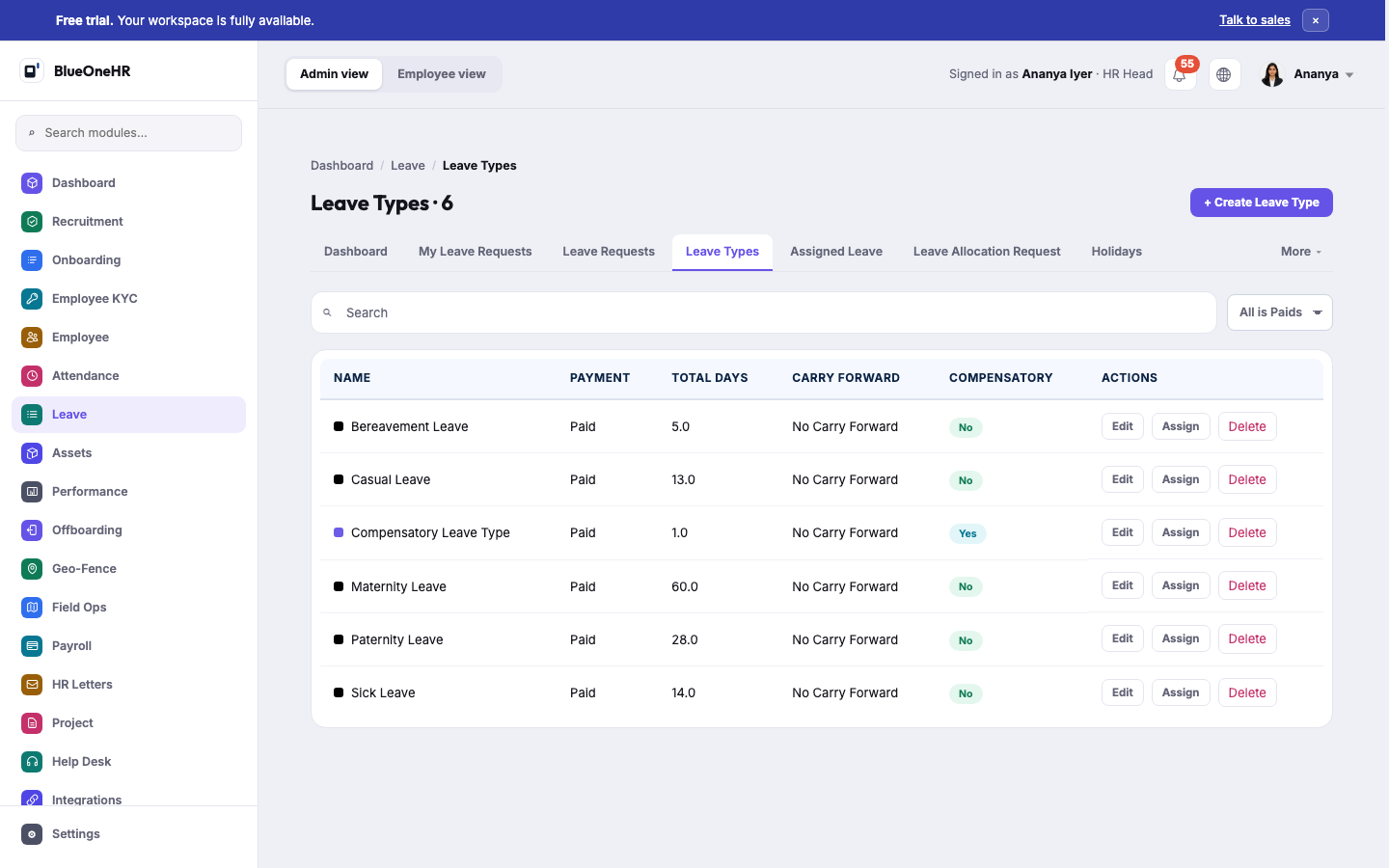
Each type has a name, whether it is **Paid** or unpaid, a **Total Days** allowance, whether unused
days **Carry Forward** to the next period, and whether it is **Compensatory** (earned in exchange for
something, such as working a holiday, rather than granted upfront). **Create Leave Type**, **Edit**,
**Assign**, and **Delete** are the available actions per type.
## What was actually configured on the demo workspace
Six leave types existed, all **Paid**, none carrying forward unused days:
| Type | Total days | Compensatory |
|---|---|---|
| Bereavement Leave | 5.0 | No |
| Casual Leave | 13.0 | No |
| Compensatory Leave Type | 1.0 | **Yes** |
| Maternity Leave | 60.0 | No |
| Paternity Leave | 28.0 | No |
| Sick Leave | 14.0 | No |
These are this workspace's own configuration, not a fixed product default — see
[How leave works](https://docs.blueonehr.com/books/leave/page/how-leave-works) for the standing caution against assuming every organisation
offers the same leave types with the same allowances. Only **Compensatory Leave Type** was marked
Compensatory; the rest are granted upfront rather than earned.
## Related
- [How leave works](https://docs.blueonehr.com/books/leave/page/how-leave-works)
- [Applying for leave](https://docs.blueonehr.com/books/leave/page/applying-for-leave)
# Setting up holidays and leave restrictions
Three administrator screens under **Leave** describe the calendar your organisation works to: **Holidays**, **Company Leaves** and **Restrict Leaves**. This page shows what each screen lists and what its create form asks for.
## Before you begin
- These screens are for an administrator such as an HR Head. **Holidays** is also listed for people who can only see their own leave (see [Approving and rejecting leave](https://docs.blueonehr.com/books/leave/page/approving-and-rejecting-leave)).
- **Company Leaves** and **Restrict Leaves** sit under the **More** menu at the right of the Leave tabs.
- Holidays, company leaves and restrictions are shared by the whole organisation. Check a change before you save it.
## Holidays
1. Select **Leave**, then **Holidays**.
2. The heading shows how many holidays exist. Each row has a **Name**, **Start Date**, **End Date** and **Recurring** (Yes or No), and **Edit** and **Delete** buttons.
To add one:
1. Select **+ Create Holiday**.
2. Enter a **Name** and a **Start Date**. **End Date** is optional. Tick **Recurring** if it applies again, and check the **Company**.
3. Select **Create Holiday**.
**What you should see.** The list reloads with a message, "New holiday created successfully", and the new holiday appears in the list. **Delete** asks you to confirm ("Delete this holiday?"); after you confirm, the list shows a message that the holiday was deleted and the row is gone.
## Company Leaves
**Company Leaves** lists rules made of a **Week** and a **Day**. A workspace can show, for example, "Every week" with Saturday and with Sunday. A filter above the list offers **All based On Weeks** and **First Week** to **Fifth Week**.
**+ Create Company Leave** opens a form with **Based on Week** (Not set, or First Week to Fifth Week), **Based on Week Day** (Monday to Sunday, required) and **Company**.
## Restrict Leaves
**Restrict Leaves** lists restricted days with a **Title**, **Start Date**, **End Date**, **Department** and **Applies to All**. A workspace with none shows "No restricted days yet".
**+ Create Restricted Day** opens a form with:
- **Title**, **Start Date** and **End Date** (all required).
- **Department** (required), and an optional **Job Position**. A note under it says that if no job positions are selected, all job positions under the department are considered.
- **Include All**, to select all leave types, or **Specific Leave Types**, to choose the types to restrict.
- **Exclude Leave Types**, to choose types to leave out of the restriction.
- **Description** (required) and **Company**.
## Not confirmed
- How a holiday, a company leave or a restricted day changes what an employee sees or can do when applying for leave, or how it affects leave balances and attendance, was not tried.
- Creating, saving or deleting a company leave or a restricted day was not tried. Their forms were opened and left unsubmitted.
- **Edit** on an existing holiday was not used, and the effect of ticking **Recurring** on later years was not checked.
# Approving and rejecting leave
**Leave → Leave Requests** is the approver's queue: every leave request in the organisation, with **Approve** and **Reject** on each one that is still waiting. This page explains what those two buttons do, who sees them, and what the manager's view looks like.
## Before you start
- **Seeing the queue** needs permission to view leave requests. Someone without it sees only **My Leave Requests** and **Holidays** under Leave.
- **Seeing Approve and Reject** needs permission to change leave requests. In the test workspace used for this page, the HR Head user group holds it and the Manager user group does not. Whether your own workspace is set up the same way is something to check under [Roles and permissions](https://docs.blueonehr.com/books/employees/page/roles-and-permissions).
- **You cannot decide your own request.** BlueOneHR refuses it with the message "You raised this leave request, so you cannot also approve it. It has to be decided by someone else." This applies to an administrator too, and it also applies to a request an HR user filed on the employee's behalf.
- **Both actions notify the employee.** Approving or rejecting sends an in-app notification and an e-mail to the employee. Do not use either button on a real workspace just to see what happens.
## The screens
| Screen | What it is for |
|---|---|
| **Dashboard** | Requested, approved this month and rejected this month, plus the next holiday. |
| **Leave Requests** | The full queue, with a **Pending / Approved / Rejected** summary, filters, and a row of actions on each request. |
| **Leave Allocation Request** | A separate queue for requests to be given additional leave, with its own approve and reject. |
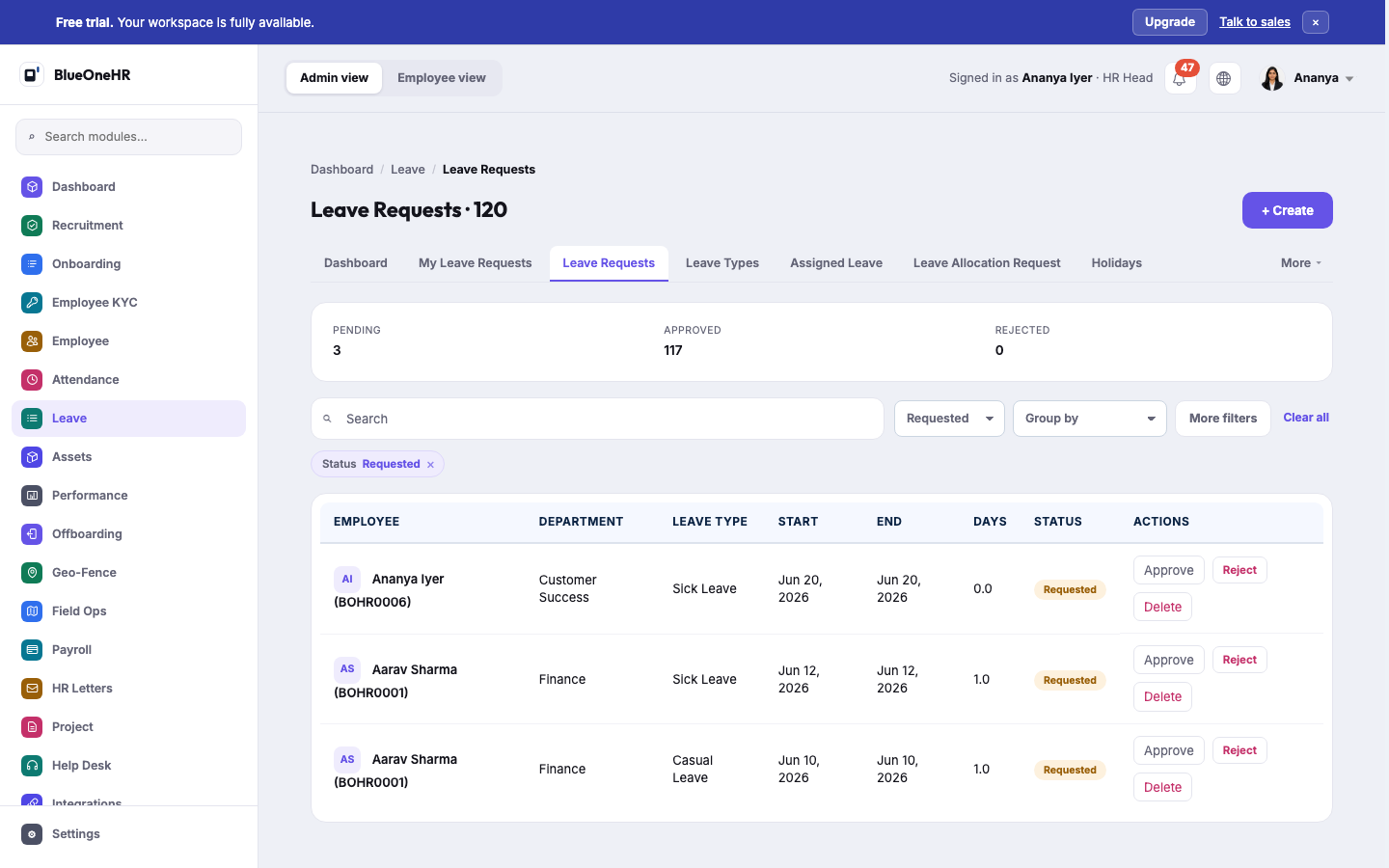
On **Leave Requests** you can:
- **Search** by employee name, badge ID, department or leave type.
- Filter by status (**All statuses**, **Requested**, **Approved**, **Cancelled**, **Rejected**), by leave type and by department, and use **Group by** (Employee, Leave Type, Start Date, Status, Requested Days, Reporting Manager, Department, Job Position, Employment Type, Company).
- Read each request's employee, department, leave type, start, end, days and status.
The **Requested** tile on the Leave **Dashboard** counts only requests whose start date is today or later. The **Pending** count on **Leave Requests** counts every request still waiting, whatever its dates, so the two can differ.
## Approve a request
1. Open **Leave → Leave Requests**.
2. Choose **Requested** in the status filter so that only waiting requests are listed.
3. Find the request and select **Approve**. The browser asks **Approve this leave request?**; confirm.
When you confirm, BlueOneHR, in order:
1. Refuses if you are the person the leave belongs to, or the person who filed it.
2. Checks the employee's balance for that leave type. If it is not enough, nothing changes and the message reads that the employee does not have enough leave days to approve the request.
3. Takes the days from carried-forward days first, then from available days, and marks the request **Approved**.
4. Sends the notification and the e-mail.
If your organisation has set up **multiple approvals** for leave (Settings → Configuration → Multiple Approvals), your click is one step of a chain: the request becomes **Approved** only when the last approver in the chain confirms, and the next approver is notified after each step. A superuser can complete the whole chain in one action on someone else's request. The setting itself is described in [Multiple approvals](https://docs.blueonehr.com/books/company-settings/page/multiple-approvals); how a saved chain behaves was not tried.
**What you should see.** The list reloads and the request shows **Approved**. The confirmation message reads "Leave request approved successfully..".
## Reject a request
1. Open **Leave → Leave Requests** and filter to **Requested**.
2. Select **Reject** on the request. A page titled **Reject Leave Request** followed by the request number opens.
3. Write the **Rejection reason** (required) and select **Reject Request**.
Rejecting marks the request **Rejected**, returns any days it had set aside to the employee's balance, saves your reason as a comment on the request, and notifies and e-mails the employee. A request that is already rejected is left alone with the message "Leave request already rejected."
## Delete
Every row also has **Delete**, including approved ones. Deleting is not a decision. A request is only removed while it is still **Requested**; for any other status the request is kept and a warning is shown. Prefer **Reject** with a reason, so the employee is told and the record stays.
## The manager's view
A manager who is not in HR uses the same Leave module.
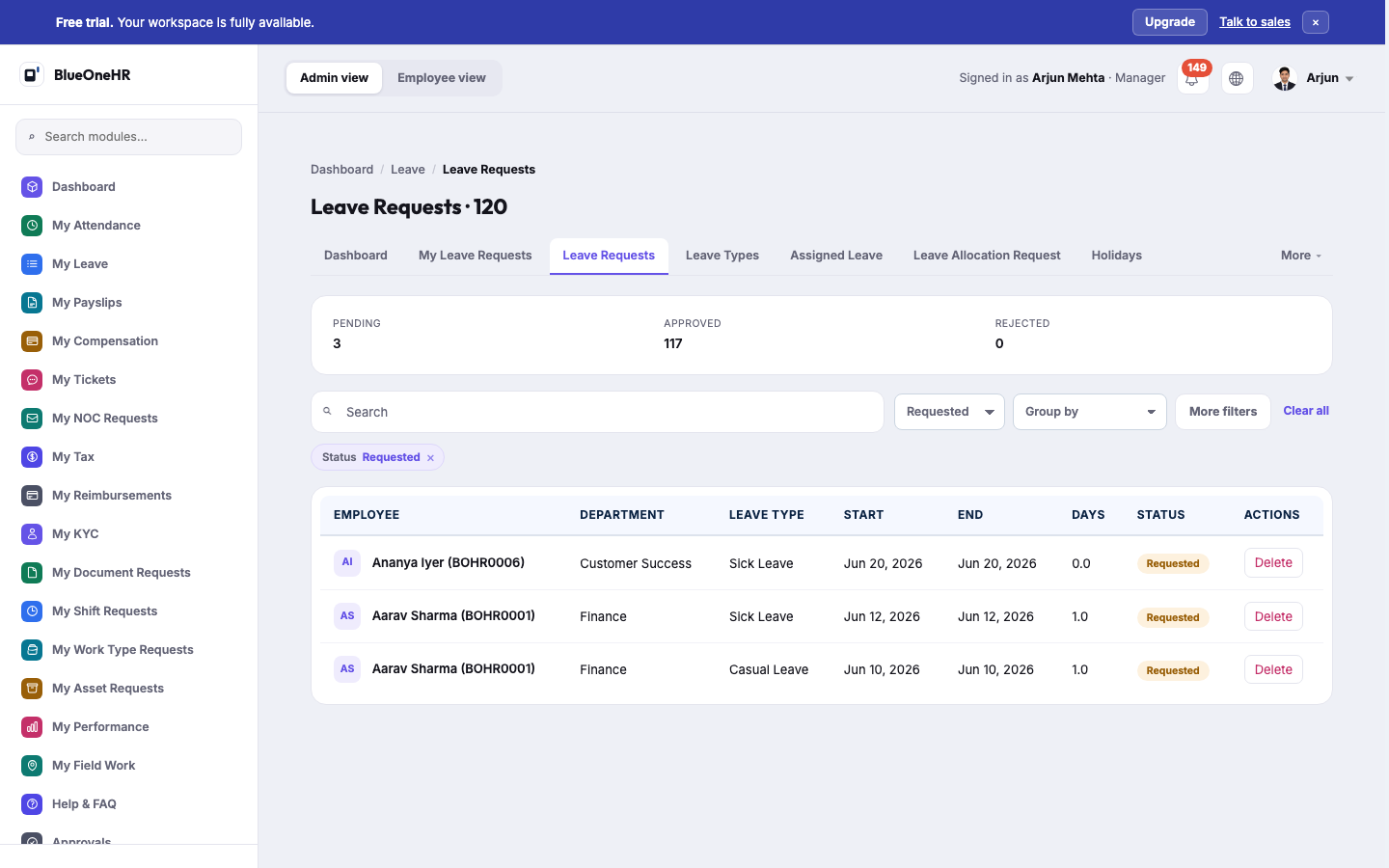
- **Approve** and **Reject** appear only for someone who holds the permission to change leave requests. Without it, a waiting request shows no **Approve** or **Reject**.
- The **Approvals** item in a manager's sidebar opens **My Approvals**, a separate screen. Leave requests are not routed through it: leave has its own multi-step approval, described above.
## If it does not work
- **Approve and Reject are missing.** You hold the view permission but not the change permission. Ask an administrator; see [Roles and permissions](https://docs.blueonehr.com/books/employees/page/roles-and-permissions).
- **The Dashboard shows fewer requested than Leave Requests shows pending.** See the note about dates above; the two counts are defined differently.
- **You approved and nothing changed.** Check for the message about not enough leave days, and check whether the request belongs to you.
## Not confirmed
- **Approving, rejecting and deleting** were not tried live, so the messages and the balance changes above were not seen on screen. The confirmation prompt and the **Reject Leave Request** page were opened but not submitted.
- **Whether a manager can approve leave by any other route** when their user group lacks the change permission. The Leave Requests screen does not show them the buttons.
- **Multiple approvals** and **Leave Allocation Request** were not tried.
## Related
- [How leave works](https://docs.blueonehr.com/books/leave/page/how-leave-works)
- [Applying for leave](https://docs.blueonehr.com/books/leave/page/applying-for-leave)
- [Leave types](https://docs.blueonehr.com/books/leave/page/setting-up-leave-types)
- [Roles and permissions](https://docs.blueonehr.com/books/employees/page/roles-and-permissions)