# How onboarding works
**Onboarding** is the step between hiring a candidate and having them on the team. It has two screens: a board of onboarding stages for each vacancy, and a list of **Hired Candidates** where HR records each person's joining date and offer-letter status and sends them the onboarding link.
## Before you start
- A candidate appears in **Hired Candidates** once they are marked **Hired** in Recruitment; see [How recruitment works](https://docs.blueonehr.com/books/recruitment/page/how-recruitment-works).
- You need permission to manage onboarding to see the controls on both screens: **Add Task**, **Add stage**, **Edit**, **Delete**, the per-candidate form, **Send onboarding link** and **Remove**. You have it if you hold the permission to change onboarding stages, are named as the manager of an onboarding stage, or are a recruitment manager. Without it you see the lists and no controls.
- Sending the link **sends a real e-mail** to the candidate. Do not use it on a real workspace to see what happens.
## The screens
Under **Onboarding** in the sidebar there are two tabs: **Onboarding** and **Hired Candidates**.
### Onboarding: the stage board
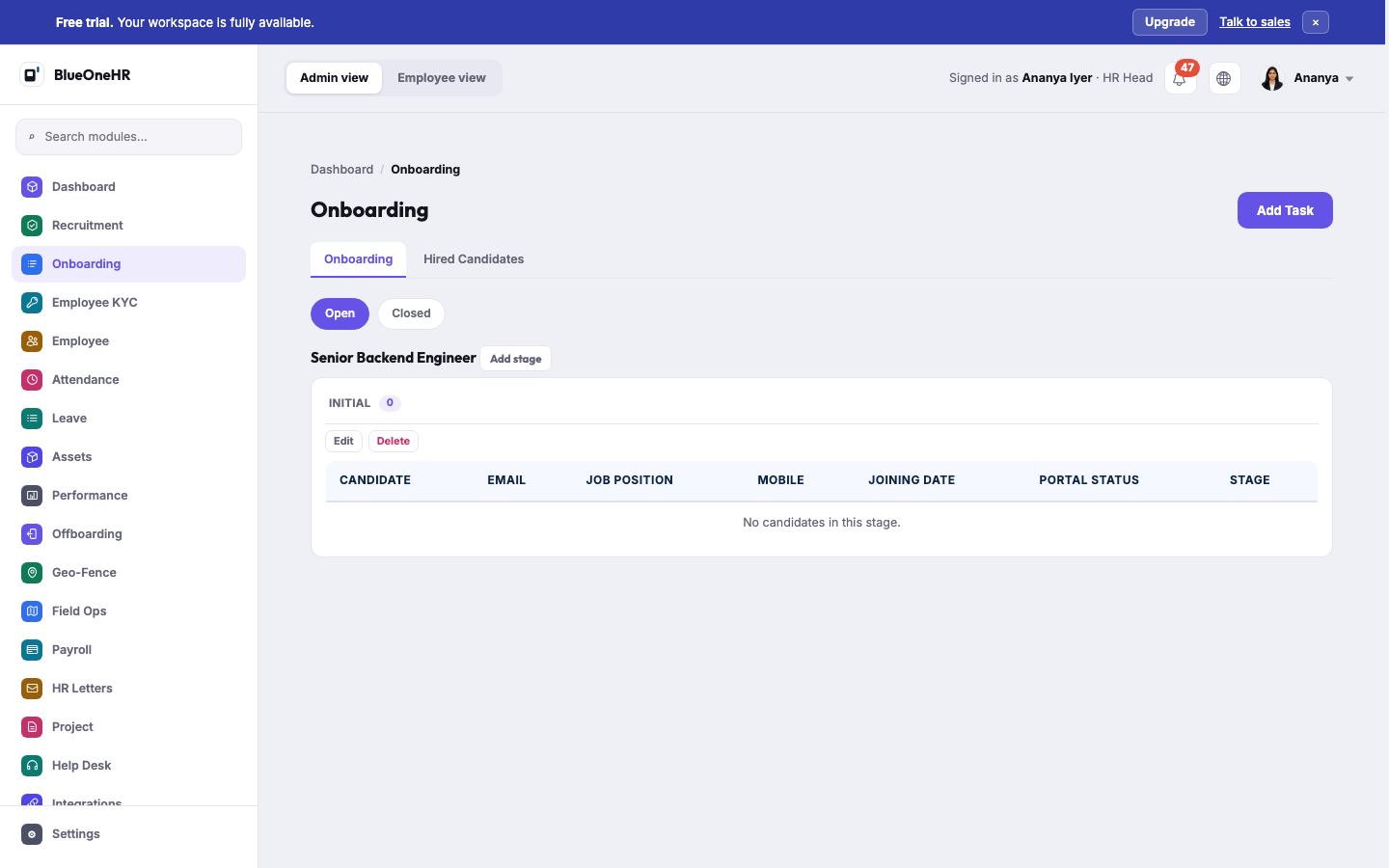
One block per **open** recruitment that has onboarding stages set up, with **Open** and **Closed** buttons above to switch between open and closed recruitments. If none has stages the page says "No open recruitments have onboarding stages set up yet."
Each block is a row of stages. A stage shows its name, how many candidates are in it, **Edit** and **Delete**, and a table of its candidates with **Candidate**, **Email**, **Job Position**, **Mobile**, **Joining Date**, **Portal Status** and **Stage**. **Portal Status** is **Not sent**, **Sent** or **Used**, meaning whether the candidate has been sent the onboarding link and whether they have filled it in.
The **Stage** column is a **Move to...** list of the other stages in that vacancy. Choosing one moves the candidate straight away. It also notifies the stage's managers. When the stage you move someone to is marked as the **final stage**, the candidate's onboarding end date is set to that day.
**Add stage** opens a form with **Stage title**, **Stage managers** (required) and **Is final stage**. A stage cannot be deleted while candidates are in it; the message asks you to move them first.
**Add Task** at the top opens a form with **Stage id**, **Candidates**, **Task title** and **Task managers** (required). Saving creates the task and gives it to each candidate you selected, and tells the task managers they were chosen.
### Hired Candidates
Each hired candidate is a card with their name, e-mail address, job position, the vacancy and the date they were hired. If you can manage onboarding, the card also has:
- **Joining date**, **Probation ends** and **Offer letter**, with a **Save** button. The offer-letter choices are **Not Sent**, **Sent**, **Accepted**, **Rejected** and **Joined**.
- An invitation badge: **Not invited**, **Invited, awaiting reply** or **Details received**.
- **Send onboarding link**, which reads **Resend link** once one has been sent.
- **Remove**.
There is also a search box for name, e-mail and job position.
## Set the joining date, probation end and offer-letter status
1. Open **Onboarding → Hired Candidates**.
2. On the candidate's card, choose the **Joining date** and **Probation ends** with the date picker, and pick the **Offer letter** status.
3. Select **Save**.
The offer-letter list is a record of where the offer stands. Choosing **Sent** does not send an offer letter, and saving this form sends no e-mail; to produce and send a letter, use [How HR letters work](https://docs.blueonehr.com/books/hr-letters/page/how-hr-letters-work). A probation end that falls before the joining date is refused with "Probation cannot end before [name] starts. Nothing was changed." If nothing differs from what is stored, the page says so.
## Send the onboarding link
Select **Send onboarding link** on the candidate's card. The candidate receives an e-mail with a personal link where they fill in their own details before joining. The link, the two ways it can fail and what the candidate sees are described in [First login and getting access](https://docs.blueonehr.com/books/first-steps/page/first-login-and-getting-access), in the section for hired candidates, and are not repeated here. The button is greyed out, with the hint "No email address on record", when the candidate has no address.
## Remove a candidate
**Remove** asks you to confirm, then takes the person out of onboarding. If they already have an employee record, they are archived instead of deleted so the link between the hire and the employee is kept. If they have related records that block deletion, they are archived and you are told.
## What you should see
After a change, the page returns to the same list with a message at the top, for example "[Name] moved to [stage]." or "[Name]: joining date updated." An empty stage says "No candidates in this stage."; an empty **Hired Candidates** page says "At present, there are no candidates onboarding."
## If it does not work
- **You see no Add Task, Add stage or per-candidate form.** You do not have permission to manage onboarding. Ask an administrator.
- **A hired candidate is not listed.** The list shows candidates who are hired and active. Check the candidate in Recruitment.
- **The Onboarding board shows nothing.** The board only lists open recruitments that have at least one onboarding stage. Add a stage with **Add stage**.
## Not confirmed
- **Candidates on the board and cards.** In the workspace used for this page the one open vacancy had a single stage called **Initial** with no candidates, and **Hired Candidates** was empty, so the board and the cards were not seen with people on them. For what a card looked like, see the capture in [First login and getting access](https://docs.blueonehr.com/books/first-steps/page/first-login-and-getting-access).
- **Tasks after creation.** The **Add Task** form was opened. No screen in this release links to editing or deleting a task or to setting a candidate's task status, so how a task's progress is seen or changed from the interface is not confirmed.
- **Whether onboarding creates the employee record.** Nothing on these two screens creates one. Recruitment's candidate list has a **Convert to employee** button on a hired candidate (it asks "Create an employee record for [name]?"), which was not tried. Check [Adding an employee](https://docs.blueonehr.com/books/employees/page/adding-an-employee) and Recruitment before relying on either route.
- **Saving, moving or sending** anything was not tried live. The forms were opened, never submitted.
## Related
- [How recruitment works](https://docs.blueonehr.com/books/recruitment/page/how-recruitment-works)
- [First login and getting access](https://docs.blueonehr.com/books/first-steps/page/first-login-and-getting-access)
- [Adding an employee](https://docs.blueonehr.com/books/employees/page/adding-an-employee)
- [How HR letters work](https://docs.blueonehr.com/books/hr-letters/page/how-hr-letters-work)