
How assets work
Assets tracks the company property people hold, such as laptops: what exists, who has it, who has asked for one, and what came back and in what condition. It has five tabs: Dashboard, Asset View, Asset Batches, Request and Allocation and Asset History.
Before you start
- Seeing the module needs permission to view assets. Adding, editing and deleting assets, categories and batches, allocating assets and approving requests each need their own permissions. In the test workspace used for this page, HR Head and HR Ops hold them all, and the Manager user group can view assets but not change them.
- Employees do not use the full module. An employee sees My Asset Requests in the sidebar, which opens the Request and Allocation tab with their own assets and a way to ask for one or ask to return one.
- Approve, allocate and return change the state of real assets and send in-app notifications. Do not use them on a real workspace to see what happens.
The screens
Dashboard
Four counters (All assets, In use, Available, Pending requests), Assets by Category with totals and how many are in use, and a Pending Asset Requests table (employee, category, requested date, description) with a View all link.
Asset View
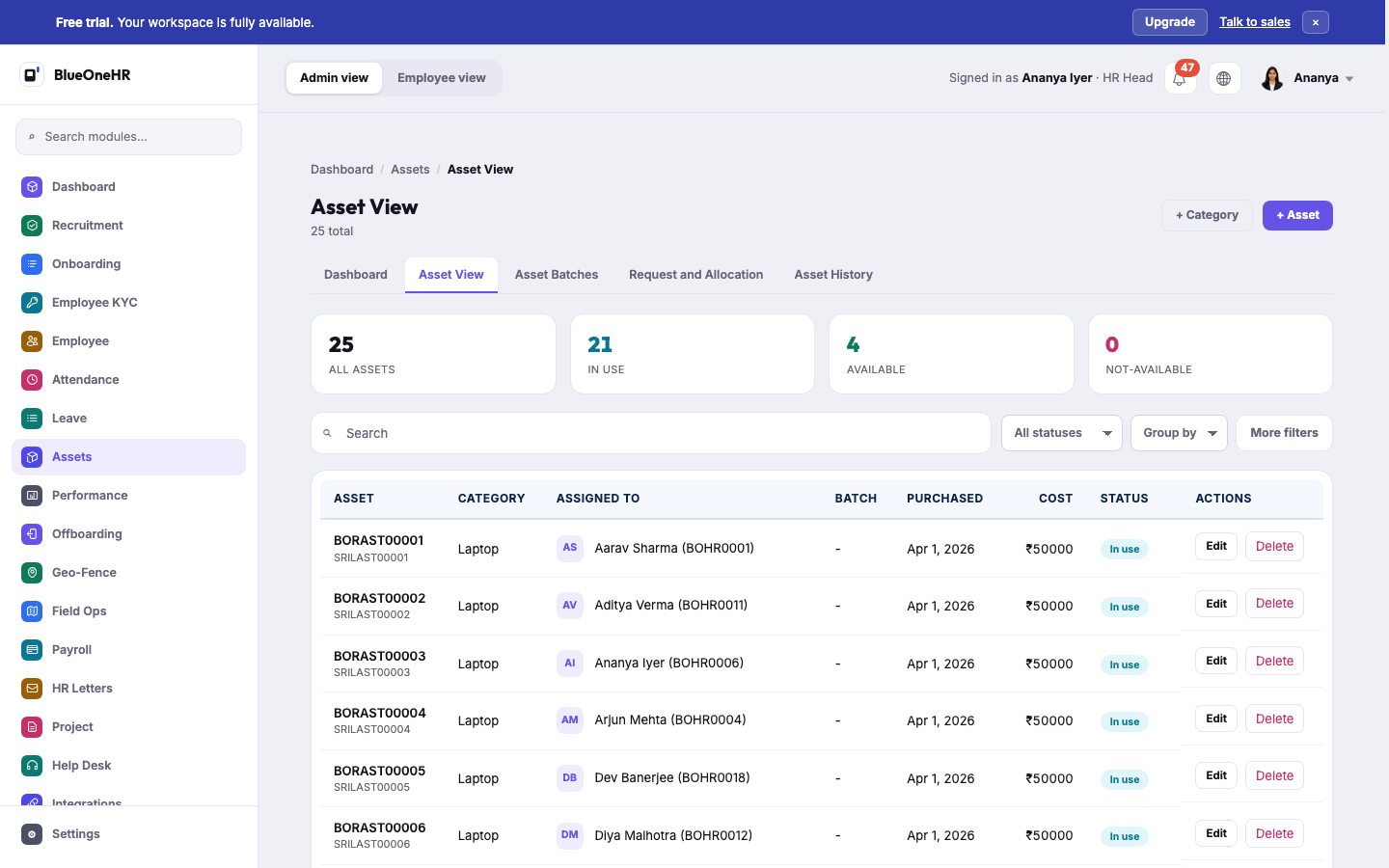
The category cards that normally sit above the search box are not shown in this capture.
Above the table, each category is a card with View assets, Edit and Delete, and + Category and + Asset create new ones. The table shows each asset's name and tracking ID, category, who it is assigned to, batch, purchase date, cost and status. Filter it by status (In Use, Available, Not-Available; the counters above the table are links that apply the same filter), search it, group it by Category, Status or Batch, or use More filters.
The three statuses mean: In Use (assigned to someone), Available (in stock and can be allocated) and Not-Available (out of circulation, for example after a return with damage; see below).
+ Asset opens Create Asset with these fields: Asset name, Current user, Description, Tracking ID, Purchase date, Cost, Category, Status, Batch no, Expiry date and Notify before (days). + Category opens Create Asset Category with Name, Description and Company.
Asset Batches
A batch is a group of assets bought together. The list shows Batch number, Description, the number of assets and when it was created. + Batch opens Create Asset Batch with Is active, Batch number, Description and Company. Until one is created, the list is empty.
Request and Allocation
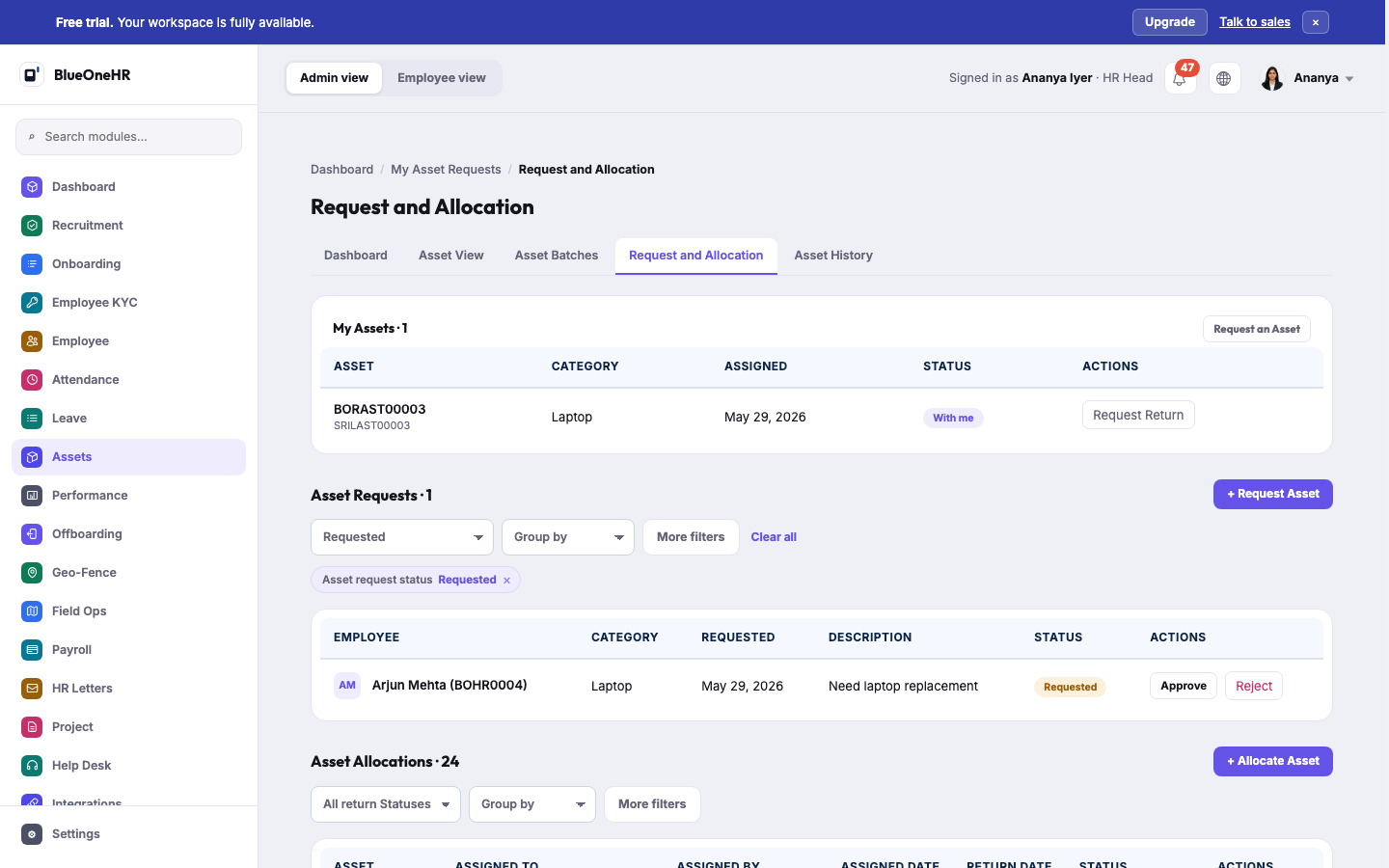
Three blocks on one page.
- My Assets: the signed-in person's own assets, each with Request Return, and a Request an Asset button. Request Return flags the allocation as having a return requested and notifies the people who hold the permission to change allocations.
- Asset Requests: every request with employee, category, date, description and status (Requested, Approved, Rejected). + Request Asset raises one. Approve and Reject appear on requests that are still Requested.
- Asset Allocations: every allocation with the asset, who it is assigned to and by, the assigned and return dates and the status (Allocated, or Returned with the condition). + Allocate Asset creates one, and Process Return ends one.
Approve an asset request
- Open Assets → Request and Allocation.
- In Asset Requests, select Approve on the request. A page titled Approve Request with the category and the requester opens.
- Choose the asset. Only assets that are Available in the requested category are listed.
- Select Approve and Allocate.
BlueOneHR then marks the chosen asset In use, records the allocation to the requester as assigned by you, marks the request Approved, and notifies the requester ("Your asset request has been approved!"). Reject marks the request Rejected and notifies the requester.
Allocate an asset directly
- In Asset Allocations, select + Allocate Asset.
- Fill in Asset (only available assets are offered), Assigned to, Assigned by and Assign condition images, which is marked required.
- Select Allocate.
The asset becomes In use.
Process a return
- In Asset Allocations, find the allocation and select Process Return. The page is titled Process Return with the asset's name.
- Fill in the Return date, the Return status (Healthy, Minor damage or Major damage), the Return condition notes and any Return images.
- Select Record Return.
A Healthy return makes the asset Available again. A return with damage makes it Not-Available, so it is not offered for allocation until someone changes it.
Asset History
Every allocation ever made, newest first: the asset, who held it, who assigned it, the assigned and return dates and the return condition (Healthy, or Not yet returned). You can search, filter by returned state and dates, and group by asset, employee or dates.
What you should see
Each action returns you to the page with a message, for example "Asset request approved successfully!" or a return-successful message (the wording is the product's own). The counters on Asset View and Dashboard change with the statuses.
If it does not work
- Approve lists no assets. There are no Available assets in that category. Add or return one first.
- An employee cannot find the asset screens. Employees use My Asset Requests in the sidebar, which opens their own page.
Not confirmed
- Approving, allocating, returning or creating anything was not tried live, so the effects above were not seen on screen. The forms were opened, not submitted.
- Return-image handling and the notification e-mails were not tried.
- Asset expiry and the "Notify before (days)" reminders were not checked, so what they trigger is not stated.
- Sync with an outside inventory system. The Integrations module names an inventory sync; see Integrations. It was not compared with these screens.
No comments to display
No comments to display