
Multiple approvals
Settings → Configuration → Multiple Approvals is where a condition is defined that sends a leave request through extra approvers. This page tours the list and the form for a new condition.
Open it
- Select Settings in the sidebar.
- Select the Configuration tab in the row of tabs under the page title (the row runs from General to Mitra).
- Multiple Approvals opens as the only sub-tab.
The conditions list
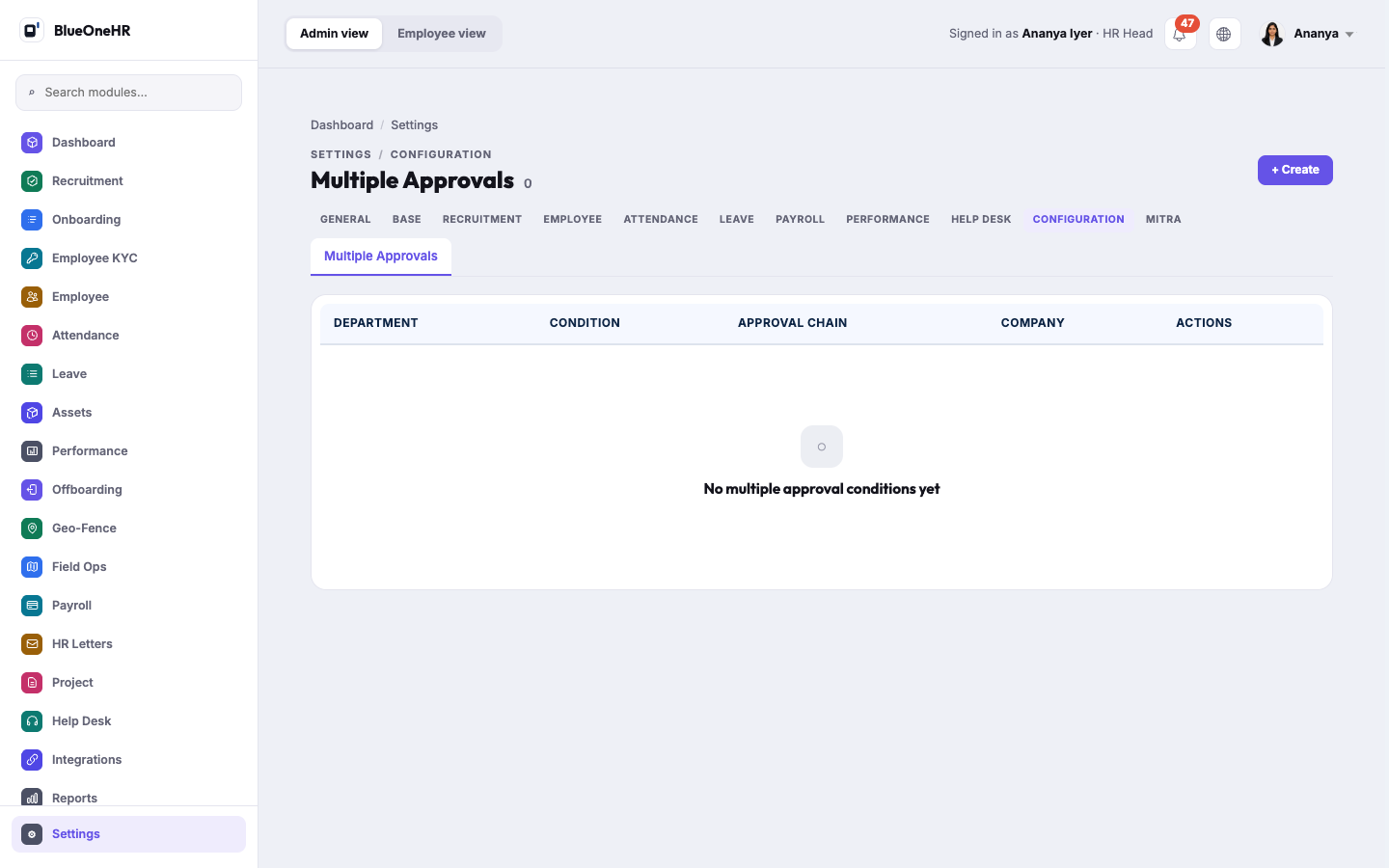
The page shows a count beside the title and a table with the columns Department, Condition, Approval Chain, Company and Actions. When nothing has been set up, the count reads 0 and the table says No multiple approval conditions yet. A + Create button sits at the top right.
The Create form
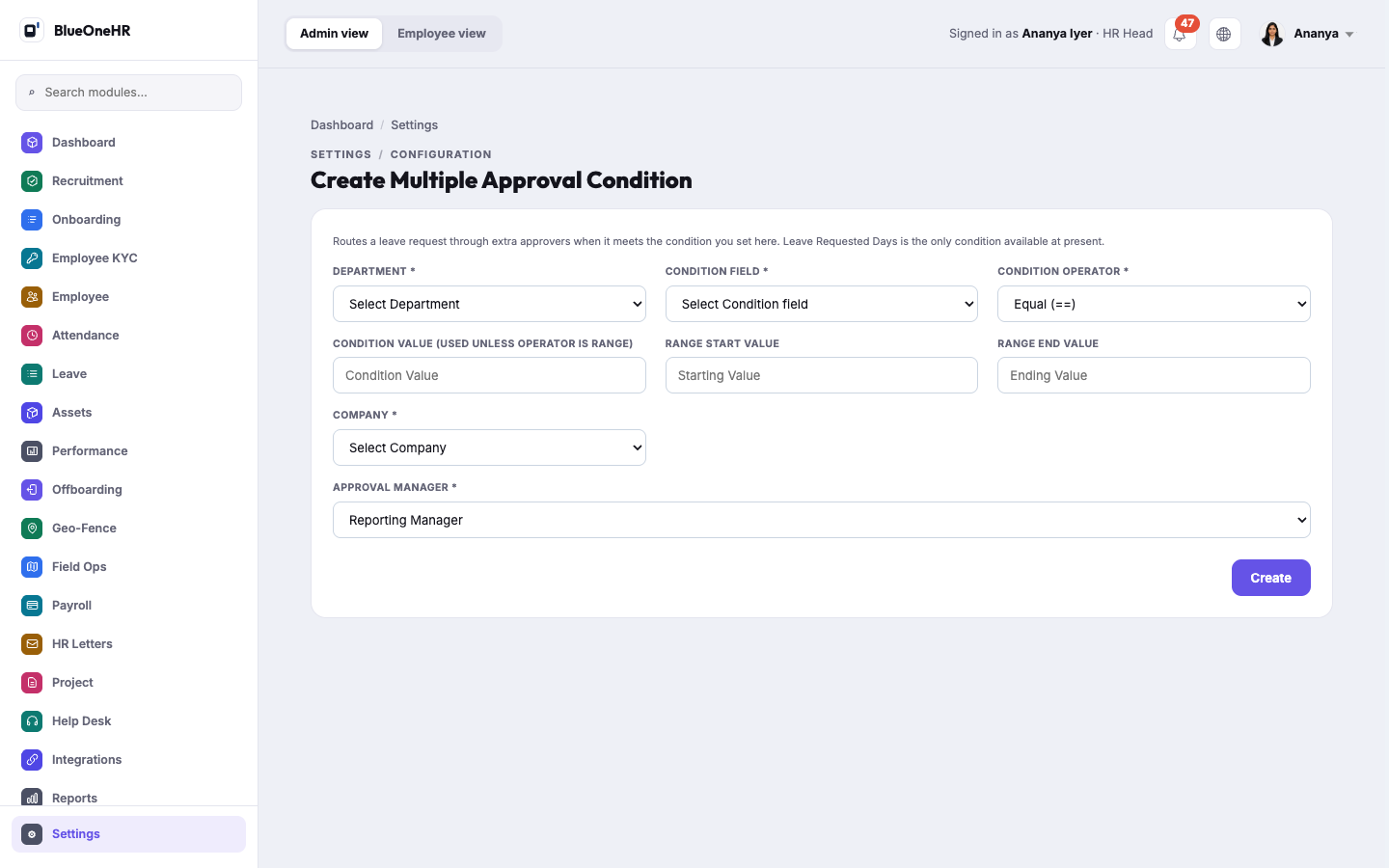
+ Create opens Create Multiple Approval Condition. The line at the top of the form reads: "Routes a leave request through extra approvers when it meets the condition you set here. Leave Requested Days is the only condition available at present."
| Field | Notes |
|---|---|
| Department (required) | Starts on Select Department. |
| Condition Field (required) | Starts on Select Condition field; the only choice is Leave Requested Days. |
| Condition Operator (required) | Starts on Equal (==). The choices are Equal, Not Equal, Range, Less Than, Greater Than, Less Than or Equal To, Greater Than or Equal To and Contains. |
| Condition Value | Used unless the operator is Range. |
| Range Start Value and Range End Value | The two boxes for a range. |
| Company (required) | Starts on Select Company. |
| Approval Manager (required) | A list that starts on Reporting Manager, followed by employees. |
Not confirmed
- No condition was saved while writing this page, so how a saved condition looks in the list, what Actions offers, and how a condition changes the way a leave request is approved were not tried. For what an approver sees, see Approving and rejecting leave.
- Whether more than one approval manager can be chosen when a condition is first created was not confirmed; the form shows a single Approval Manager field.
- Access for roles other than HR Head was not checked.
No comments to display
No comments to display