
Approving and rejecting leave
Leave → Leave Requests is the approver's queue: every leave request in the organisation, with Approve and Reject on each one that is still waiting. This page explains what those two buttons do, who sees them, and what the manager's view looks like.
Before you start
- Seeing the queue needs permission to view leave requests. Someone without it sees only My Leave Requests and Holidays under Leave.
- Seeing Approve and Reject needs permission to change leave requests. In the test workspace used for this page, the HR Head user group holds it and the Manager user group does not. Whether your own workspace is set up the same way is something to check under Roles and permissions.
- You cannot decide your own request. BlueOneHR refuses it with the message "You raised this leave request, so you cannot also approve it. It has to be decided by someone else." This applies to an administrator too, and it also applies to a request an HR user filed on the employee's behalf.
- Both actions notify the employee. Approving or rejecting sends an in-app notification and an e-mail to the employee. Do not use either button on a real workspace just to see what happens.
The screens
| Screen | What it is for |
|---|---|
| Dashboard | Requested, approved this month and rejected this month, plus the next holiday. |
| Leave Requests | The full queue, with a Pending / Approved / Rejected summary, filters, and a row of actions on each request. |
| Leave Allocation Request | A separate queue for requests to be given additional leave, with its own approve and reject. |
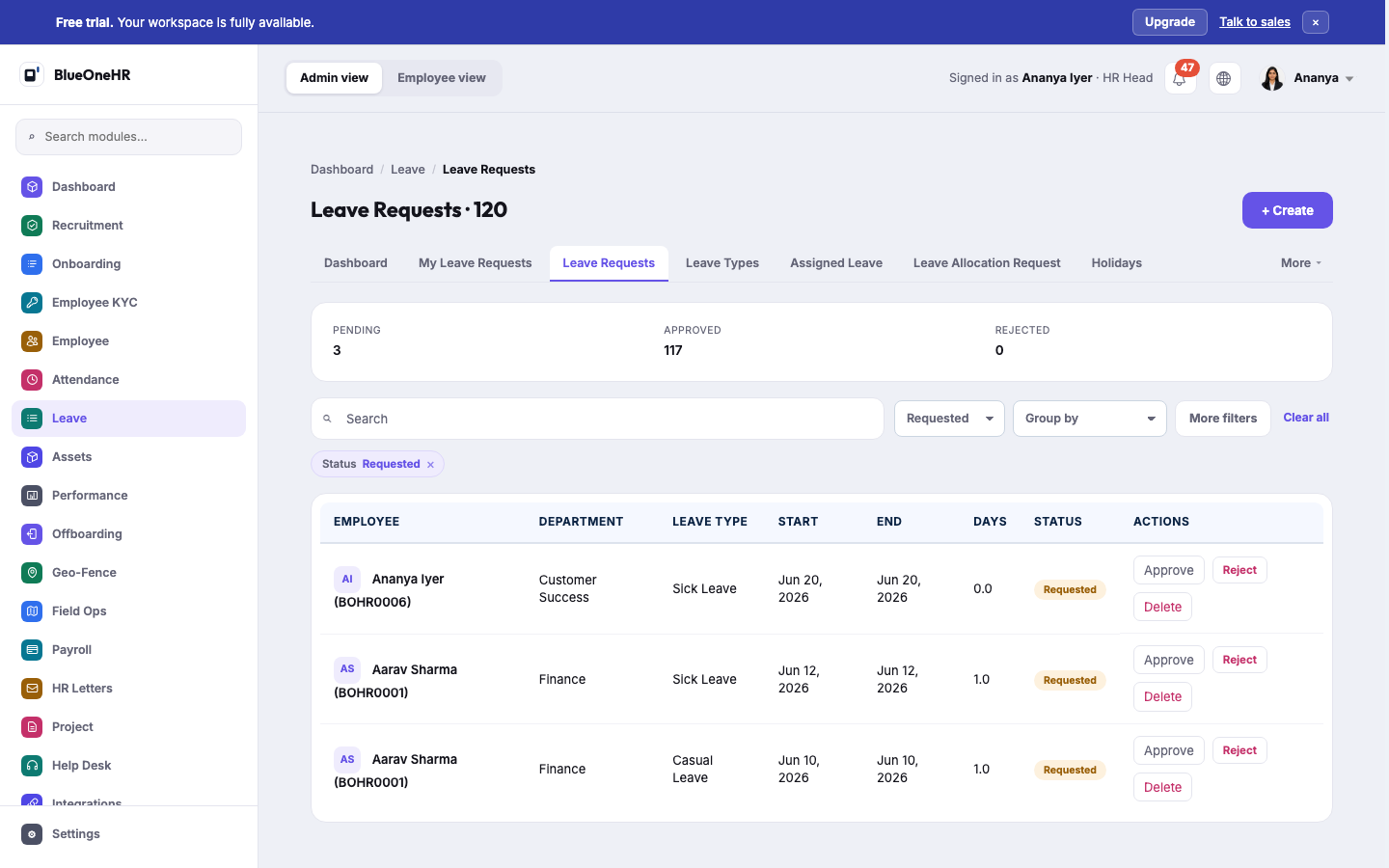
On Leave Requests you can:
- Search by employee name, badge ID, department or leave type.
- Filter by status (All statuses, Requested, Approved, Cancelled, Rejected), by leave type and by department, and use Group by (Employee, Leave Type, Start Date, Status, Requested Days, Reporting Manager, Department, Job Position, Employment Type, Company).
- Read each request's employee, department, leave type, start, end, days and status.
The Requested tile on the Leave Dashboard counts only requests whose start date is today or later. The Pending count on Leave Requests counts every request still waiting, whatever its dates, so the two can differ.
Approve a request
- Open Leave → Leave Requests.
- Choose Requested in the status filter so that only waiting requests are listed.
- Find the request and select Approve. The browser asks Approve this leave request?; confirm.
When you confirm, BlueOneHR, in order:
- Refuses if you are the person the leave belongs to, or the person who filed it.
- Checks the employee's balance for that leave type. If it is not enough, nothing changes and the message reads that the employee does not have enough leave days to approve the request.
- Takes the days from carried-forward days first, then from available days, and marks the request Approved.
- Sends the notification and the e-mail.
If your organisation has set up multiple approvals for leave (Settings → Configuration → Multiple Approvals), your click is one step of a chain: the request becomes Approved only when the last approver in the chain confirms, and the next approver is notified after each step. A superuser can complete the whole chain in one action on someone else's request. The setting itself is described in Multiple approvals; how a saved chain behaves was not tried.
What you should see. The list reloads and the request shows Approved. The confirmation message reads "Leave request approved successfully..".
Reject a request
- Open Leave → Leave Requests and filter to Requested.
- Select Reject on the request. A page titled Reject Leave Request followed by the request number opens.
- Write the Rejection reason (required) and select Reject Request.
Rejecting marks the request Rejected, returns any days it had set aside to the employee's balance, saves your reason as a comment on the request, and notifies and e-mails the employee. A request that is already rejected is left alone with the message "Leave request already rejected."
Delete
Every row also has Delete, including approved ones. Deleting is not a decision. A request is only removed while it is still Requested; for any other status the request is kept and a warning is shown. Prefer Reject with a reason, so the employee is told and the record stays.
The manager's view
A manager who is not in HR uses the same Leave module.
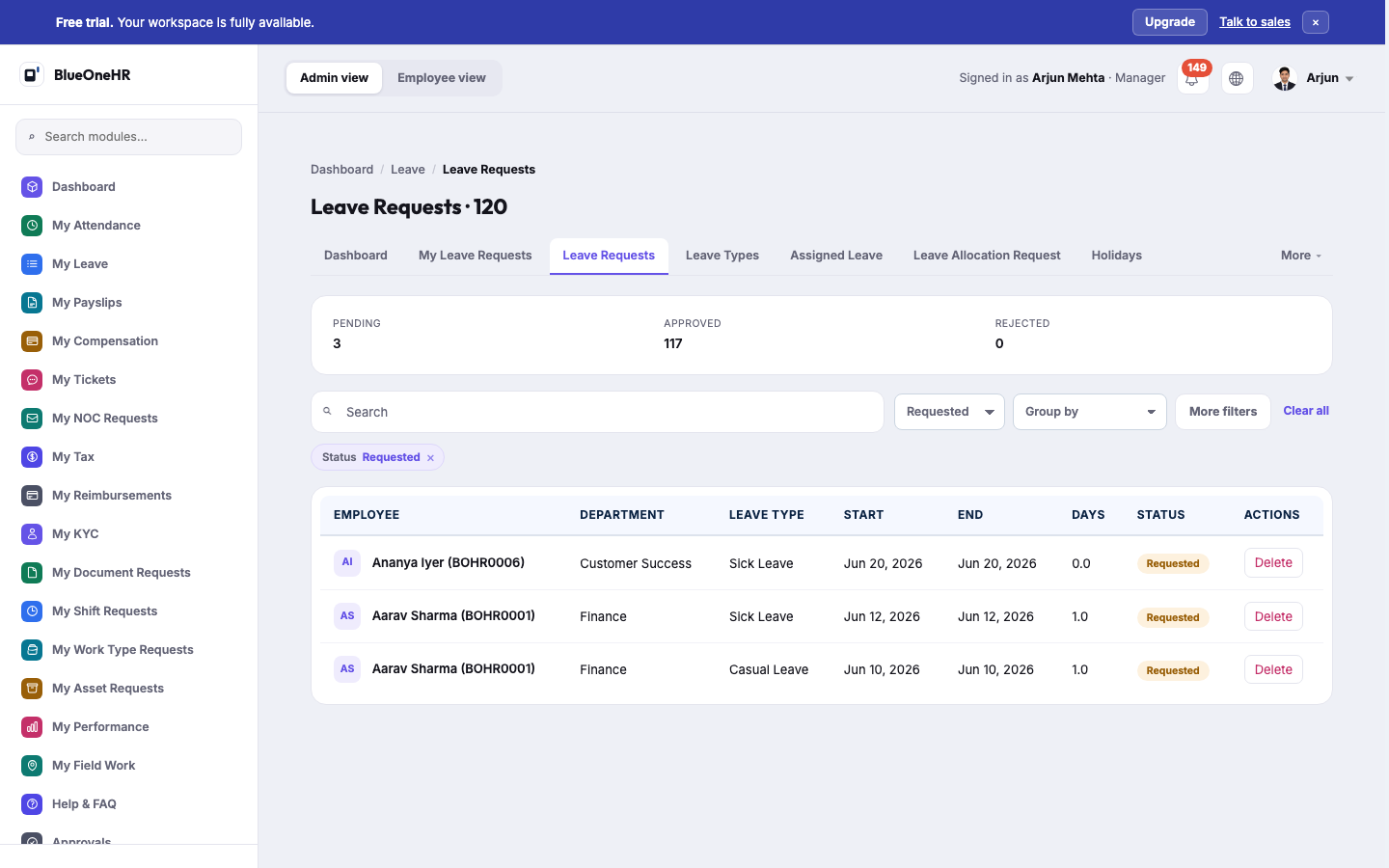
- Approve and Reject appear only for someone who holds the permission to change leave requests. Without it, a waiting request shows no Approve or Reject.
- The Approvals item in a manager's sidebar opens My Approvals, a separate screen. Leave requests are not routed through it: leave has its own multi-step approval, described above.
If it does not work
- Approve and Reject are missing. You hold the view permission but not the change permission. Ask an administrator; see Roles and permissions.
- The Dashboard shows fewer requested than Leave Requests shows pending. See the note about dates above; the two counts are defined differently.
- You approved and nothing changed. Check for the message about not enough leave days, and check whether the request belongs to you.
Not confirmed
- Approving, rejecting and deleting were not tried live, so the messages and the balance changes above were not seen on screen. The confirmation prompt and the Reject Leave Request page were opened but not submitted.
- Whether a manager can approve leave by any other route when their user group lacks the change permission. The Leave Requests screen does not show them the buttons.
- Multiple approvals and Leave Allocation Request were not tried.
No comments to display
No comments to display