
Applying for leave
Before you begin
Know which leave type you are requesting (Casual, Sick, or whatever your organisation has configured — see How leave works), and your start and end dates.
Steps
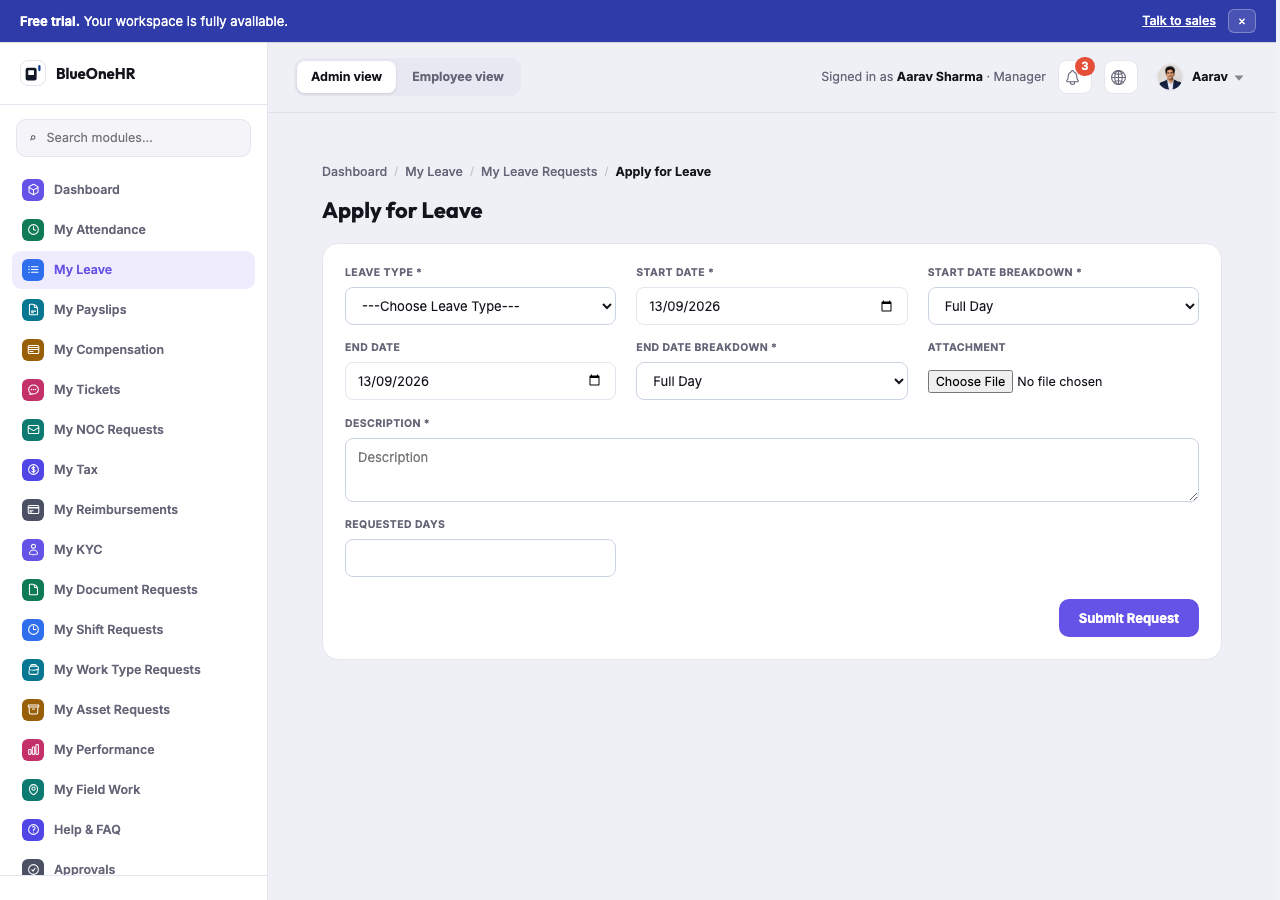
- Go to Leave → My Leave Requests.
- Select Apply for Leave.
- Choose the leave type from the dropdown.
- Set the start date, and how that day should be counted (Full Day or a partial-day breakdown).
- Set the end date and its own breakdown, if the request spans more than one day.
- Attach a file if your organisation requires supporting evidence for this leave type — a medical certificate, for example.
- Write a description. This is what your approver actually reads; a blank or vague description is the most common reason a request comes back with a question instead of an approval.
- Confirm the requested days, which BlueOneHR calculates from your dates and day breakdowns.
- Select Submit Request.
What happens next
Your request appears under My Leave Requests with a status, and on your approver's Leave Requests queue. Once decided, you can see the outcome from the same screen.
Notes
- A leave type your organisation has not configured will not appear in the dropdown at all; if the one you need is missing, ask your administrator rather than choosing the closest match.
- You do not edit your own leave record directly. If your dates change after submitting, cancel the request (where still possible) and submit a new one, rather than asking someone to alter the approved record by hand.
Troubleshooting
Requested days looks wrong. Check the day breakdown on both the start and end date — a request marked as a half day on one end changes the total without changing the calendar dates shown.
No comments to display
No comments to display