
How geo-fencing works
The Geo-Fence module keeps a list of named places, each a circle on the map. When the mobile app records a punch with a location, BlueOneHR compares the location with the circles that apply to that person and notes whether the punch was inside. This page explains how to add a fence and, just as important, what is and is not enforced.
Before you start
- You need permission on the Geo-Fence module. Viewing, adding, changing, deleting and assigning fences are separate permissions; in the test workspace used for this page, HR Head and HR Ops hold all of them.
- A named fence records; it does not block. Read the section "What a fence does to a punch" before you tell anyone that geo-fencing stops people clocking in from elsewhere.
- There is a second, separate geo-fencing setting under Settings → Attendance → Geo & Face Config. It works differently; see Attendance settings.
The screens
Under Geo-Fence in the sidebar there are two tabs: All Geo-Fences and Add Geo-Fence.
All Geo-Fences
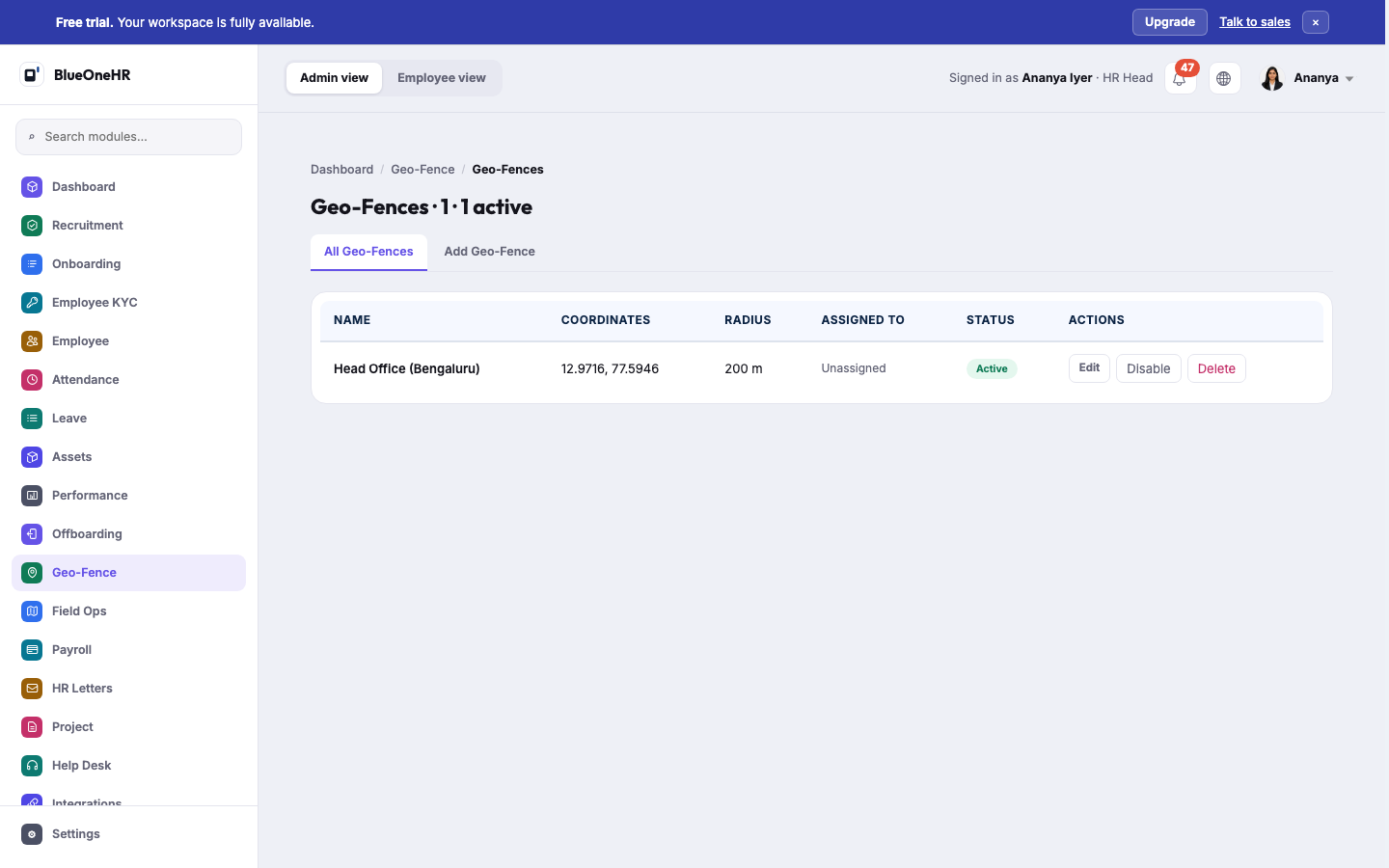
The title counts fences and active fences (for example "1 · 1 active"). Each row shows the Name, Coordinates, Radius in metres, Assigned to (or Unassigned), the Status (Active or disabled) and the actions Edit, Disable (or enable) and Delete.
Add Geo-Fence
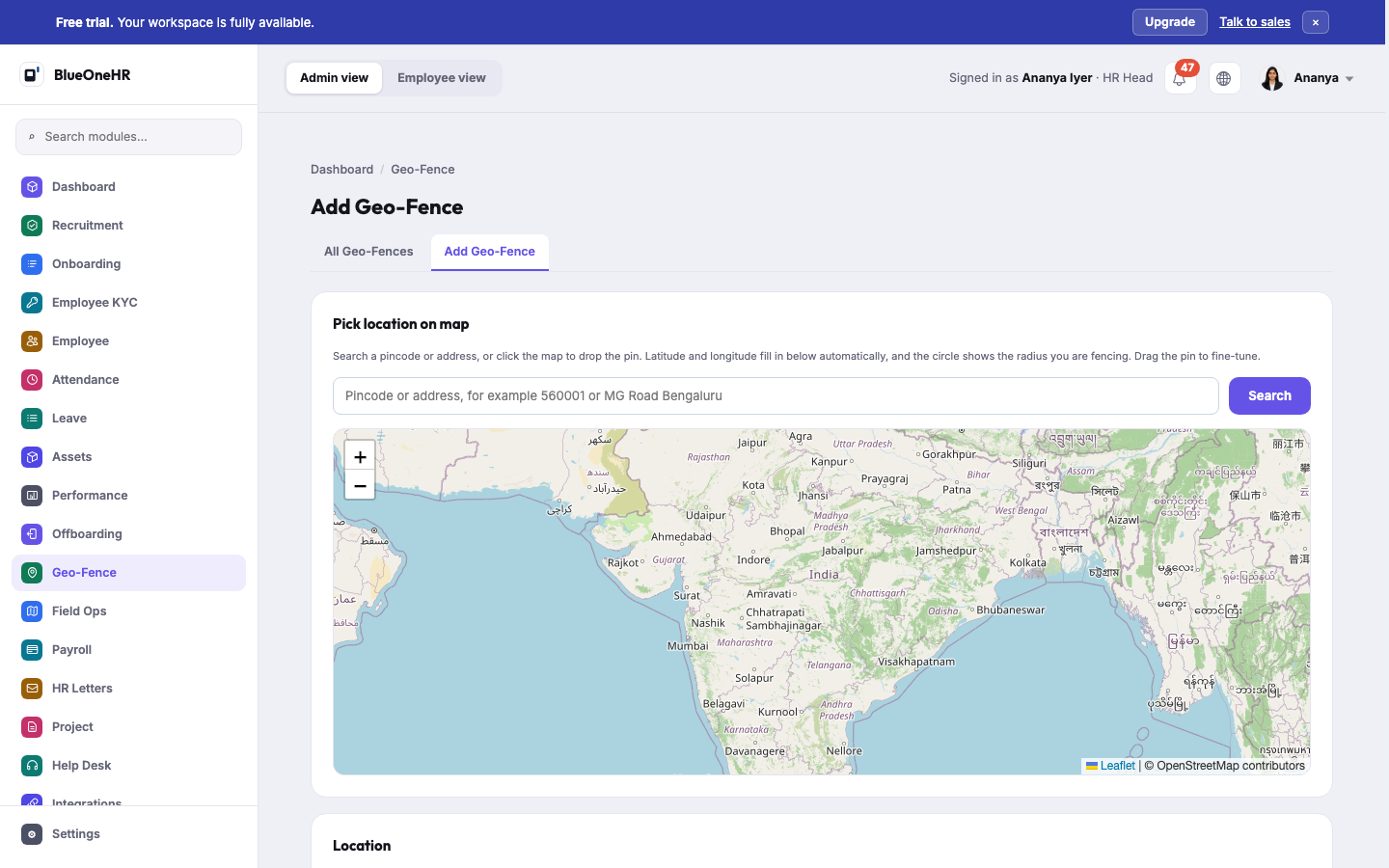
The page opens with Pick location on map. You can search a pincode or address, or click the map to drop a pin; the latitude and longitude below fill in by themselves and a circle shows the radius. You can drag the pin to fine-tune. Below the map, in Location, the fields are:
| Field | Notes |
|---|---|
| Location name (required) | For example "Head Office", "Mumbai Branch", "Client Site A". |
| Latitude and Longitude (required) | Filled in by the map, or typed. |
| Radius (meters) (required) | The form's minimum is 10; 200 is the suggested value. |
| Active | Whether the fence is in use. |
| Effective from and Effective to | Optional dates. Outside them the fence is ignored. |
Add a geo-fence
- Open Geo-Fence → Add Geo-Fence.
- Search for the place or click it on the map, so that the latitude and longitude fill in.
- Enter the Location name and the Radius (meters). Set Effective from and Effective to if the fence is temporary.
- Select Create Geo-Fence.
After it is saved you are taken to the fence's edit page, where you can assign it.
Who a fence applies to
On the edit page, Assign to takes Department, Team / Job Position, Employee Group or Individual Employee, and a Target ID that you type. The page lists the numeric IDs of employees and departments underneath so you can copy one. + Add Assignment saves it, and an assignment can be removed again.
How assignments are used:
- A fence with no assignments applies to everyone. The list shows it as Unassigned.
- A fence assigned to a department applies to people in that department, and one assigned to an individual employee applies to that person.
- Only Department and Individual Employee assignments are evaluated when a punch is checked. Team / Job Position and Employee Group assignments can be saved, but a fence assigned only to a team or a group is not matched to anyone.
What a fence does to a punch
- The mobile app sends the position with a punch (from the offline sync, and from the location call the app makes at clock-in or clock-out).
- BlueOneHR picks the fences that are active on the punch date and apply to that person, and measures the distance to the nearest one.
- If the person is farther away than that fence's radius, the point is stored with a violation flag and the distance. If no fence applies, nothing is flagged.
- The punch itself is still recorded. The app is told whether it was a violation and the distance; the punch is not refused.
The stored points, with the flag, are what the Field Ops screens read.
So a named fence is a way to notice and review punches made away from a place, not a lock. The refusal described under Geo & Face Config in Attendance settings is a different mechanism: a single circle per company that, once started, makes the mobile clock-in and clock-out answer "Outside the geofence" with an error.
What you should see
After Create Geo-Fence the edit page opens with a message "Geo-fence '[name]' created." Saving an edit returns you to the list with "Geo-fence '[name]' updated." Disable and enable flip the fence and say so.
If it does not work
- The map shows all of India and nothing is selected. That is the empty Add Geo-Fence page; search for a place or click the map.
- A fence assigned to a team or group has no effect. See "Who a fence applies to".
- You cannot see the module. You lack the Geo-Fence permission. Ask an administrator.
Not confirmed
- Creating, assigning, disabling or deleting a fence was not tried live. The forms were opened, not submitted.
- Live punches. The punch handling described above was not seen live: whether a mobile punch from outside a fence appears flagged, and that the flag shows on the Field Ops screens, were not tried.
- How the mobile app shows a violation to the person punching.
- Where the pincode and address search gets its results. The map credits OpenStreetMap; the search service was not checked.
No comments to display
No comments to display