
Attendance settings
Settings → Attendance holds the rules behind the attendance records: when someone counts as late, how much of a day is approved automatically, who may clock in, and from where. This page says what each tab controls.
Most of these settings change how the next punches are treated. They do not rewrite records that already exist.
Before you start
- You need Settings in the sidebar. Viewing each tab and changing it are separate permissions. In the test workspace used for this page, the HR Head user group holds both for every tab. The Manager user group can view some attendance rules but cannot change any of them.
- The tabs are in the second row under Settings → ATTENDANCE: Track Late Come & Early Out, Attendance Break Point, Check In/Check Out, Grace Time, Biometric Attendance, IP Restriction and Geo & Face Config. Six show in the row and the seventh sits under More.
- Do not change these on a real workspace to see what happens. IP restriction and geo-fencing can stop people clocking in.
Track Late Come & Early Out
A single switch, shown as Enabled with a Disable button. The screen says: "By enabling this, late arrivals and early departures of employees are tracked on their attendance."
When the switch is off, clocking in and clocking out no longer record a late come or an early out. Records that already exist are not removed.
Attendance Break Point
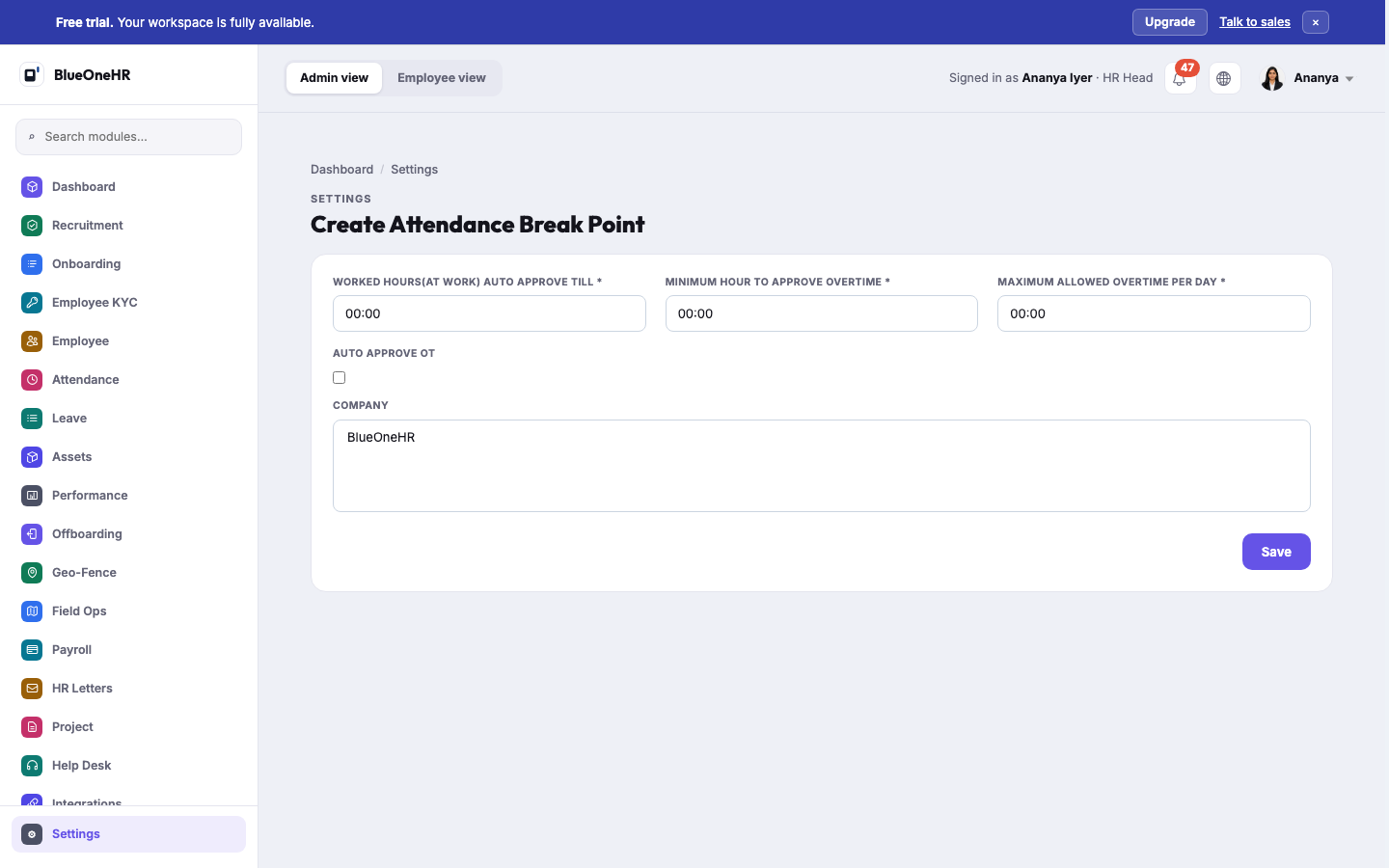
This is the rule for what counts as a normal day and what needs a person to look. The list has the columns Auto approve till, Min. overtime to approve, Overtime cutoff, Auto approve OT and Company, and + Create Break Point opens the form above. Only one may exist: creating a second is refused with "You cannot add more conditions."
| Form field | What it does |
|---|---|
| Worked hours (at work) auto approve till | At clock-out, a day whose worked hours are at or below this is marked validated automatically. A longer day is left for someone to validate. With no break point at all, 09:00 is used. |
| Minimum hour to approve overtime | The overtime lists and counts use it as the smallest overtime worth putting forward for approval. With no break point, the threshold is 00:00. |
| Maximum allowed overtime per day | Overtime credited for a day is capped at this. Longer overtime is recorded as this value. It is shown in the list as Overtime cutoff. |
| Auto approve OT | When ticked, a day whose overtime reaches the minimum is approved for overtime without anyone doing it. |
| Company | Which companies the rule applies to. |
The Attendance dashboard tells you when none of this is configured. Under Needs attention, next to Pending validation, Attendance requests and Overtime pending approval, it prints:
No attendance validation condition is configured, so the overtime approval threshold defaults to 00:00.
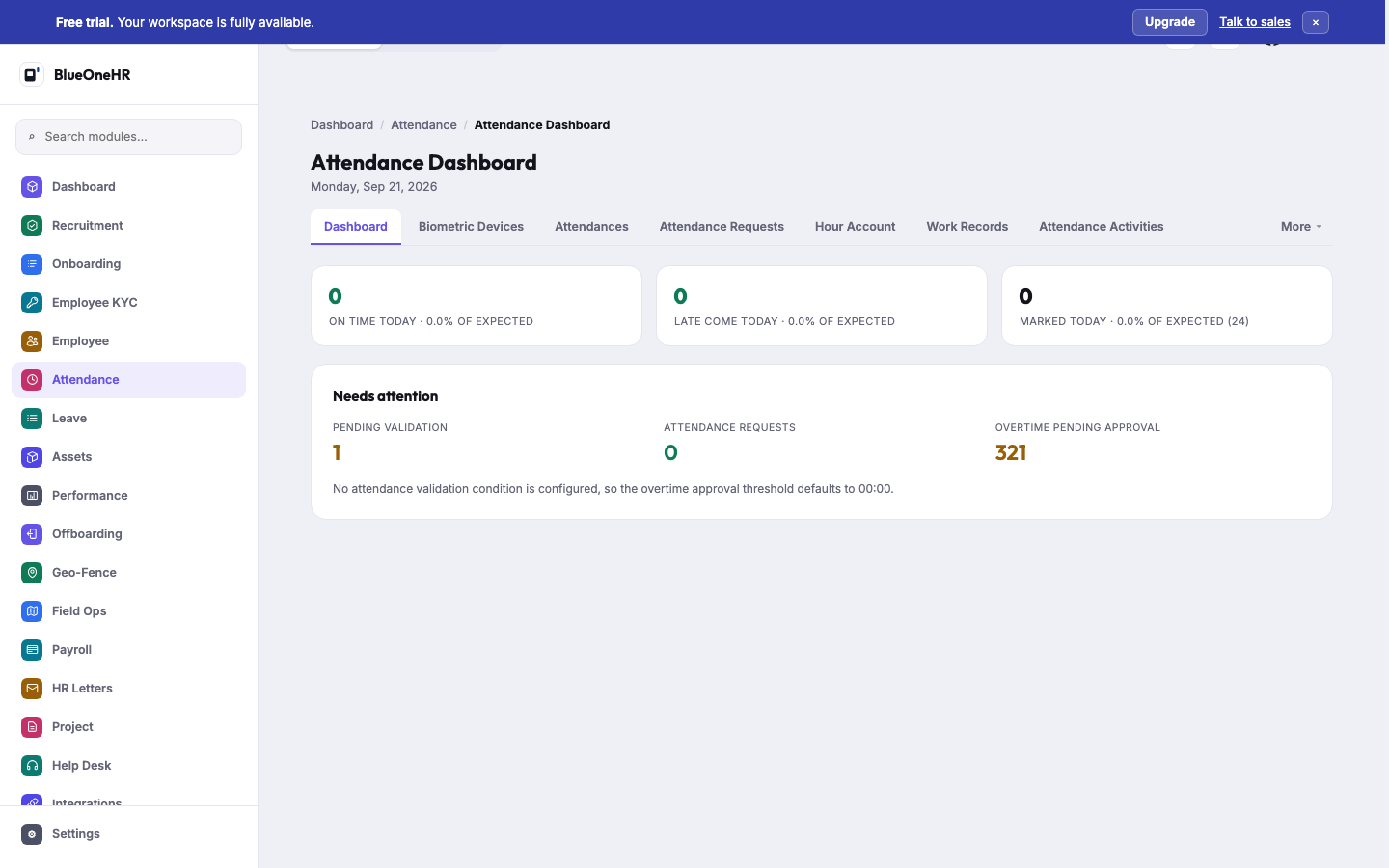
The note disappears once a break point exists.
Check In/Check Out
A table with one row per company (and one for All company), each with an Enabled or Disable button. It is the switch for clocking in and out on the web. The web clock-in only proceeds when the setting for the company selected for your session is enabled. Punches that arrive from a biometric device do not depend on it.
Grace Time
Grace time is the allowance before someone is called late or early. There are two lists on the tab: Default Grace Time and Grace Time (per shift), with + Create Default Grace Time and + Create Grace Time.
The form has Allowed time, Allowed clock-in, Allowed clock-out, Company and, for a per-shift grace time, Shifts. The tab lists each grace time with Active and clock-in and clock-out switches.
The grace time is subtracted from the clock-in time before it is compared with the shift start, so a person inside the allowance is not recorded as late. A grace time set on a shift takes priority over the default. Until one is created, the lists read "There is no default grace time at this moment." and "There is no grace time at this moment."
Biometric Attendance
One master switch, shown as Activated with a Deactivate button. The screen describes it as the master switch for ADMS push biometric devices: turning it off stops every push device from recording attendance, whatever the individual devices are set to. For the devices themselves, see Biometric devices.
IP Restriction
IP Restriction Status is Enabled or Disabled. When it is on, the screen says, "attendance can only be marked from the IP addresses and network prefixes listed below. Everywhere else is refused." Below it, Add Allowed IP / Network Prefix takes several addresses or prefixes separated by commas, and Add IP saves them into a list.
The check runs when someone clocks in on the web and answers "You cannot mark attendance from this network". Punches from a biometric device skip it, and it is not applied to clocking in from the mobile app, so IP restriction is a rule for web clock-in.
Geo & Face Config
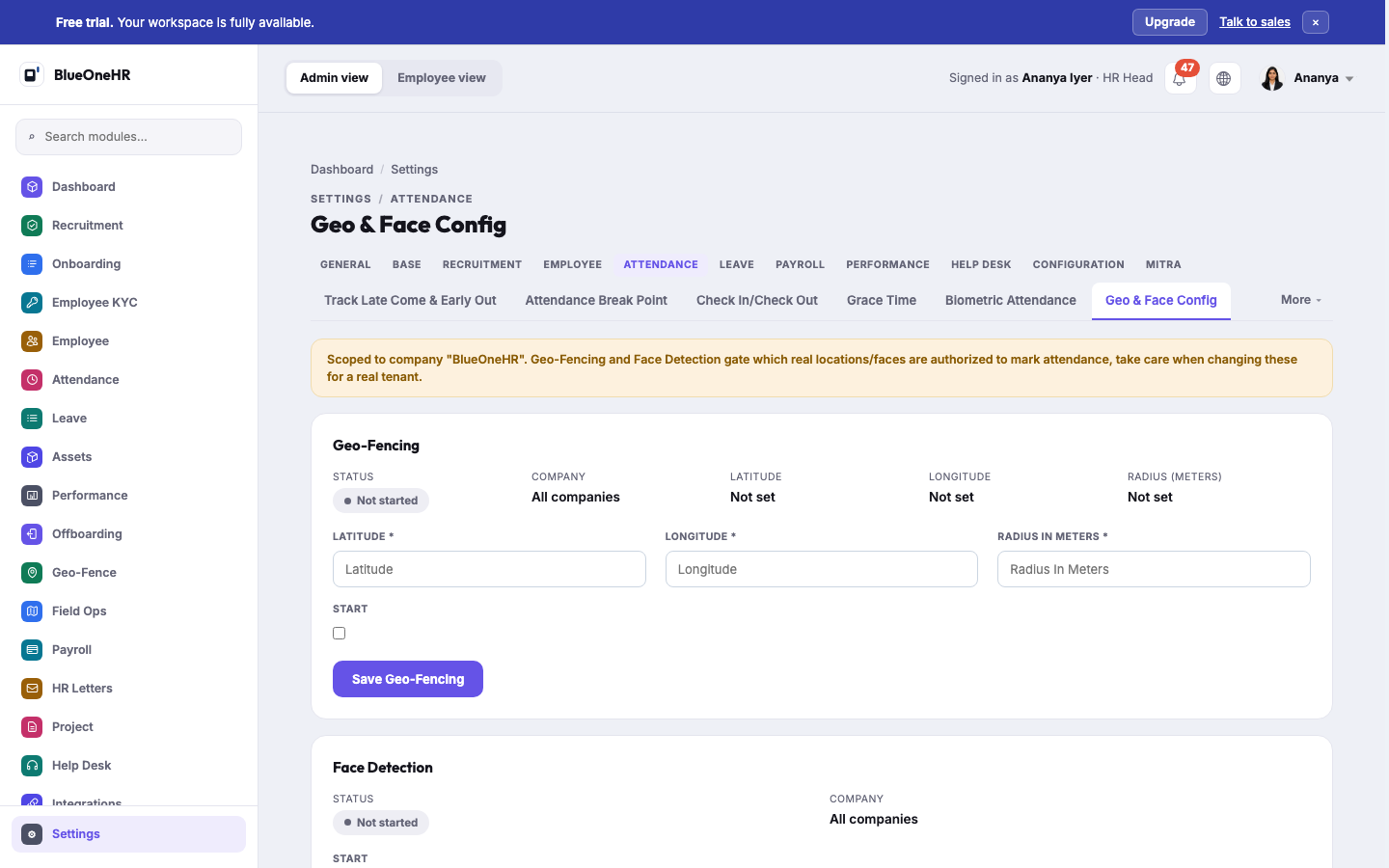
A warning at the top says that Geo-Fencing and Face Detection gate which real locations and faces are authorized to mark attendance.
- Geo-Fencing is one circle for the company: Latitude, Longitude, Radius in meters and a Start box, saved with Save Geo-Fencing. When Start is on, the mobile clock-in and clock-out check the phone's position against the circle and answer "Outside the geofence" with an error when it is outside. This is a different thing from the named fences under the Geo-Fence module; see How geo-fencing works.
- Face Detection is a Start switch, saved with Save Face Detection. The server passes the switch to the mobile app when someone signs in. What the app then does with it was not confirmed.
Both show Not started until switched on.
What you should see
Each tab shows its current state in words (Enabled, Activated, Disabled, Not started) and the controls to change it. A change is confirmed with a message at the top of the page, for example "Tracking late come early out enabled successfully" .
If it does not work
- The Attendance dashboard says the overtime threshold defaults to 00:00. That is the note above; create a break point to set one.
- The break point form will not save a second rule. Only one is allowed. Edit the existing one.
- You cannot find Geo & Face Config. It is under More in the tab row.
Not confirmed
- Switching on and saving any of these settings was not tried live, so the effects above were not observed as behaviour.
- What the mobile app does with Face Detection, and whether the app enforces anything beyond the server's location check.
- How a workspace with several companies applies these settings. Only one company was in use when the pages were checked.
- Whether the mobile app applies IP restriction through some route other than web clock-in.
No comments to display
No comments to display