
What Mitra is
Mitra is BlueOneHR's HR companion. It has two distinct parts, and it is worth keeping them separate: a briefing surface everyone sees on the dashboard, and an operations engine an administrator configures separately.
Mitra is not a general chat assistant. It does not hold open-ended conversations, and what it says is generated from your organisation's own data — payroll figures, compliance obligations, attendance records — not from outside knowledge. Where it speaks, the product discloses that it is doing so.
The briefing widget
On the Control Center dashboard, Mitra offers a short spoken-style briefing computed from what has changed since you last looked: what is still open, what has not changed, and a recommended priority if one exists. You choose Quick summary for the short version or Walk me through everything for more detail, or dismiss it with Not now.
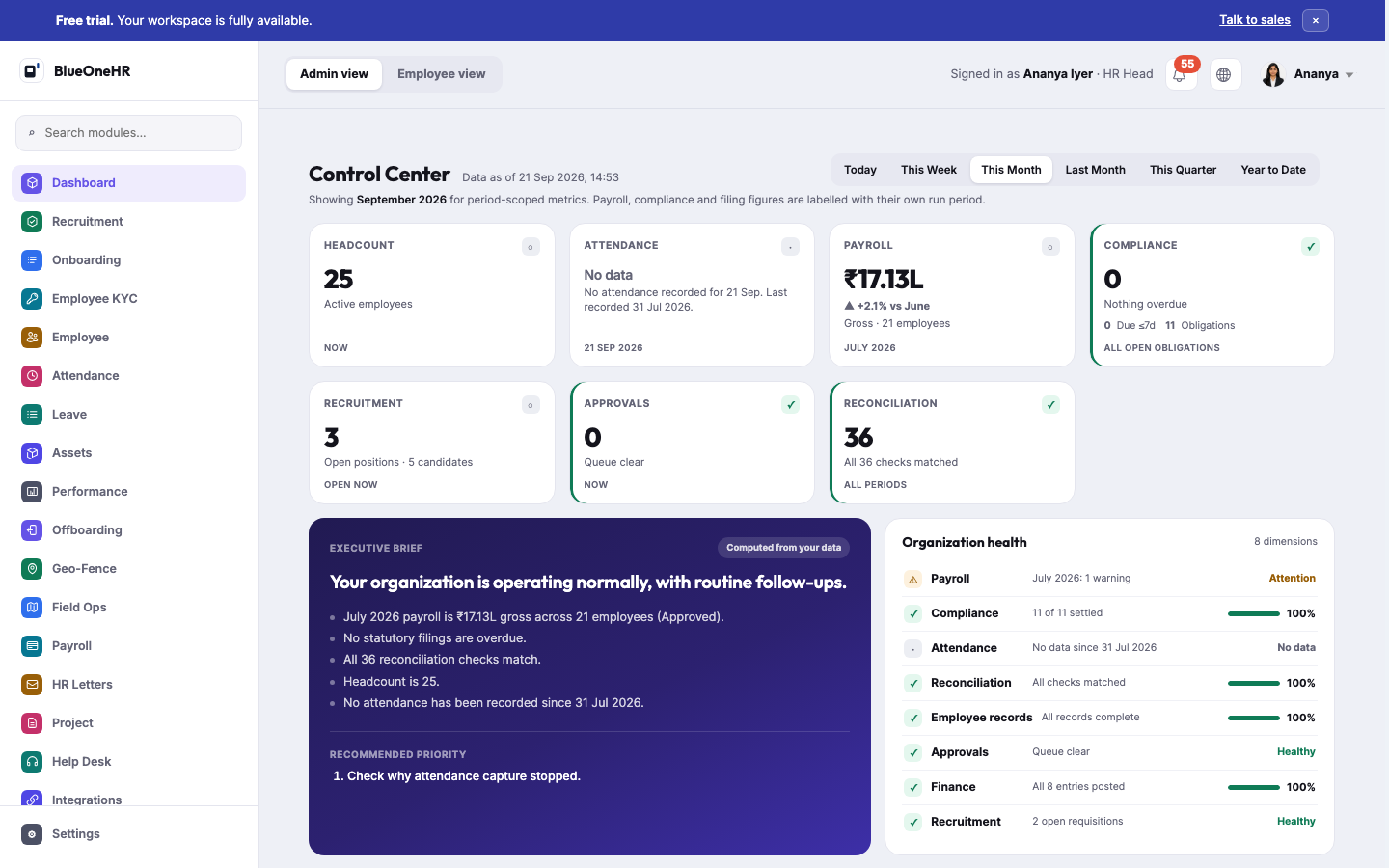
The capture above shows the Executive Brief panel embedded in the Control Center dashboard, rather than the separate pop-up dialog ("Quick summary / Walk me through everything / Not now") described above. Both are real surfaces for the same underlying briefing. The pop-up only opens when there is something to say, and how often it opens is your own setting: in Mitra's Briefing settings, Open with a briefing can be Every time I open the Control Center, Only when something has changed or Never. The panel also has an Ask Mitra about your Control Center box, which its own footer describes as reading only what your permissions allow and explaining rather than acting (its behaviour was not tested for this page).
What the Executive Brief label means
The badge on the panel says one of two things, and the difference is only in the wording:
- Computed from your data is the default. It means every line in the panel was computed directly from your records. This is what the demo workspace showed.
- AI phrased · facts computed, followed by a time, replaces it, and an AI summary paragraph appears above the fact list, only when two things are both true: the workspace has the AI Insights feature switched on, and the optional phrasing layer answers with wording in which every number matches the computed facts. If the feature is off, the phrasing layer cannot be reached, it takes too long, it returns nothing, or a number in its wording does not match, the panel simply stays as it was and keeps the Computed from your data badge.
Either way, the fact list and the Recommended priority list underneath are computed, never generated, and are the same. The phrasing layer can only re-word them. If your panel carries the Computed from your data badge and no AI summary, nothing is missing.
Every figure Mitra states is computed from your own records — the same numbers you would find by opening the underlying module yourself. Where a number cannot be verified or a data source is stale, the briefing says so rather than presenting a guess as fact.
Autonomous Operations
Separately, Settings → Mitra → Autonomous Operations configures a governed detect → recommend → execute pipeline that watches defined business areas ("scopes") for situations worth attention, and can act on a narrow, explicitly approved set of them.
The pipeline has three stages, shown on the page itself:
- Detection — Mitra watches a set of scopes for defined situations.
- Recommendation — a detected situation is raised for human review.
- Execution — for the narrower set of scopes and policies where autonomous action is switched on, Mitra can act directly, always landing the result somewhere a human can see it (a Help Desk ticket, in the current implementation).
Operational controls on this page let an administrator turn autonomous execution on or off, pause operations for a set period, and stop detection entirely. Execution can only act on what detection has found — turning on execution for a scope where detection is off changes nothing, which is deliberately how the page describes its own dependency.
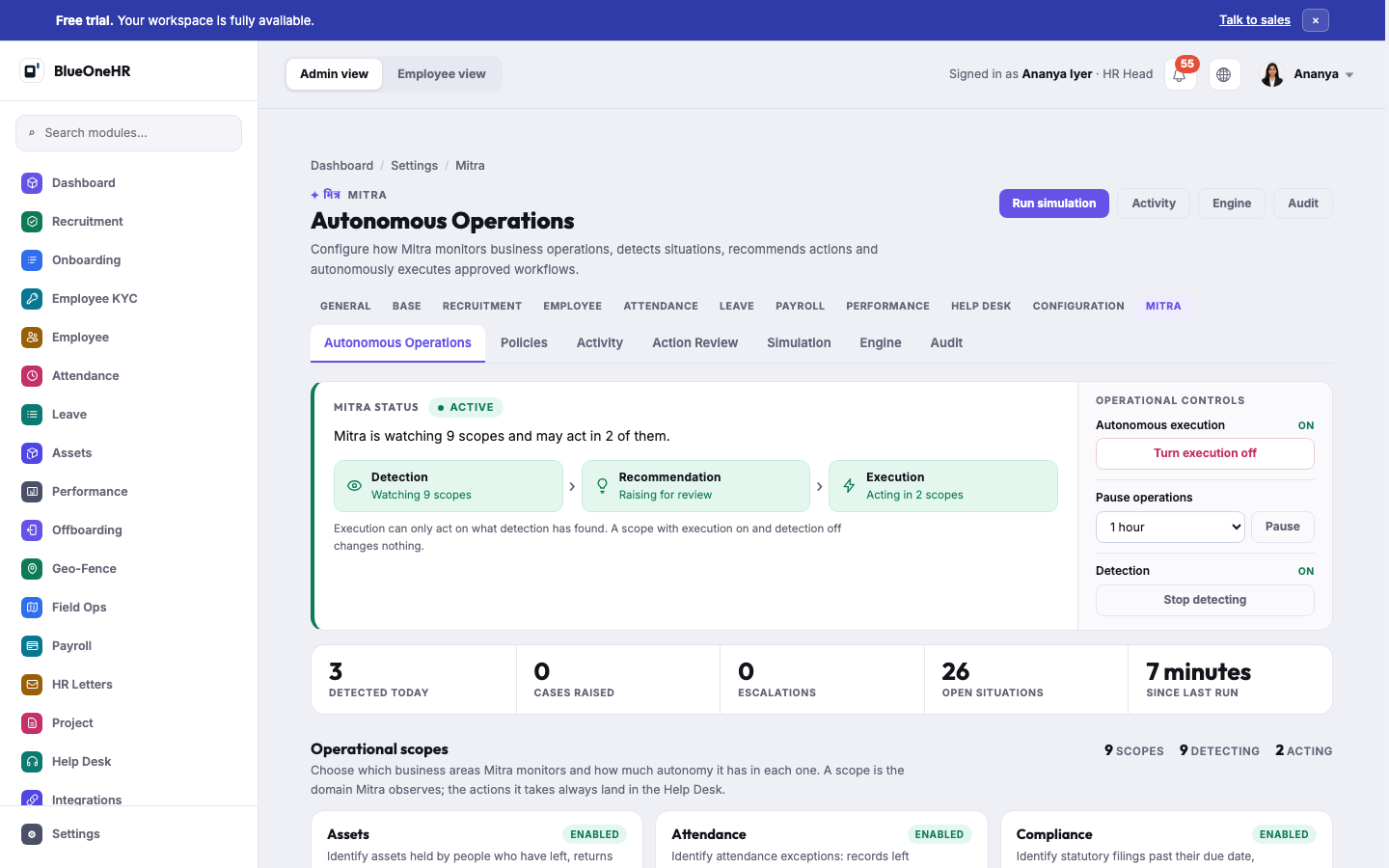
This capture shows autonomous execution ON for the demo workspace. The counters on the screen (detected today, cases raised, escalations, open situations, minutes since the last run) change with every scan, so treat the numbers in the capture as a moment in time, not as anything to expect on your own workspace. The product ships with autonomous execution off by default, as the next section explains: this screen reflects an already-configured demo, not the factory default.
What "autonomous execution" defaults to
BlueOneHR ships with autonomous execution off. An administrator turns it on deliberately, scope by scope, through Policies. What was observed live on a demo workspace (execution on, watching 9 scopes, acting in 2) reflects a configuration choice made on that workspace, not the product's default state — check Operational Controls on your own workspace rather than assuming either setting.
Other tabs on this page
Alongside Autonomous Operations: Policies (which situations Mitra watches for, and which of them it may act on), Activity (a log of what it has detected and done), Action Review (decisions waiting on a human), Simulation (Run simulation, to see what Mitra would do without it actually happening), Engine, and Audit. Each tab is described in Mitra administrator settings.
Before you turn autonomous execution on
Everything below is what the Autonomous Operations page itself says, as read on the demo workspace signed in as an HR Head. It is a checklist for a person deciding, not a guarantee about what Mitra will do on your data.
- Check that detection is on for the scope. The page says: "Execution can only act on what detection has found. A scope with execution on and detection off changes nothing."
- Run a simulation first. Run simulation is described as running "every check and every decision against real data" while changing nothing. Read what it would have done before you allow it to do anything.
- Read the list of autonomous actions. The page groups them as case management (open a Help Desk ticket, choose its type, priority and owner, attach evidence, add a note), communication and follow-up (notify the owner, follow up, escalate) and resolution (verify that a situation is gone, and close the ticket it raised). It says: "An action that is off is never performed, even when an enabled policy asks for it." Switch off any action you are not ready for.
- Know where the result lands. The page says the actions Mitra takes "always land in the Help Desk", as a real ticket a person can see. Check Default Help Desk ticket type and Fallback owner group; on the demo both read Not configured. Without a fallback owner group, situations with no valid owner are recommended for human review instead of being assigned.
- Set a ceiling. Maximum autonomous actions per run limits how much Mitra may change in one run. Anything beyond it is "recorded as skipped, never silently dropped".
- Know the brakes before you need them. Turn execution off, Stop detecting, and Pause operations (1 hour, 4 hours, until the end of the day, or until manually resumed) are all on the same page.
- Enable it scope by scope, not all at once. Each scope card has its own Detection, Recommendation and Execution setting. On the demo, 9 scopes were being watched and 2 (Assets and Help Desk) were allowed to act.
- Look afterwards. Activity shows every detection, decision, action and outcome with the evidence behind it, and Audit shows "who changed which switch, and everything Mitra did, in one trail". Saved changes on this page are recorded in the audit trail.
Mitra reads what your records contain. If a source is stale, the briefing says so (for example, the demo Control Center says "No attendance recorded" and labels it as missing data, not absence), so fix stale data before relying on what Mitra finds from it.
No comments to display
No comments to display