
The Control Center dashboard
The Control Center is the page an HR Head lands on after signing in. It answers one question: what across people, pay and compliance needs attention today, and where do I go to deal with it.
Everything on it is read from your own records. Nothing on this page changes anything; each card links to the screen where you would act.
Before you start
What you see depends on what you are allowed to see, not on your job title. The page is built from nine areas of the product: payroll, compensation, finance, compliance, workforce, recruitment, attendance, assets and performance. You see a tile, a health row or an attention card only for an area where you hold the matching view permission. A signed-in person who holds none of them gets a personal dashboard instead of this one.
In the test workspace used for this page:
- Signed in as an HR Head, the page showed seven snapshot tiles and eight organization-health dimensions.
- Signed in as a Manager, the same page showed three tiles (Headcount, Attendance, Approvals) and three health dimensions (Attendance, Employee records, Approvals).
- Signed in as an Employee, the page was a personal dashboard ("My HR status", "My attention") rather than the Control Center.
The Admin view / Employee view switch at the top of the page changes which of the two you are shown, for people who qualify for both.
What is on the page
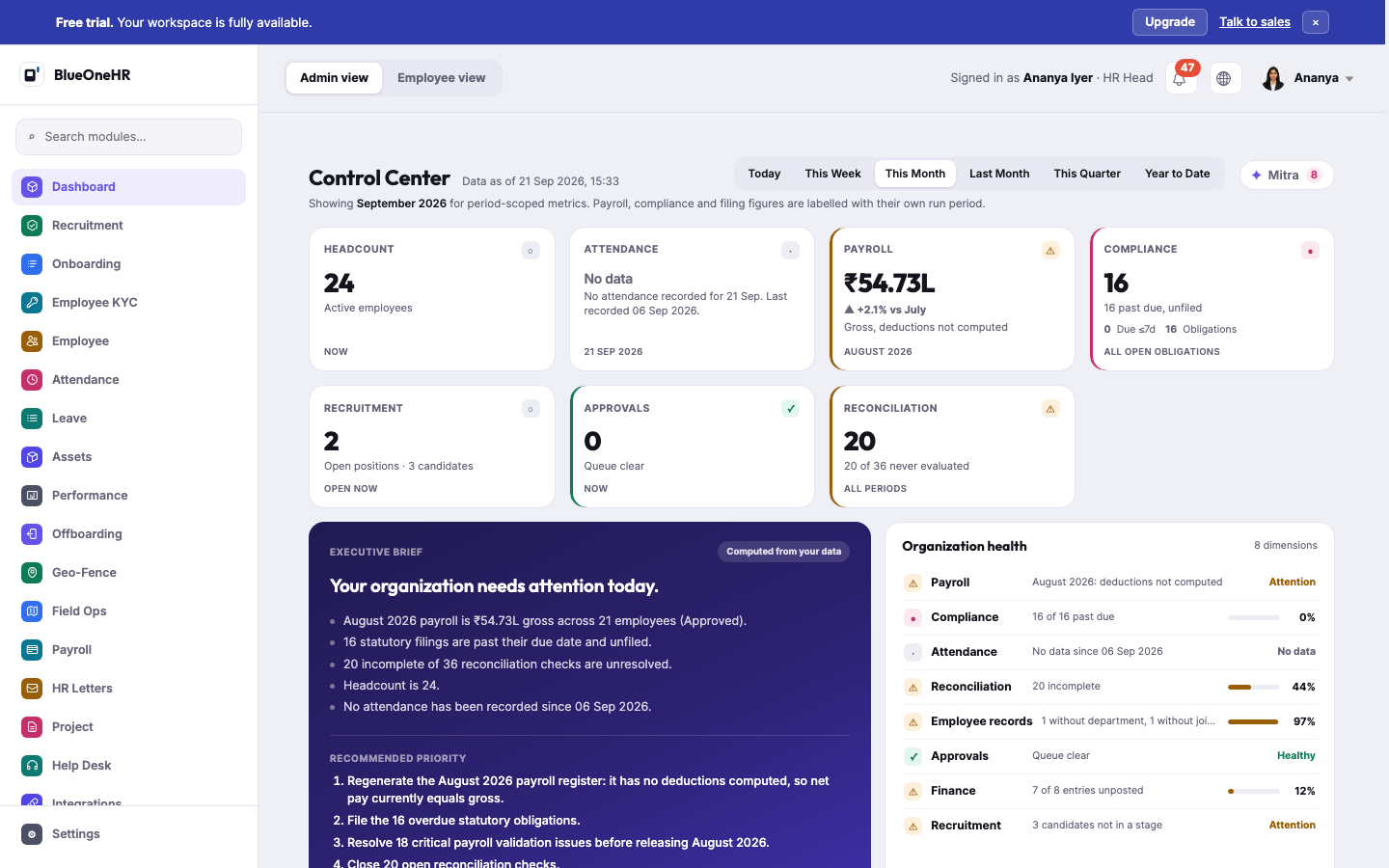
The Mitra pop-up that offers a briefing when the page opens was hidden in these captures.
| Part | What it shows |
|---|---|
| Control Center and Data as of | The page title, and the date and time the figures were built. |
| Period selector | Today, This Week, This Month, Last Month, This Quarter, Year to Date. The line underneath says which period is selected. |
| Mitra button | Opens Mitra's briefing panel. A number on the button is how many items Mitra counts as needing attention. |
| Snapshot tiles | One tile per area: Headcount, Attendance, Payroll, Compliance, Recruitment, Approvals, Reconciliation. |
| Executive brief | A headline, a short list of facts, and a numbered Recommended priority list. |
| Organization health | One row per dimension, with a status word or a percentage bar. |
| Attention required | One card per problem, with the reason and the effect. |
| Insights | A few observations, each linking to its source. |
| Mitra status line | A one-card summary of Mitra's autonomous operations, with View activity and Configure links. |
| Sections below | Detail loaded after the top of the page: Workforce & hiring, Attendance & leave, Payroll & compensation, Tax & compliance, Finance & trends, Decisions & what's next, Upcoming, Performance, Assets, Help Desk and Recent activity. |
The snapshot tiles
Each tile shows a headline number, a one-line caption, and a small label at the bottom that says what period the number belongs to. That label matters, because the tiles do not all follow the period selector. The labels read Now or Open now (Headcount, Recruitment, Approvals), the date (Attendance), the payroll run's month (Payroll, August 2026), All open obligations (Compliance) and All periods (Reconciliation).
A tile that cannot show a number says so in words instead of showing zero. When no attendance has been recorded recently, the Attendance tile reads No data with a note giving the date of the last record. That is a statement that the data is missing, not that nobody came to work.
The period selector
Selecting a period reloads the page with that period marked (the address gains ?period= and the period name). This Month is what you get if you choose nothing. The line under the title names the period, for example September 2026 for This Month, August 2026 for Last Month, Q3 2026 for This Quarter and FY 2026-27 for Year to Date.
Changing the period changes only three things: the line under the title, the Joined count in the Workforce section, and the count of late arrivals and early exits in the Attendance section. The snapshot tiles, the brief, the health rows and the attention cards stay the same in every period, because each of those carries its own period.
The Executive Brief
The brief is computed from your records. Its badge reads Computed from your data, and the headline, the fact lines and the Recommended priority list are all worked out directly from the figures, not written by a language model. For when the badge can read differently, and what an AI summary paragraph means, see What Mitra is.
Organization health
For an HR Head the eight dimensions are Payroll, Compliance, Attendance, Reconciliation, Employee records, Approvals, Finance and Recruitment. A row shows either a percentage with a bar or one of the words Healthy, Attention or No data. Rows that point at a module link to it.
Attention required
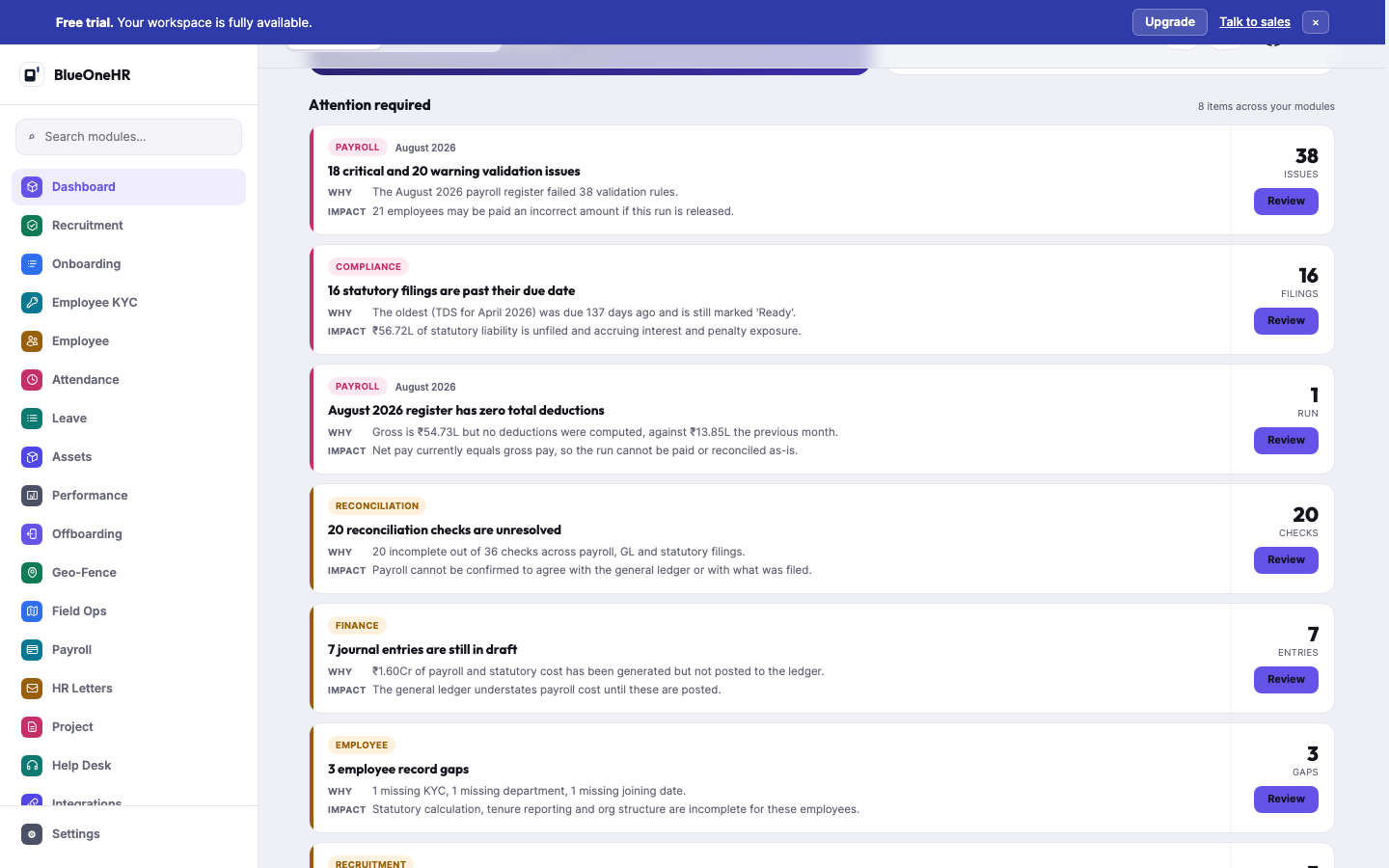
Each card names the module, gives a headline, then a Why line (what was found) and an Impact line (what it puts at risk), with a count on the right and a Review button that opens the screen to fix it. If nothing needs attention the section says Nothing requires your attention and lists what was checked.
Mitra status line
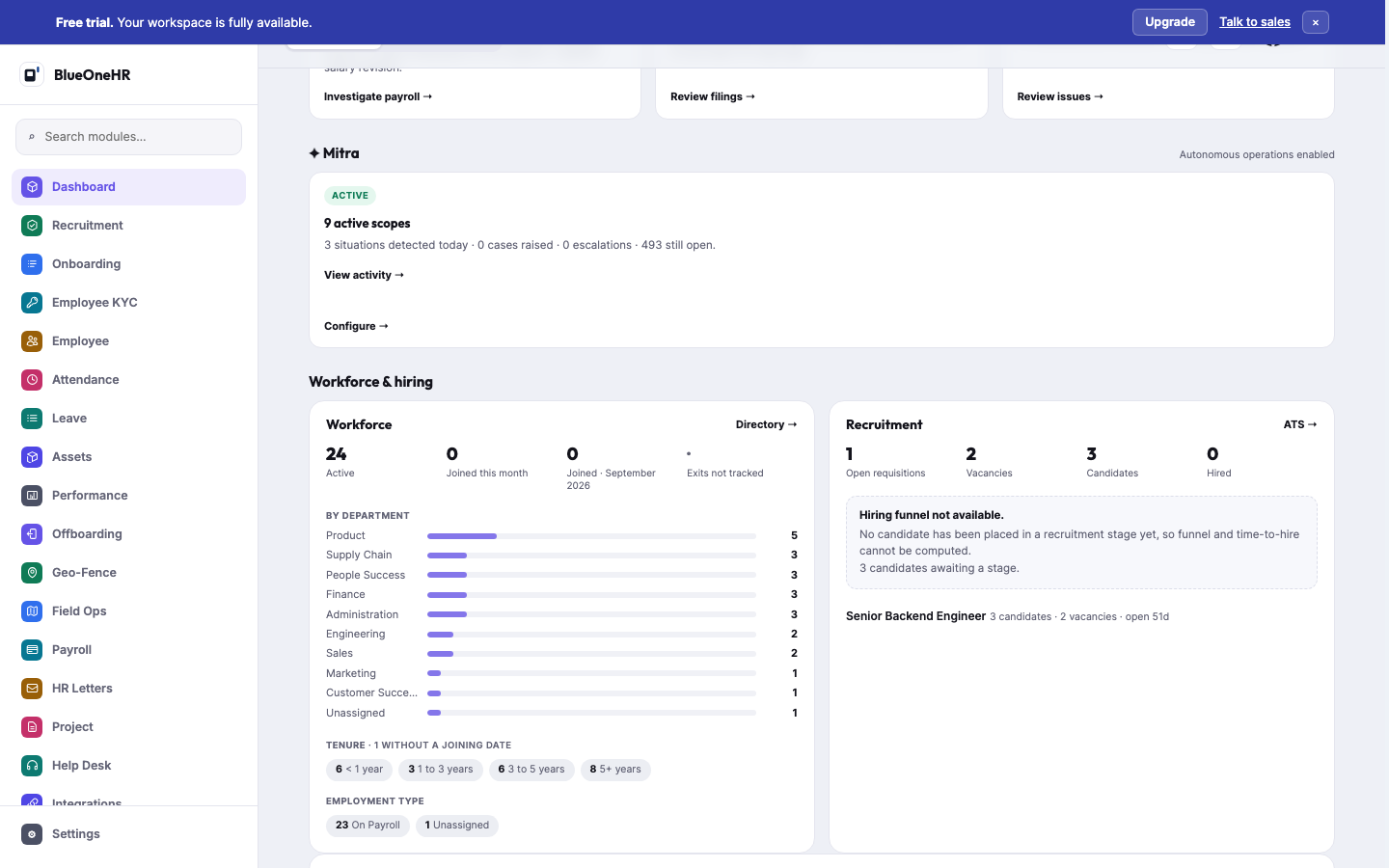
This card is shown only to someone Mitra's own permissions allow to see it. It says whether autonomous operations are enabled, how many scopes are active, and what was detected today. Configure opens the settings described in Mitra administrator settings.
To look at a different period
- Open Dashboard in the sidebar.
- Select a period in the row above the tiles.
- Read the line under the title to confirm which period you are now looking at.
What you should see
The page fills in two stages. The top (tiles, brief, health, attention, insights) appears first; the sections listed under Sections below load a moment later, with a short skeleton message in the meantime. If your workspace has no data for an area, the tile or section says so in words.
If it does not work
- A tile says No data, or a number looks too low. Check the label at the bottom of the tile. A tile that is scoped to a run month, or to all periods, will not change when you change the period.
- You see fewer tiles than a colleague. The page shows only the areas your permissions cover. Ask an administrator to check your user group; see Roles and permissions.
- Below the tiles the page says the detailed sections could not be loaded. The page offers a Retry link and states that the summary above is unaffected.
Not confirmed
- The Mitra panel and pop-up. These were not tried live, because opening them records usage events on the workspace. What the number on the Mitra button counts was not tested; when checked it matched the Attention required count (8 and 8), but that was one observation.
- The message about sections that could not be loaded was not seen.
- Every role. Only HR Head, Manager and Employee were opened, and the Manager and Employee accounts were sample accounts.
- The Admin view / Employee view switch was not tried live.
No comments to display
No comments to display