
Adding an employee
Every employee record starts here, whether they will use BlueOneHR themselves or the record exists purely for HR and payroll purposes.
Before you begin
You need permission to create employees, which your administrator grants through user groups (see Roles and permissions). Have on hand: the person's legal name, a work email, phone number, and date of birth. Department and job position are easiest to set if they already exist under Settings; if not, create them first — see Company setup.
Steps
- Go to Employee → Employees.
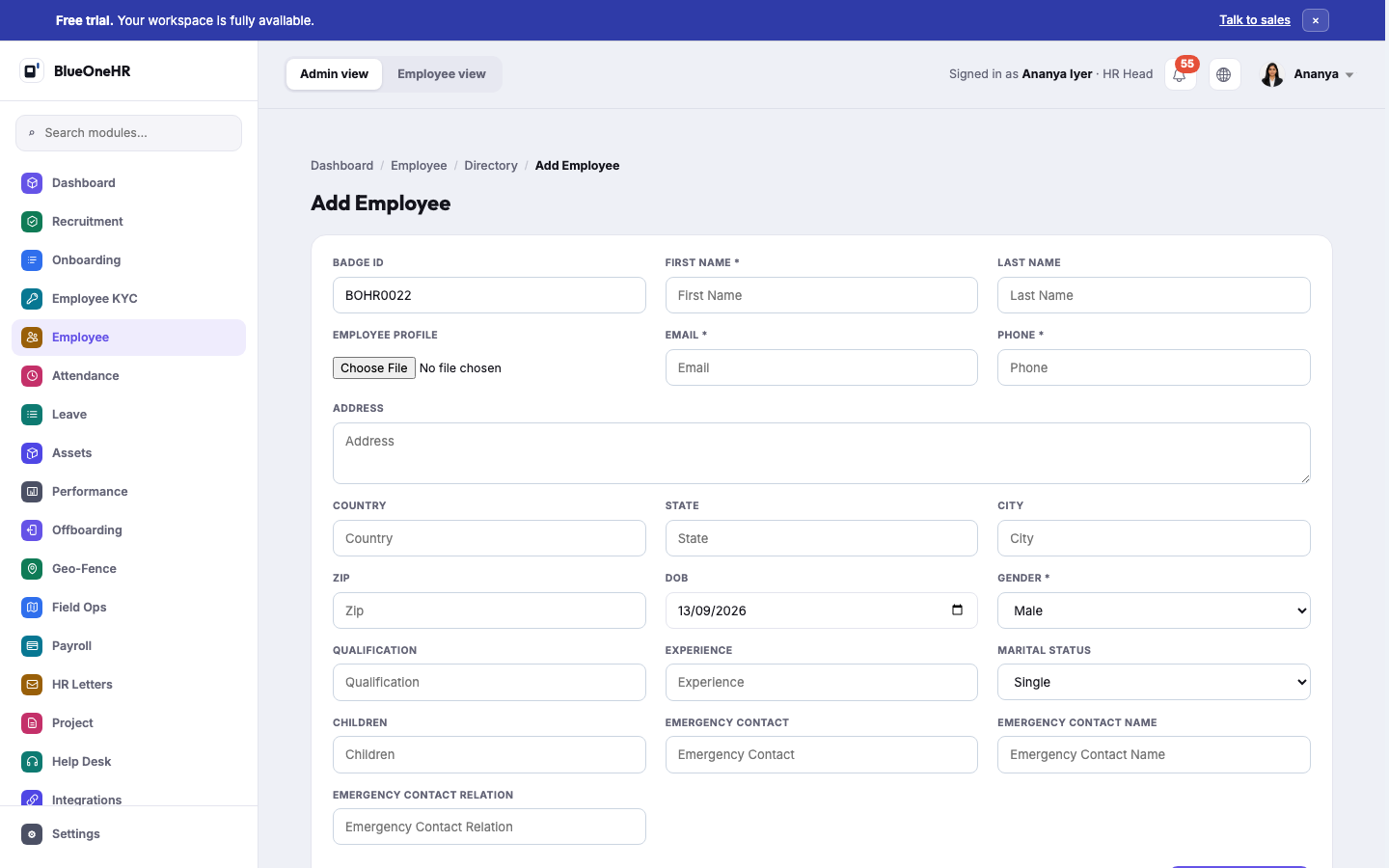
- Select Add Employee.
- BlueOneHR proposes the next Badge ID automatically, using your organisation's badge prefix (set once under Settings → General). You can change it before saving if you need to.
- Enter First Name and Last Name, and optionally a profile photo.
- Enter Email and Phone — both required.
- Fill in address, country, state, city and postal code if you track them.
- Confirm the date of birth and gender.
- Optionally record qualification, experience, marital status, number of children, and an emergency contact (name, number and relation).
- Select Create Employee.
What happens next
The employee appears in the directory immediately, with the status Active. Creating the record does not by itself:
- assign a department, shift or work type — those are set from the employee's profile once created;
- tell the person how to sign in — HR passes on the address and first-password arrangements (see First login and getting access for what is and is not confirmed);
- create a payroll contract — payroll only computes for an employee with an active contract, set up separately under Payroll → Configuration → Contract.
Notes
- The Badge ID prefix and whether badge numbering is active are organisation-wide settings, not something you choose per employee.
- Required fields are marked with an asterisk on the form; everything else can be filled in later from the employee's profile.
Troubleshooting
The email is already in use. Each employee needs a unique email. Check the directory search before assuming the person has no existing record — a re-hire or a previously deactivated record can collide.
No comments to display
No comments to display