
An employee's profile
Select a name in Employee → Employees and you land on that person's profile: one page that gathers their details, their pay, their time, their leave and the things they hold. This page describes what is on it, who can open it in full, and what Edit offers.
Before you start
Who sees what is decided by the profile page itself:
| You are | You see |
|---|---|
| Anyone with permission to view employees (HR Head, HR Ops and, in the test workspace used for this page, the Manager group) | The full profile, with every tab. |
| The employee themselves | Their own full profile. |
| The employee's reporting manager | The full profile. |
| Any other signed-in employee | Only a Work information card: department, job position, job role, who they report to, employee type, work type, shift, location, work e-mail, work phone and "with the company since". The page says: "This is the work information anyone in the company can look up. Personal details, pay and records are visible only to [the person], their reporting manager, and HR." |
That last row was checked by opening a colleague's profile signed in as an Employee. The personal fields are not part of that page at all.
The profile
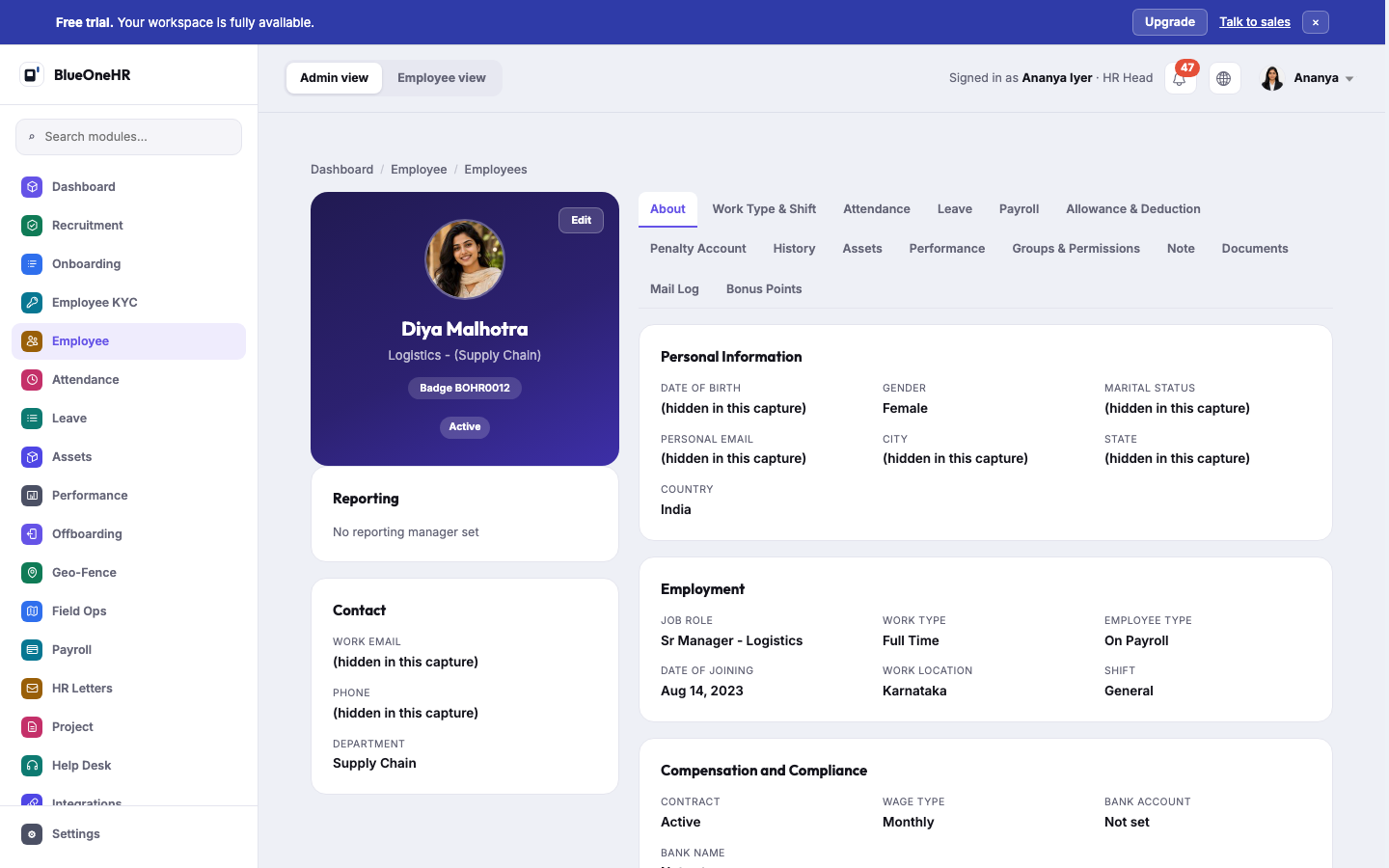
In this capture the contact and personal details (work e-mail, phone, date of birth, personal e-mail, city, state, marital status) are masked. The screenshots on this page are masked by design; the real page shows those values.
The left column carries the person's name, job position, badge ID and Active status, an Edit button, a Reporting card (their reporting manager, or "No reporting manager set") and a Contact card with work e-mail, phone and department.
The right side has fifteen tabs. Open one by selecting it; the address gains ?tab= and the tab name.
| Tab | What it shows |
|---|---|
| About | Personal Information, Employment, Compensation and Compliance (contract, wage type, bank account and bank name) and Team, the colleagues in the same department. |
| Work Type & Shift | Rotating shift and rotating work type assignments, and shift and work type requests. |
| Attendance | Recent attendance: date, clock in, clock out, worked hours, status. |
| Leave | Leave balance by leave type. |
| Payroll | Payslips by period: gross pay, deduction, net pay, status. |
| Allowance & Deduction | The allowances and deductions applied to this person. |
| Penalty Account | Penalties recorded, or "No penalties recorded". |
| History | No change log is shown here in this release. |
| Assets | Assets assigned to them, with assigned date and return state. |
| Performance | Performance feedback cycles. |
| Groups & Permissions | The sign-in account: username, staff access, superuser, groups and individual permissions. |
| Note | Notes recorded about the person. |
| Documents | Documents on file, with status, issue date and expiry. |
| Mail Log | E-mails logged for the person's address. |
| Bonus Points | Bonus points. |
One thing to know:
- Employee KYC is not on this page. PAN, Aadhaar and similar records live in their own module. This page does not show them.
Edit
Edit opens Edit followed by the person's name, with three tabs.
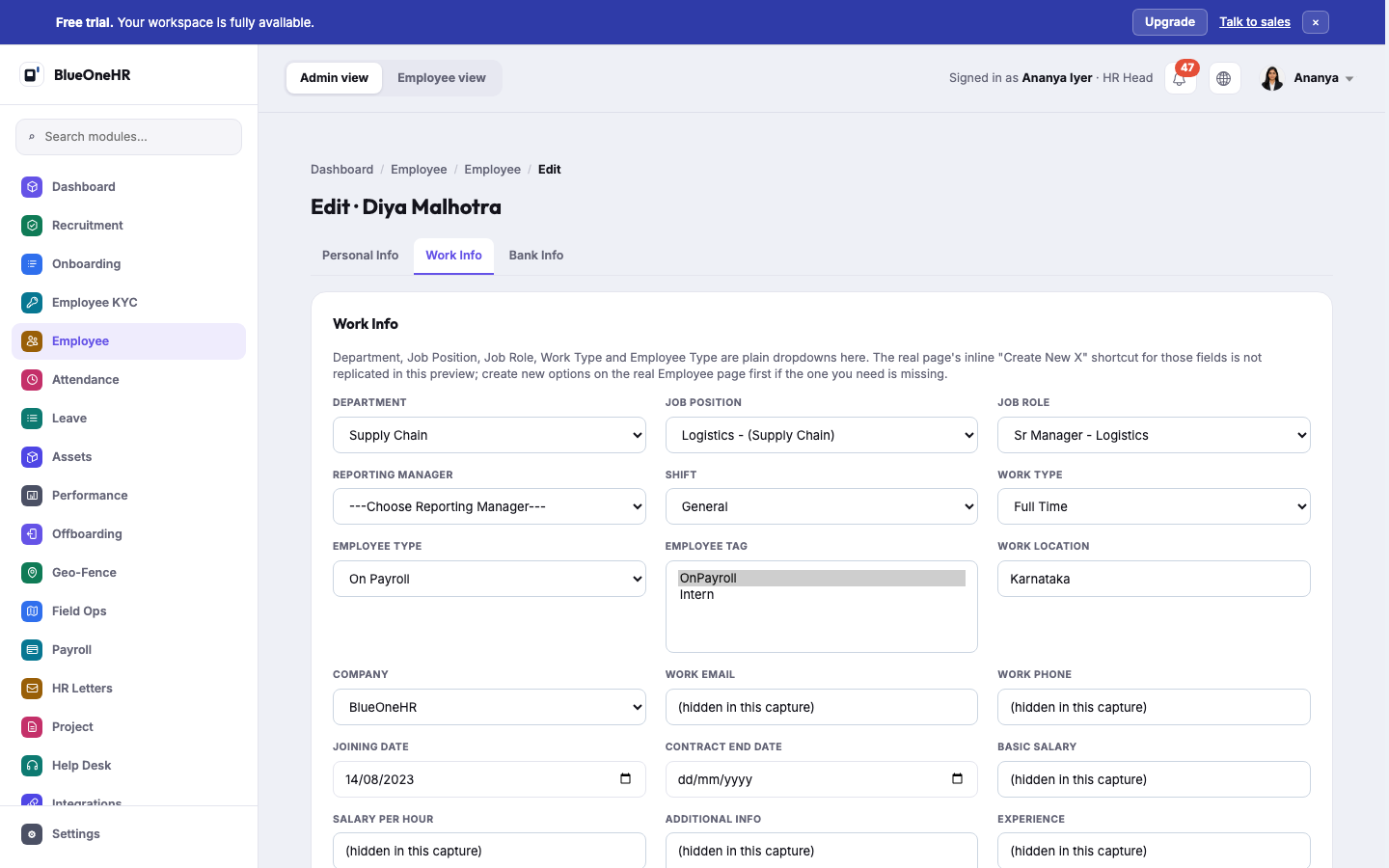
Work e-mail, work phone, basic salary, salary per hour, additional information and experience are masked in this capture.
| Tab | Fields |
|---|---|
| Personal Info | Badge ID, First name, Last name, Employee profile (photo), E-mail, Phone, Address, Country, State, City, Zip, DOB, Gender, Qualification, Experience, Marital status, Children, Emergency contact, Emergency contact name, Emergency contact relation. E-mail, Phone, First name and Gender are required. |
| Work Info | Department, Job position, Job role, Reporting manager, Shift, Work type, Employee type, Employee tag, Work location, Company, Work e-mail, Work phone, Joining date, Contract end date, Basic salary, Salary per hour, Additional info, Experience. |
| Bank Info | Bank name, Account number, Branch, Bank code #1, Address, Country, State, City, Bank code #2. Bank name, Account number, Branch, Bank code #1 and Address are required. |
Each tab has its own save button (Save Personal Info, Save Work Info, Save Bank Info), so saving one tab does not save the others.
Who may edit: someone with permission to change employees, or the employee's reporting manager. An employee who selects Edit on their own profile is returned to the profile page; the message reads "You do not have permission to edit this employee."
Saving the Work Info tab notifies the employee with the message "Your work details has been updated."
What you should see
Opening a profile as an HR user shows the header card and the About tab. A tab that has nothing to show says so in words, such as "No documents on file" or "No notes recorded".
If it does not work
- You only see a Work information card. You are not the person, their reporting manager or someone with permission to view employees. Ask HR.
- Edit does nothing for you. See who may edit, above.
- A department, position, role, work type or employee type you need is not in the Work Info list. Those fields are dropdowns of existing values. Create the missing one first; see Company setup.
Not confirmed
- Saving any Edit tab was not tried live. The three forms were opened, never submitted, so what each save does beyond the notification named above is not confirmed.
- The profile of a person with more history than the sample data used (for example a long Documents or Mail Log list) was not seen.
- Whether a reporting manager who is not in HR can open Edit on a direct report was not tried.
No comments to display
No comments to display