
Payslips
Payslips are generated from an approved payroll run, one per employee per pay period.
Steps
- Go to Payroll → Payroll Operations → Payslips.
- Filter by status or date range if you are looking for a specific period; otherwise the list shows every payslip.
- Select Generate Payslips to create payslips from an approved run that does not have them yet.
- Each payslip shows the employee, the pay period, and basic pay, gross, deductions and net pay.
- Use View to open a payslip on screen, or PDF to download it.
- To change several payslips at once — moving a batch from Draft to a later status, for example — select them with the checkboxes, choose the status under Set status to, and select Apply.
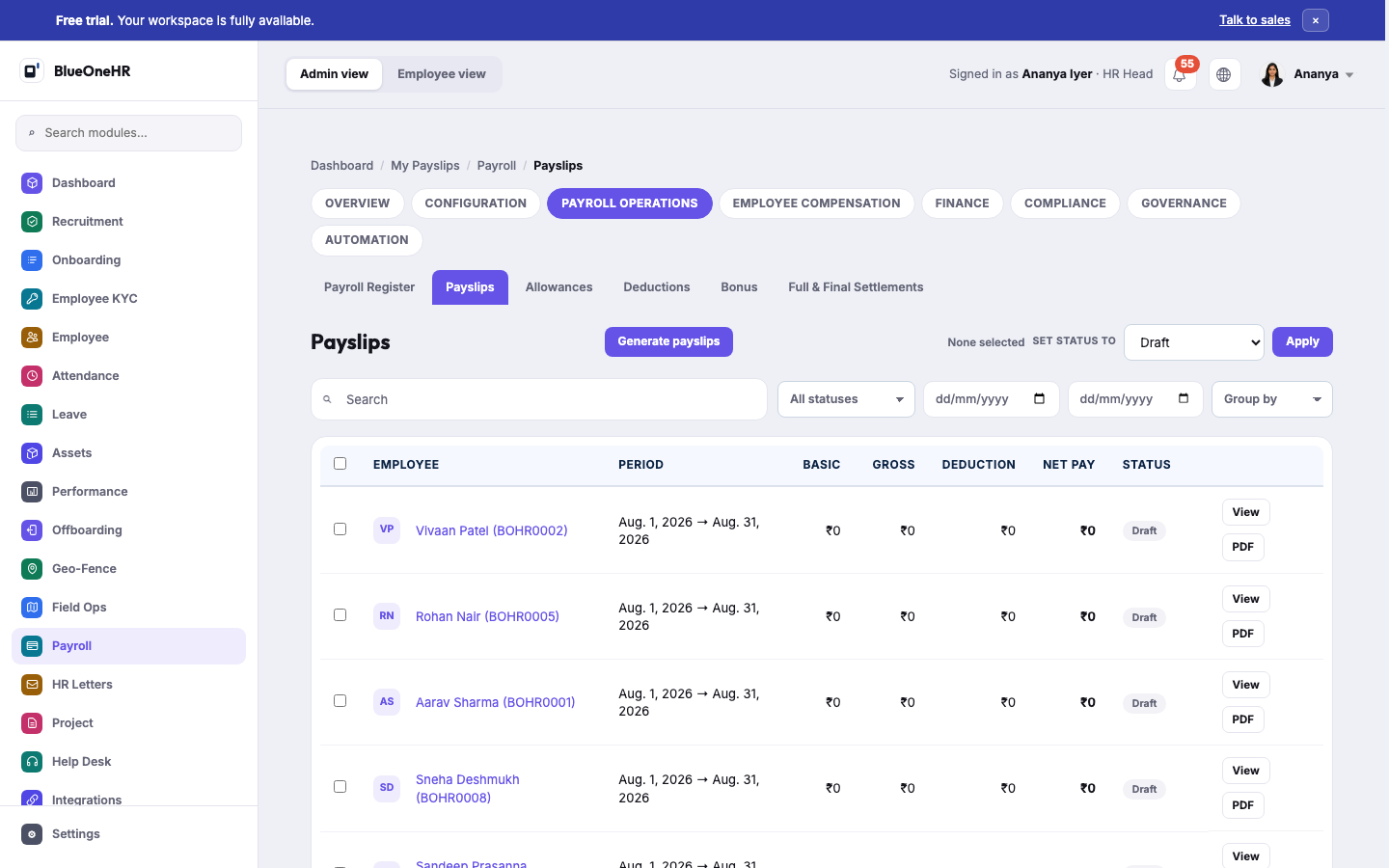
Statuses seen in practice
Draft, Review, Confirmed, Paid — the Payroll overview dashboard counts payslips by each of these. Treat a Draft payslip as provisional: it reflects the run it came from, and is not final until it moves further along.
For employees
An employee's own payslips are available from their own documents area, not from this administrative screen. This page covers issuing and managing payslips as an administrator.
Notes
Payslip PDF generation depends on a PDF rendering component being correctly installed on the server. If PDF downloads stop working across the board rather than for one payslip, that is an infrastructure question for your BlueOneHR operator, not something fixable from this screen.
Troubleshooting
A payslip's numbers don't match what I expected. Payslips reflect the payroll run they were generated from. Check the originating run in the Payroll Register rather than editing the payslip directly.
No comments to display
No comments to display