
Running payroll
A payroll run produces the Payroll Register: one record per employee for a pay period, with gross pay, deductions, net pay, and a status showing how far the run has progressed. This page follows a run from starting it to its approval.
What you see depends on your permissions. A person who can only view payroll sees the list and the run screens but none of the buttons below; the buttons appear for people who are allowed to start, change or validate runs. The person who submits a run cannot be the person who approves it.
Before you begin
Every employee you expect to be paid needs an Active contract covering the pay period (a Draft contract is not included) — see Contracts. Payroll uses the contract's wage and dates; it does not ask you to re-enter pay information at run time. Pay for the month also follows each person's validated attendance and approved leave for the month's working days.
Start a run
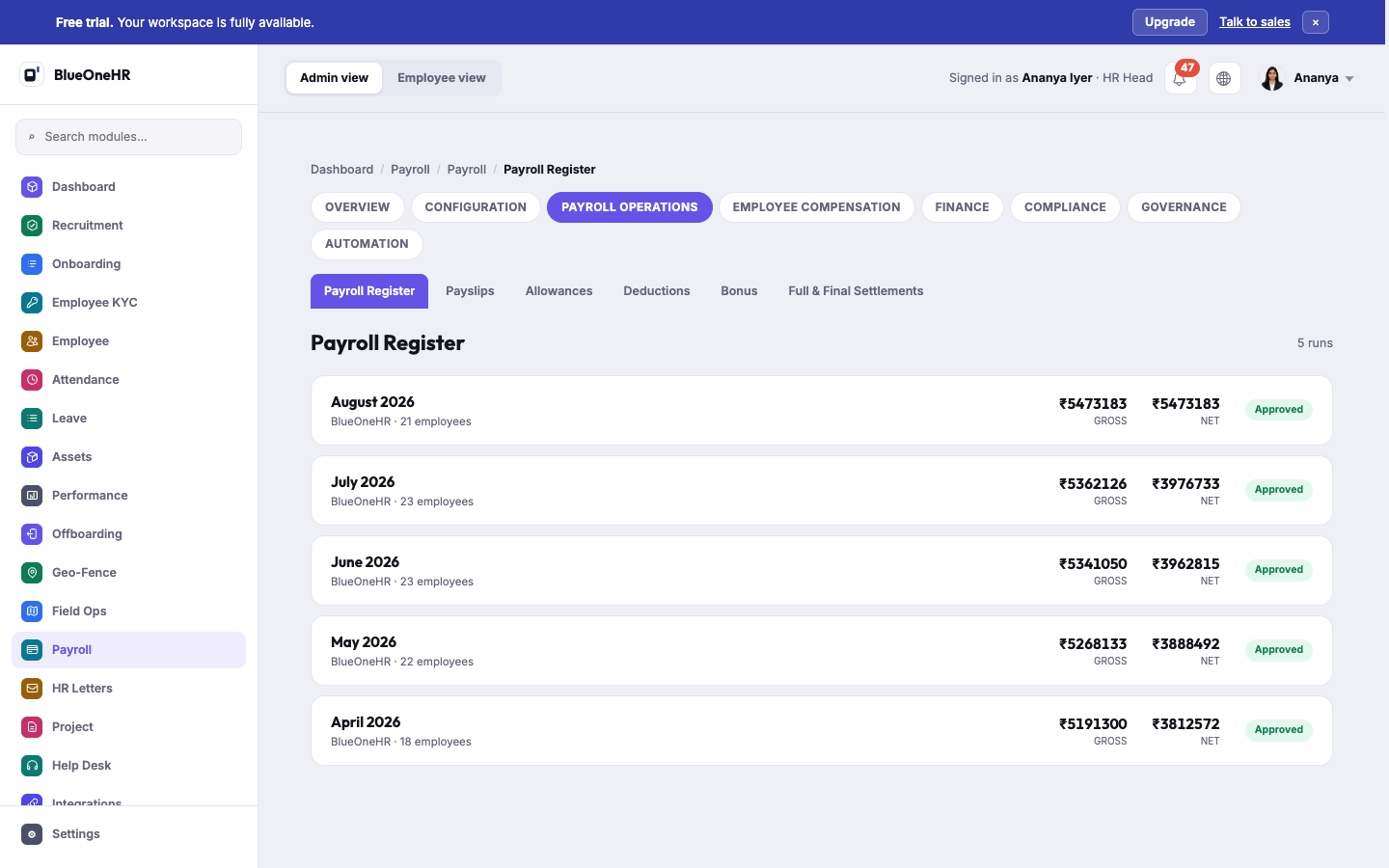
- Go to Payroll → Payroll Operations → Payroll Register. The list shows every run, newest first, with the number of runs at the top. A company with no runs shows "No payroll register runs yet."
- Select Start a new run. The button is shown to people allowed to add payroll runs.
- Choose the month and year and select Start run. BlueOneHR calculates every employee's pay for the month and saves it as a Draft. Nothing is paid until the run is approved.
Review the run
Select a run to open it. The header shows the month and who ran it and when. A progress indicator shows Draft, Pending Approval and Approved (a rejected run shows Rejected at the last step). Four tiles summarise the run: Gross Payout, Deductions, Net Payout and Blocked, bank details (a count of employees whose payment is held up by their bank details; it is a number, not a link). The table below lists each employee with department, gross, deduction and net pay and a status.
While the run is a Draft (or was Rejected), people allowed to change runs also see:
- Regenerate, which recalculates the same month, for example after you correct a contract or an attendance record.
- Submit for approval.
Validate before you submit
Select Run validation (it reads Re-run validation once a validation exists). The checks list their findings by severity: Critical, Warning and Information. Select View exceptions to see them.
- A Critical finding that can stop the run (for example a missing PAN) must be resolved before the run can be submitted. Choose Resolve and record a written note; the note is required, the finding is not deleted, and who decided and when is kept. Waive (acknowledge) marks a finding as seen but does not unblock a critical one. Resolve all and Waive all act on every open finding of one rule at once.
- While a blocking critical is unresolved the run screen says so and Submit for approval is refused.
- A missing bank account is also shown as Critical, but it does not stop the run from being submitted. It is a block on paying that person.
Submit and approve
- Select Submit for approval. The run becomes Pending Approval. A company must have at least one payroll approver other than the person who submitted, or the submission is refused with a message saying so.
- A different person with approval rights opens Approvals in the sidebar, chooses Approve or Reject, and may add a comment. The person who submitted the run cannot approve it.
- Approved runs confirm their payslips. A Rejected run goes back to being editable: correct what is wrong, Regenerate if needed, and submit again.
What happens next
An approved run's figures become the basis for payslips — see Payslips. The Payslips screen has its own Generate payslips button and lets you filter payslips by status. The run stays in the Payroll Register as the record of what was paid for that month. Paying employees is a separate step on the payout page, which in a workspace without a payment provider connected runs against a mock and moves no money.
Notes
- Allowances, Deductions, Bonus, and Full & Final Settlements are managed as their own screens under Payroll Operations. They feed into a run rather than being entered as part of running it.
- An Approved run cannot be regenerated or resubmitted.
Troubleshooting
I cannot see Start a new run, Regenerate or Submit for approval. These buttons are shown only to people whose role allows them, and Regenerate and Submit only appear while the run is a Draft or Rejected. Ask your BlueOneHR administrator which payroll permissions your role has.
Submit for approval says it needs an approver. Your company has no payroll approver other than you. Ask your administrator to add one.
A run's totals look wrong. Check contract status, attendance and any allowances or deductions recorded for the affected employees, then Regenerate the draft — see Contracts.
The "Blocked, bank details" tile shows a number above zero. Those employees' bank details need attention before they can be paid. The run screen does not list which employees are counted, so check the bank details held for your employees.
Not confirmed
These points have not been checked against a live workspace for this page, and it does not claim them:
- Whether a run can be exported for bank payment, and how.
- What a rejected run's comment looks like to the person who submitted it.
No comments to display
No comments to display