
Contracts
A contract is what makes an employee payable. It carries the wage, the effective dates, and the department context payroll uses when a run happens — separately from the employee's directory record.
Before you begin
The employee must already exist in the directory (see Adding an employee). You will need their wage and the date the contract starts.
Steps
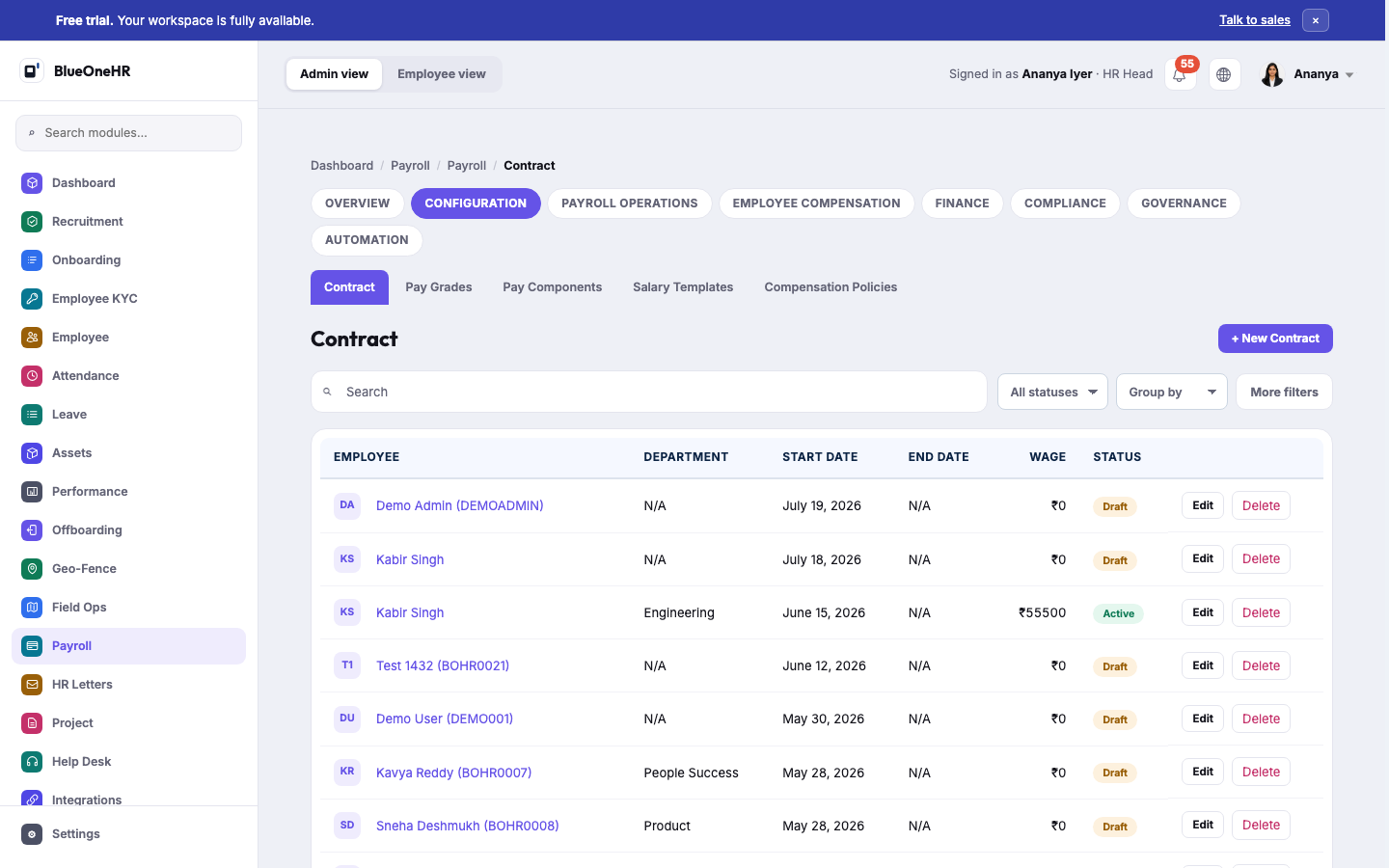
- Go to Payroll → Configuration → Contract.
- Select New Contract.
- Choose the employee.
- Set the start date, and an end date if the contract is fixed-term. Leave the end date open for an ongoing contract.
- Enter the wage.
- Save. A new contract is created in Draft status.
- When the contract is correct and ready to be used for payroll, change its status to Active.
What happens next
Only Active contracts are picked up when payroll runs. A Draft contract exists in the system but contributes nothing to a payroll run, which is why a newly added employee often needs this step before their first payslip.
The contract list
Each row shows the employee, department, start and end dates, wage and status, with Edit and Delete actions. Statuses seen in practice: Draft, Active, Expired, Terminated.
Related setup
How the wage itself is built up lives alongside Contract under Payroll → Configuration: Pay Grades, Pay Components, Salary Templates, and Compensation Policies. This guide covers the contract record itself; which of those your organisation actually uses is configuration-specific, so check the linked pages rather than assuming a particular setup.
Troubleshooting
An employee did not appear in a payroll run. Check their contract status first — see How payroll works. A Draft or Expired contract is the most common cause.
No comments to display
No comments to display