
First login and getting access
How you reach BlueOneHR for the first time depends on who you are. There are four different starting points, and they do not overlap. Find yours in the table, then read only that section below.
| You are... | Go to |
|---|---|
| The person who started the trial for your organisation | Setting your first password (workspace owner) |
| An employee whose organisation already uses BlueOneHR | If HR has added you as an employee |
| A candidate HR has hired and asked for your details | The onboarding link, for hired candidates |
| Someone whose organisation already uses BlueOneHR, with no account yet | Asking to join a workspace |
There is no Employee → Invitations screen. If you were told to look for one, it is not in the product today: the tabs under Employee are Employees, Document Requests, Shift Requests, Work Type Requests, Rotating Shift Assign, Rotating Work Type Assign, Disciplinary Actions, Policies, Organization Chart and Bulk Import. Nothing on this page depends on an invitations screen.
Setting your first password (workspace owner)
When a trial workspace is set up, the person who started it does not choose a password during signup. Their account is created with no usable password, and they set one from a single-use activation link sent to the e-mail address they signed up with.
- Open the activation link from that e-mail.
- On the Set your password page, enter a New password and repeat it in Confirm password. The password rules for your workspace are shown under the first field. The eye button next to the first field shows or hides what you type.
- Select Save and sign in.
What you should see. The page names your account (your e-mail address) and your workspace, and asks for nothing else: it does not ask for a username or for your e-mail address again. After you save, you are signed in and taken to the workspace's home page, so you do not need to sign in separately.
If it does not work. A password link works once and expires on its own after a while. If you open it again, or after it has expired, the page says This link has already been used and offers Send me a new link (a new link goes to the same address) and Go to sign in. If you have already set a password, sign in with it: see Signing in.
Not confirmed. This section describes how the flow is designed to work. The activation e-mail was not received, and the flow was not run end to end, because completing a signup creates a real workspace. How long the link stays valid was not confirmed.
If HR has added you as an employee
If your organisation already uses BlueOneHR, an administrator adds you as an employee (see Adding an employee). Adding an employee also creates their BlueOneHR sign-in, with the work e-mail address on the employee record as the sign-in name (this was not observed live).
- Ask your HR team for your organisation's BlueOneHR address and for how your first password is set.
- Sign in as described in Signing in.
Not confirmed. A newly added employee is meant to be sent to a change password screen before anything else on their first sign-in. That was not observed live, and the rule for the first password itself is deliberately not stated here. Your HR team can tell you what applies in your organisation.
The onboarding link, for hired candidates
This is a different thing from a sign-in. HR can send a hired candidate a personal link where they fill in their own details before joining. It does not create a BlueOneHR account and does not set a password.
What HR does
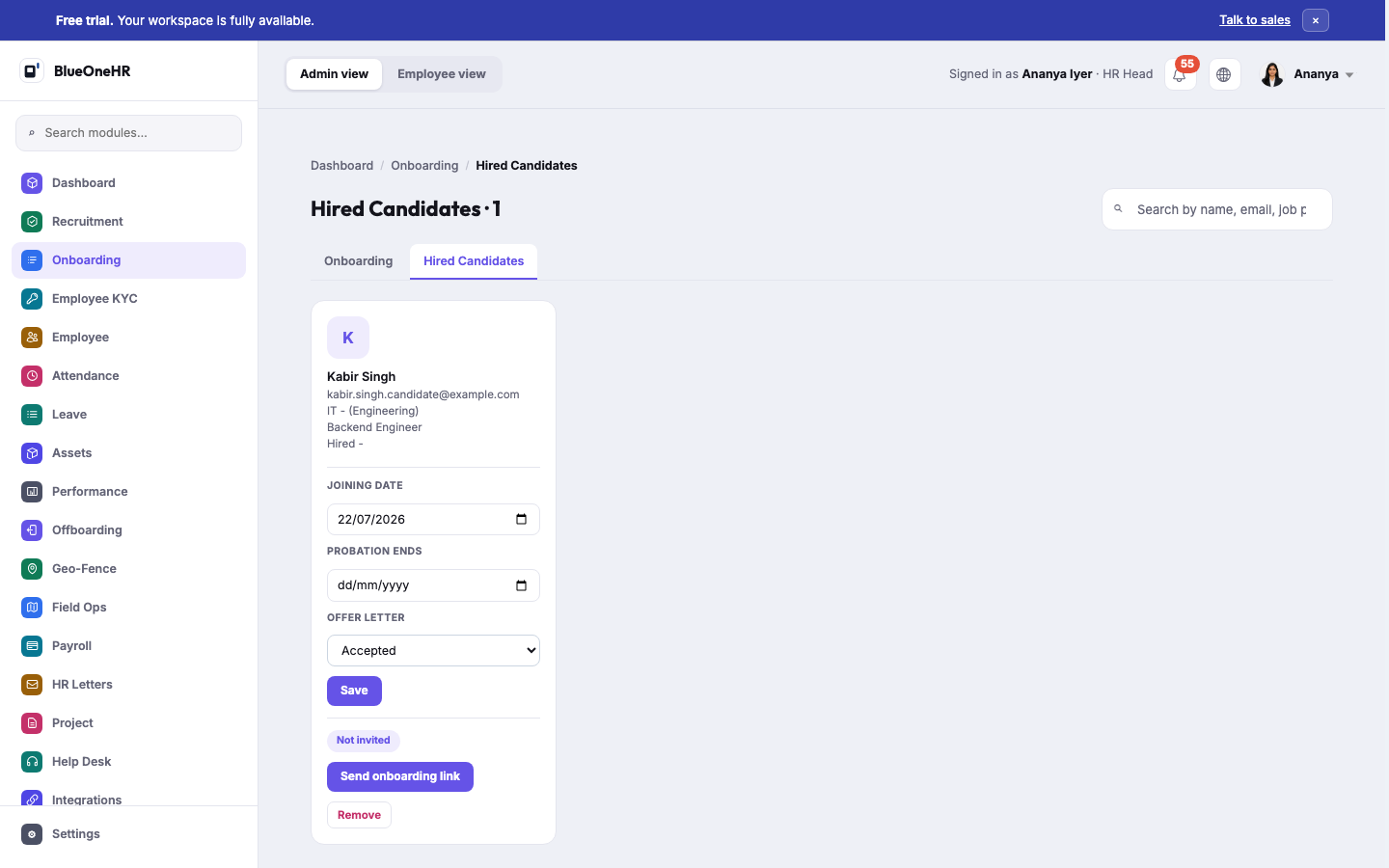
- Go to Onboarding → Hired Candidates. Each hired candidate has a card with their e-mail address, job position, joining date, probation end and Offer letter status.
- At the bottom of the card, a badge shows where the invitation stands: Not invited, Invited, awaiting reply, or Details received.
- Select Send onboarding link. After a link has been sent the same button reads Resend link.
Things to know before you select it:
- It sends a real e-mail to the candidate, with the subject "Complete your onboarding details". Do not use it to test with an address that is not the candidate's.
- After you select it, a short notice appears and fades away; nothing stays on the page, and the link itself is not shown. Check the badge on the card to see that the invitation went out. What happens when an e-mail cannot be sent was not tried, so it is not described here.
- If the candidate has no e-mail address on record, the button is greyed out with the hint "No email address on record".
- Resend link issues a new link. The earlier link stops working.
- You need permission to manage onboarding to see these controls.
What the candidate does
- Open the link from the e-mail. No sign-in is needed: the link itself is the credential, so it is personal and should not be forwarded.
- On the Complete your details page, check the details shown and fill in anything missing: full name and mobile number are always required. The form also asks for date of birth, gender, address, city, state, country, PIN or ZIP code, a photograph and a resume; the photograph and resume are marked optional, and any other required field is marked with an asterisk.
- Select Submit my details. A Thank you page confirms the details have reached HR.
The link works once. After the details are submitted it is spent, and the candidate needs HR to select Resend link to get a fresh one. The link has no expiry date of its own.
Not confirmed. This section describes how the flow is designed to work. It was not run end to end, because sending a link e-mails a real person; the candidate's pages were not opened.
Asking to join a workspace
If your employer already uses BlueOneHR you do not need a new trial. The Control Panel has a public Join a workspace page, which the BlueOneHR website links to as Join your workspace.
- Open the Join a workspace page.
- Enter your Work email. The page says to use the address your organisation gave you, because a personal address cannot be matched to a workspace.
- Select Ask to join.
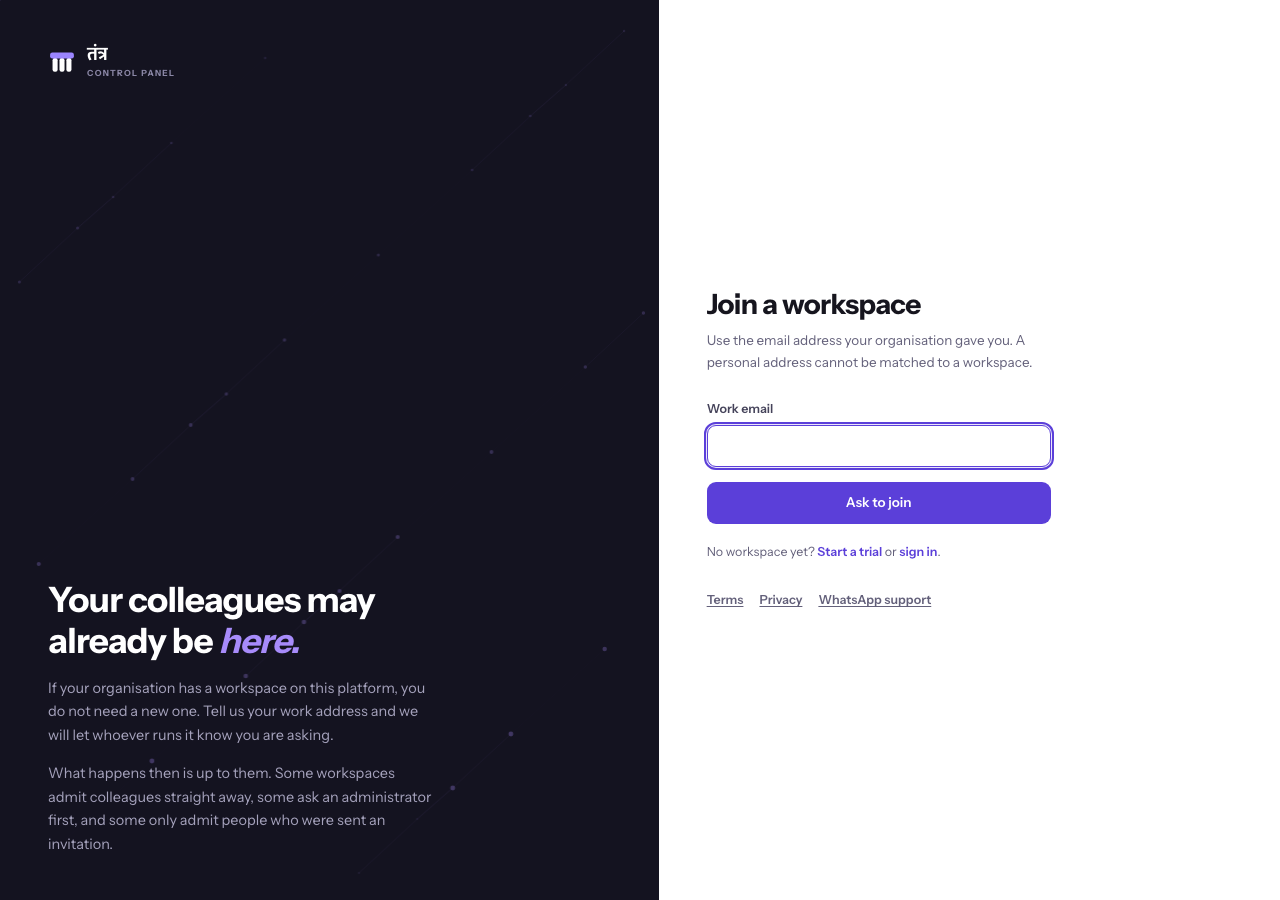
According to the page's own text, if the address belongs to a workspace on the platform, whoever administers that workspace is told you asked to join, and what happens next is up to them: some workspaces admit colleagues straight away, some ask an administrator first, and some only admit people who were sent an invitation. The page adds that if you hear nothing after a day, you should ask a colleague to invite you directly.
Not confirmed. The form was not submitted, so the confirmation text above is read from the page itself. What the administrator sees, and what they can do about your request, was not observed.
Related
- Signing in
- Adding an employee
- How onboarding works (the HR side of the onboarding link)
- Your own dashboard
- Trial, pricing and billing
No comments to display
No comments to display