
Signing in
Before you start
You need two things:
- Your organisation's BlueOneHR address. It looks like
https://yourcompany.blueonehr.com. Your HR team will have sent it to you. If you do not have it, ask them: there is no single central address that works for every organisation. - Your account. For an existing organisation, HR creates it for you. The sign-in screen has no sign-up option, so you cannot create your own account from it. What you can do is ask to join: the Control Panel has a public Join a workspace page where you enter your work e-mail address and whoever administers your organisation's workspace is told you asked. What happens next is up to them; see First login and getting access for the page and what is and is not confirmed about it. (If you are setting up a new organisation's workspace for the first time, that is a different starting point; see Trial, pricing and billing.)
Signing in
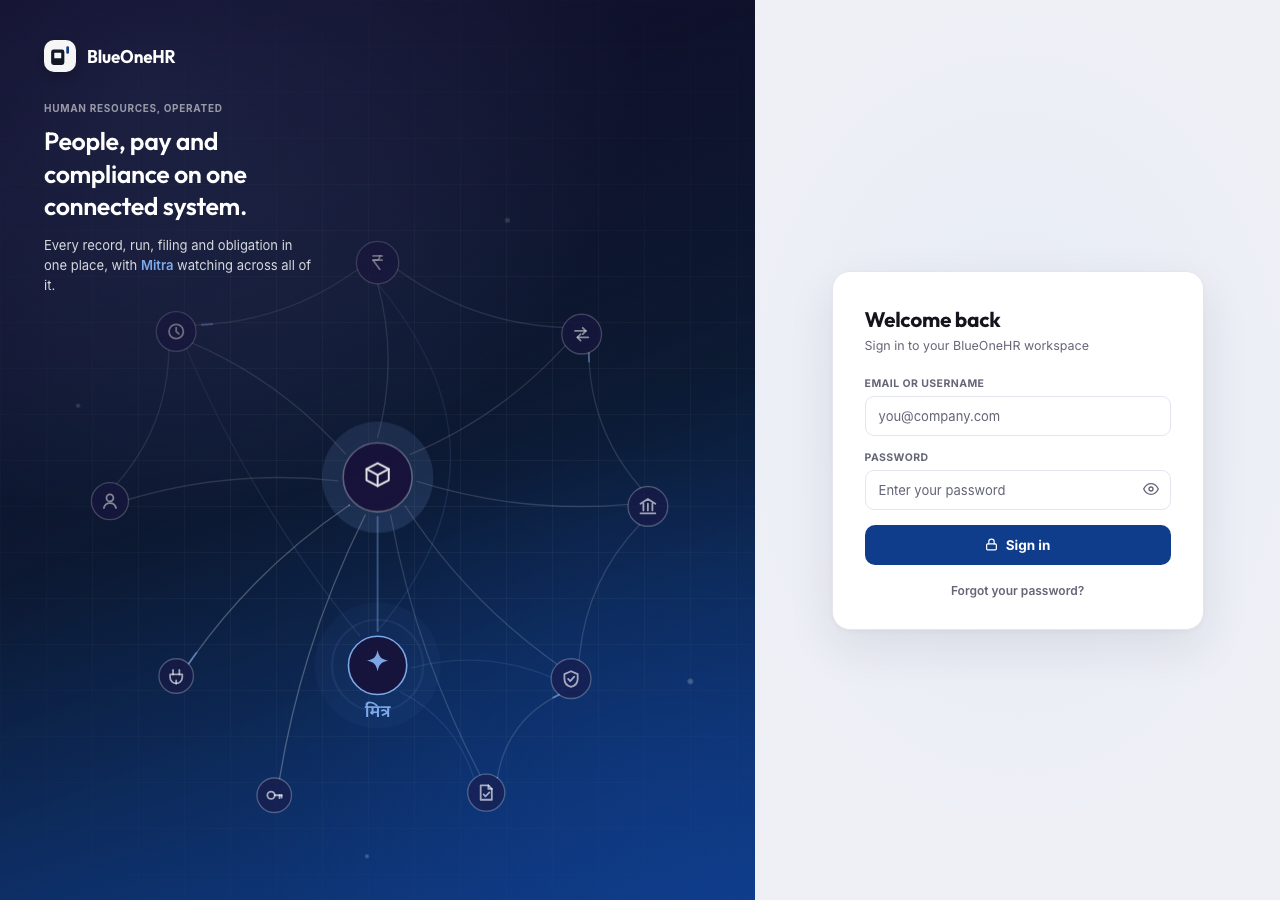
Open your organisation's address in a browser. On the right you will see a Welcome back card under the heading "Sign in to your BlueOneHR workspace", asking for your Email or username and your Password. The eye icon in the password field shows or hides what you type. The left side of the screen is a decorative panel headed "People, pay and compliance on one connected system" and carries nothing you need to fill in.
Enter both and select Sign in.
If your organisation uses Google sign-in
Some organisations enable Sign in with Google so you can use your work Google account instead of a separate password. If yours has, the option appears on the sign-in screen. If it does not appear, your organisation has not enabled it, and you should sign in with your email and password. (It does not appear on the BlueOneHR demo workspace.)
If you have forgotten your password
Use the Forgot your password? link under the Sign in button. You will be sent a link to set a new one.
If the reset email does not arrive, check your spam folder first, then ask your HR team. They can confirm which email address your account uses, which is the usual cause.
If you cannot get in
Ask your HR team to check that:
- your account is active;
- the email address on your account is the one you are typing;
- you are using the right address for your organisation.
HR cannot see your password. If yours is lost, it is reset, not recovered.
No comments to display
No comments to display